Document View
1. Folders
Using the Folder Menu or Context Menu by right-clicking within the folder view.
1.1 Creating a New Folder
In Bluegrid, PDF pages are organized into folders. A folder may contain sub-folders. You can create a new folder using the following methods:
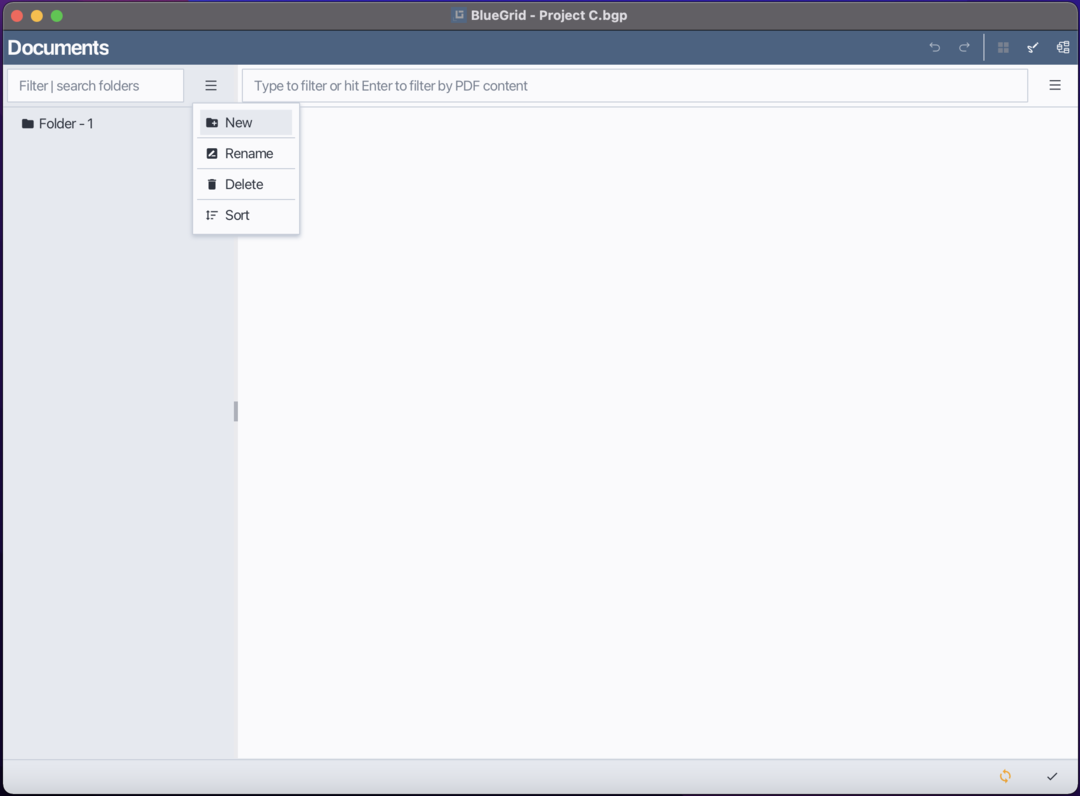
Click the Folder menu or right-click within the folder view to open the context menu.
Select New.
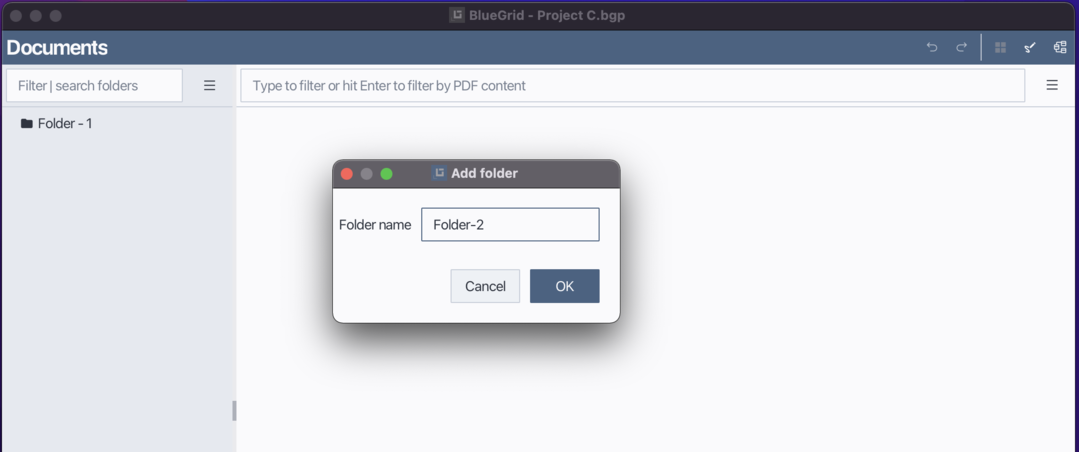
Enter the folder name in the input field.
Click OK to confirm.
Notes: In a folder, folder names must be unique.
Adding new a folder
Enter folder name
1.2 Renaming a folder
You can rename an existing folder using either of the following methods:
Select the folder you want to rename.
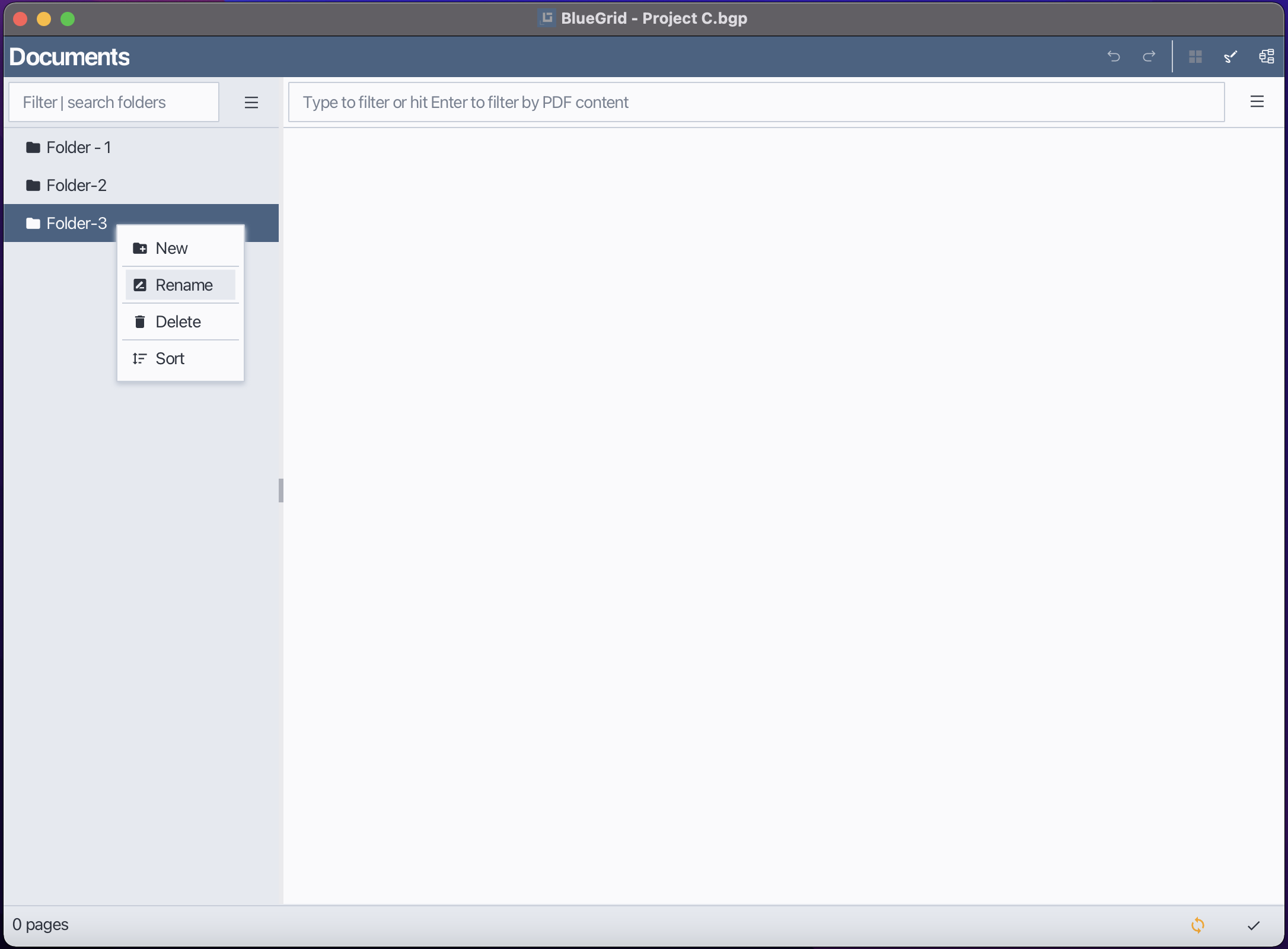
Open the Folder menu or right-click to open context menu and choose Rename.
Enter the new folder name in the input field.
Press Enter to confirm.
Rename a folder
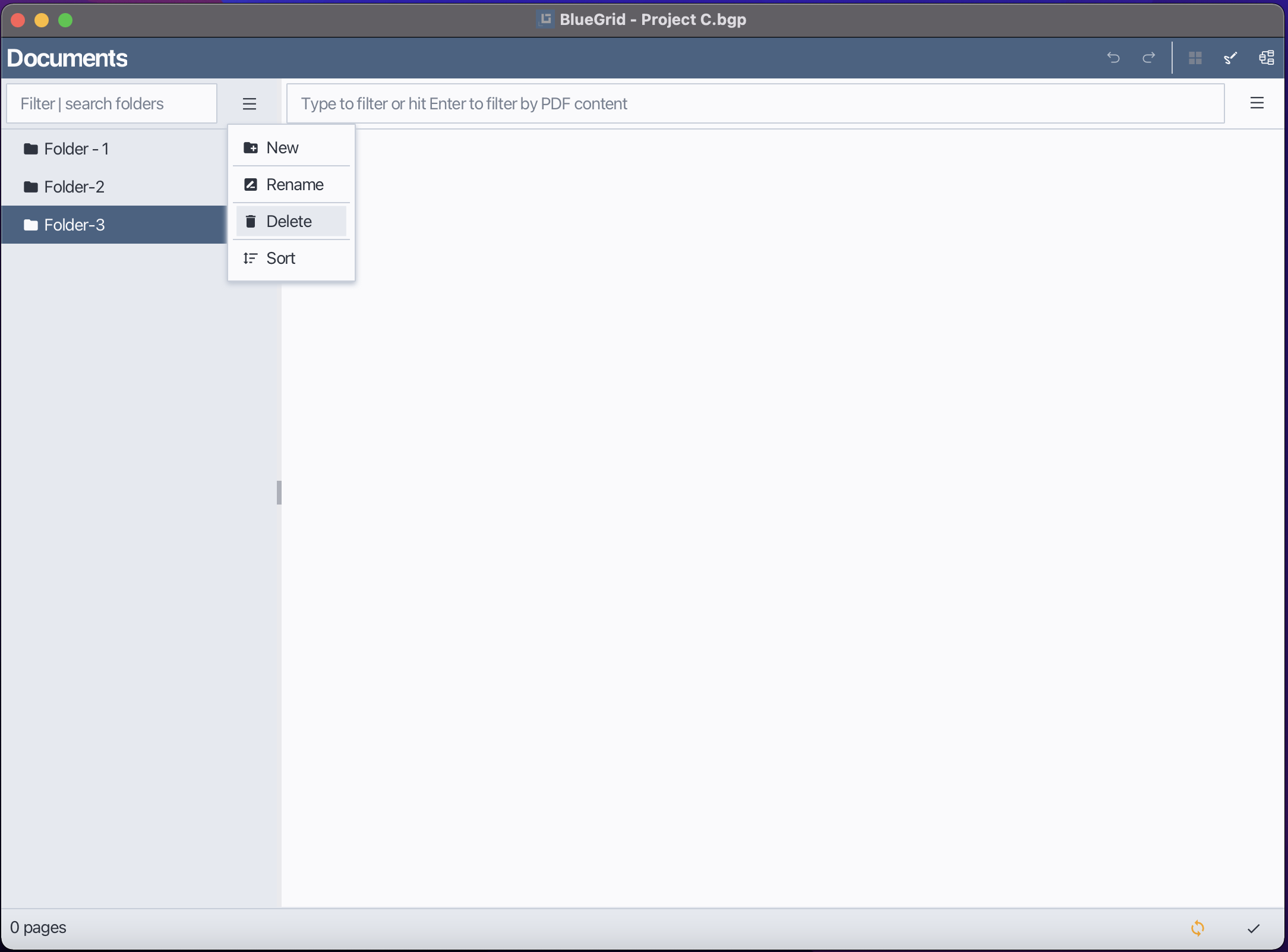
1.3 Deleting a Folder
You can delete a folder using either of the following methods:
Select the folder you want to delete.
Open the Folder menu and choose Delete.
Confirm the action when prompted.
Delete a folder
1.4 Moving a Folder to another Folder
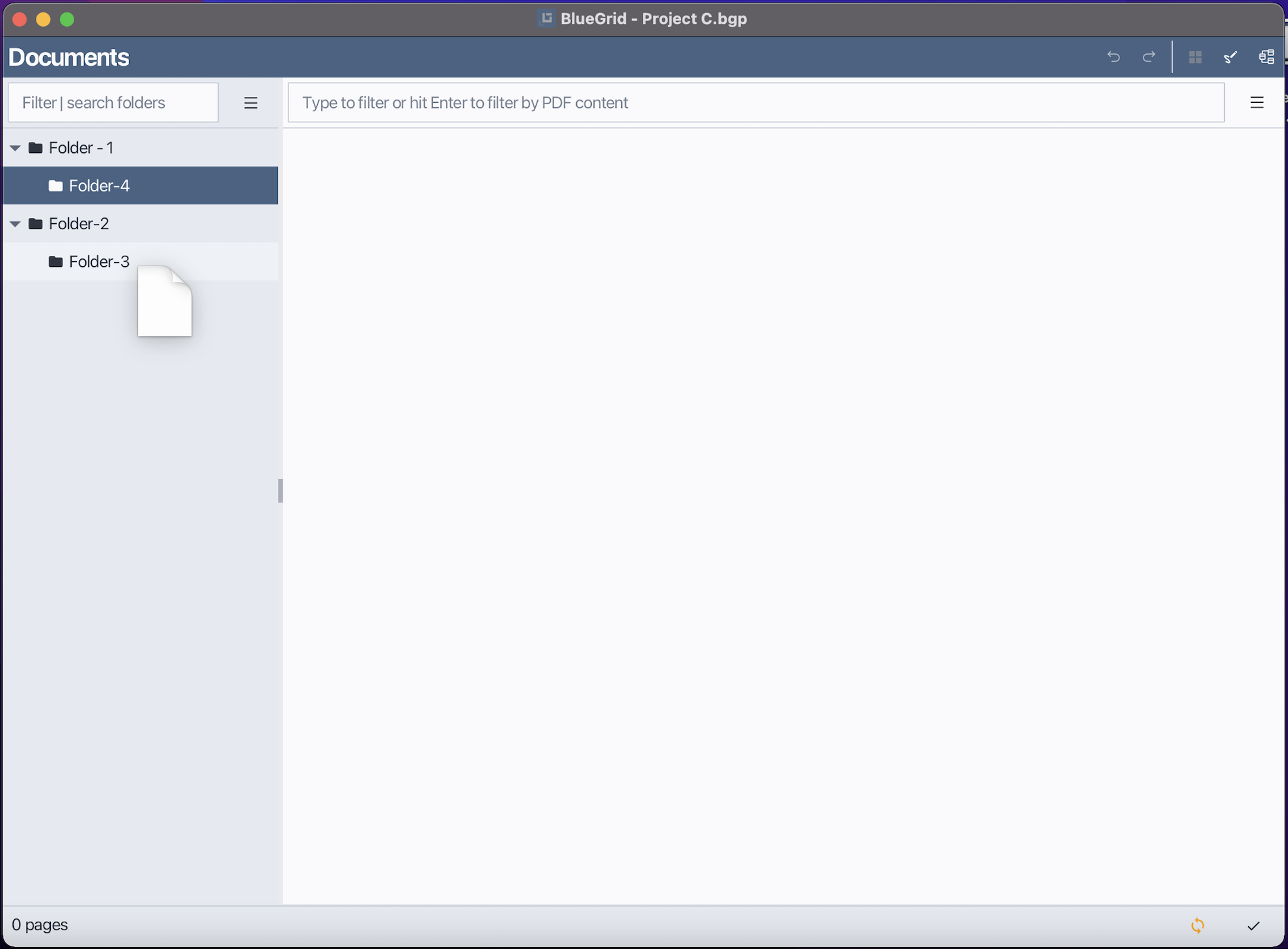
In Bluegrid, every folder may contain sub-folders or Pages. To move a folder to a different parent folder:
Select and hold the folder you want to move.
Drag the folder to the desired parent folder in the folder view.
Release the mouse button to complete the move.
In the demo below, Folder-4 is moved to Folder-3
Move a folder to another
1.5 Sorting Folders
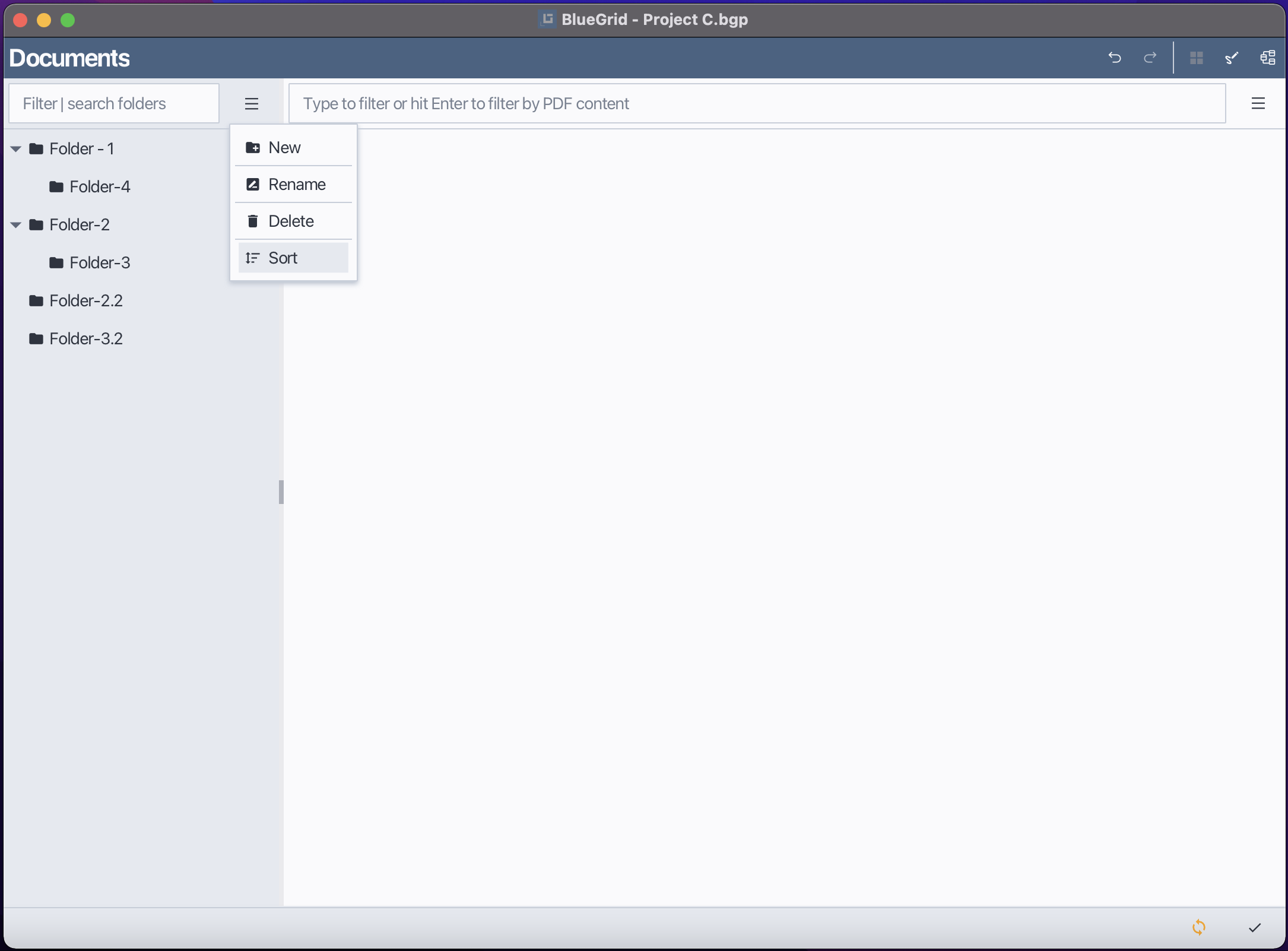
You can sort folders using either the Folder Menu or the Context Menu.
Open the Folder menu.
Select Sort.
Sort again to reverse sorting
Sort folders
1.6 Filter Folders
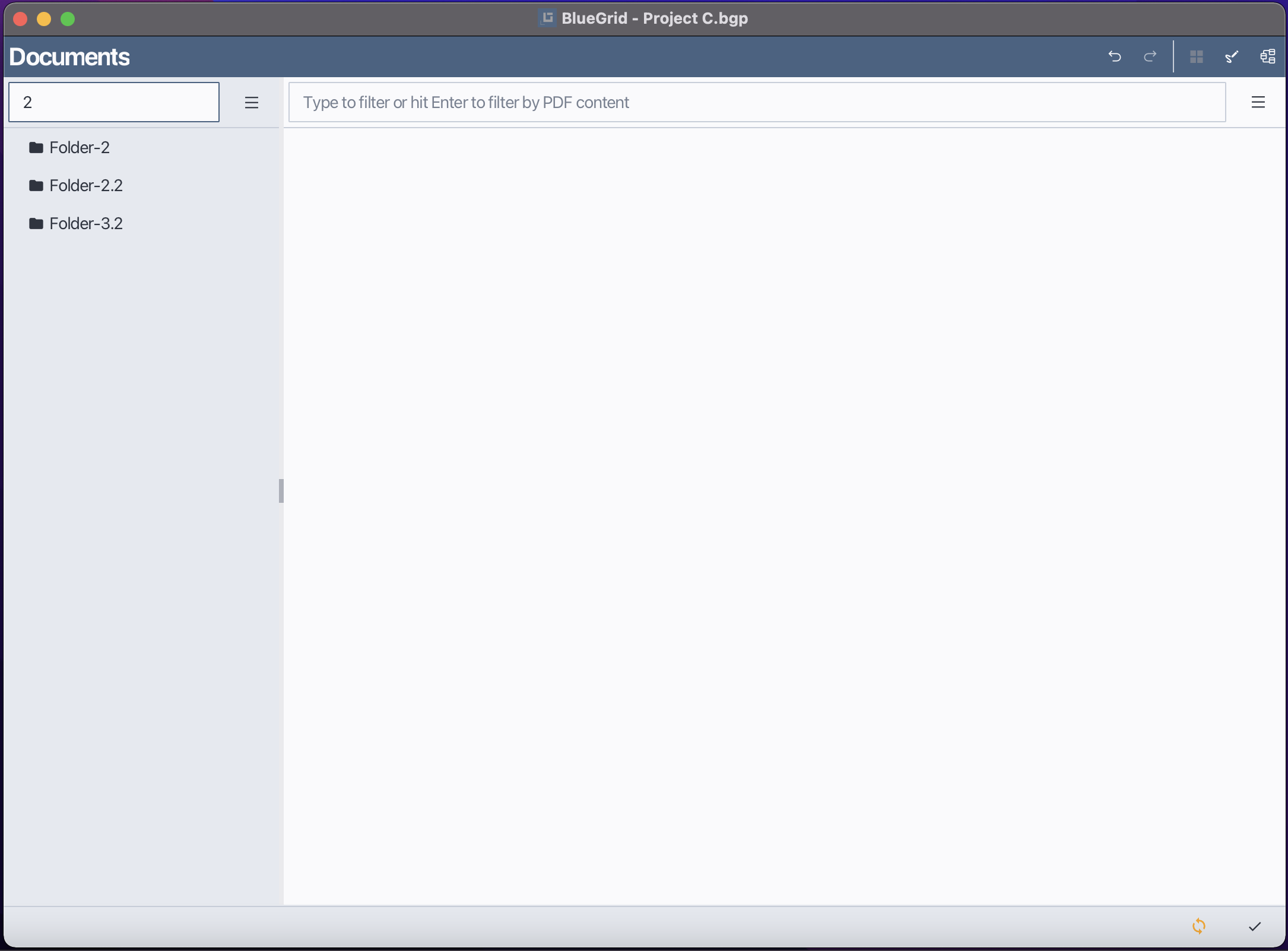
In Bluegrid, you can filter folders by typing the filtering text into folder filter field.
Clear Notes
Clear the filter text to show all folders again.
2. Pages
2.1 Open a page
Select the page you want to open.
Double-click the page or right-click to open context menu and choose Open.
Open a page
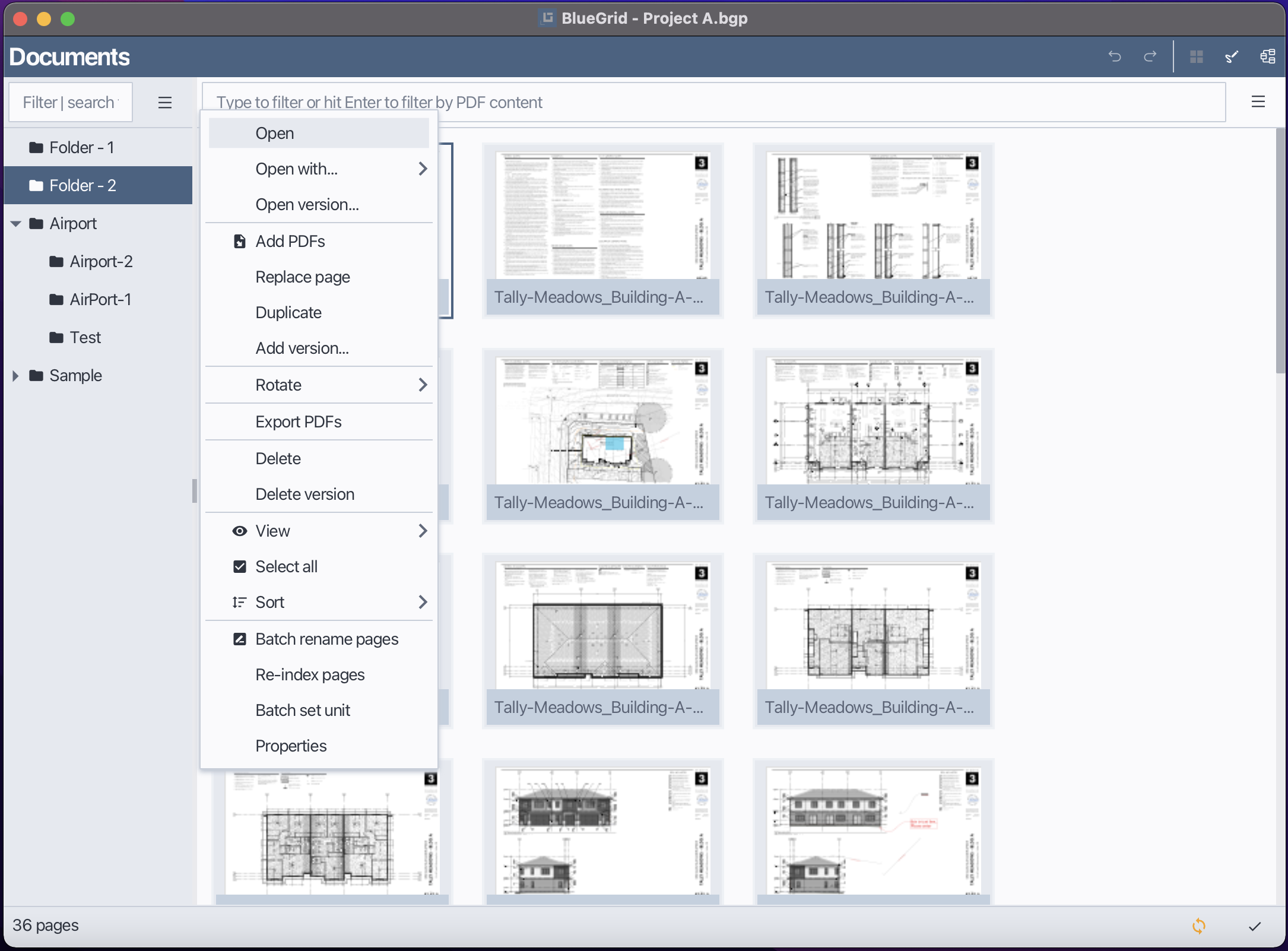
By default, Bluegrid opens the latest version of a page. If you want to open a specific version, please refer to section 2.2.3 Open Version.
2.2 Open with
Bluegrid allows users to open a page with different applications.
Select the page you want to open with a different application.
Right-click to open context menu, hover mouse to Open With. If the application you want to use is listed, click on it to open the page with that application. Otherwise, click Find to navigate the application...
In the Open With dialog, select the desired application from the list or browse to find a specific application.
Click OK to open the page with the selected application.
Open with external programs
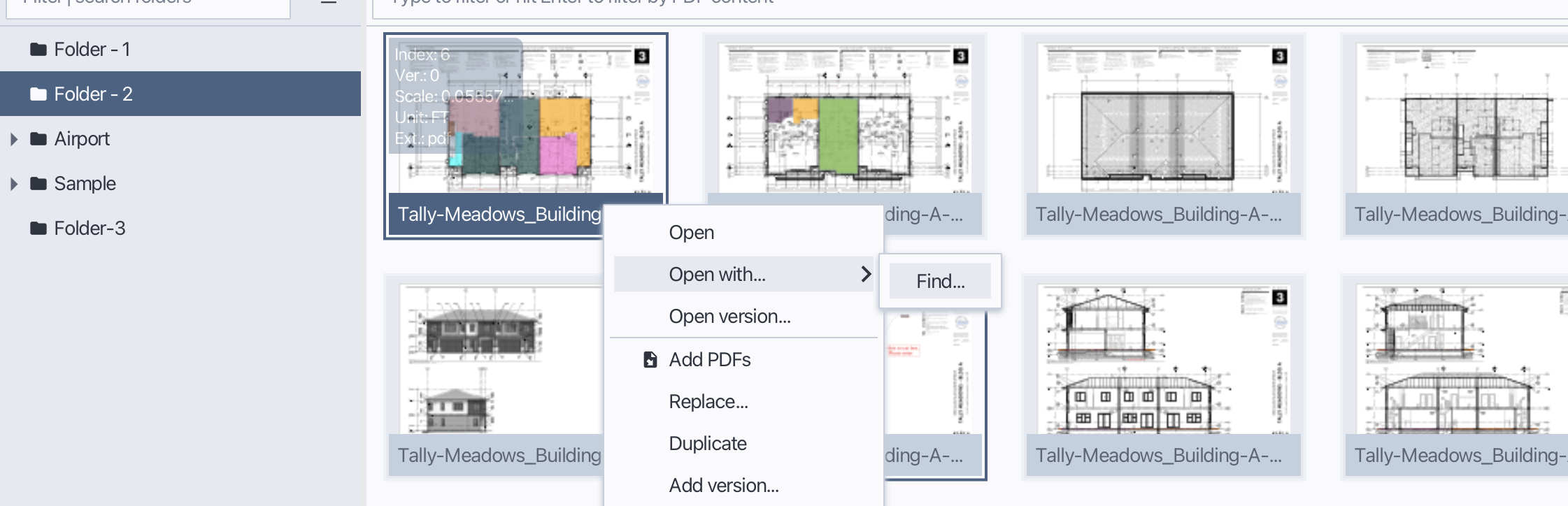
The applications users used to open pages will be saved in the Open With list for future use.
2.3 Open version
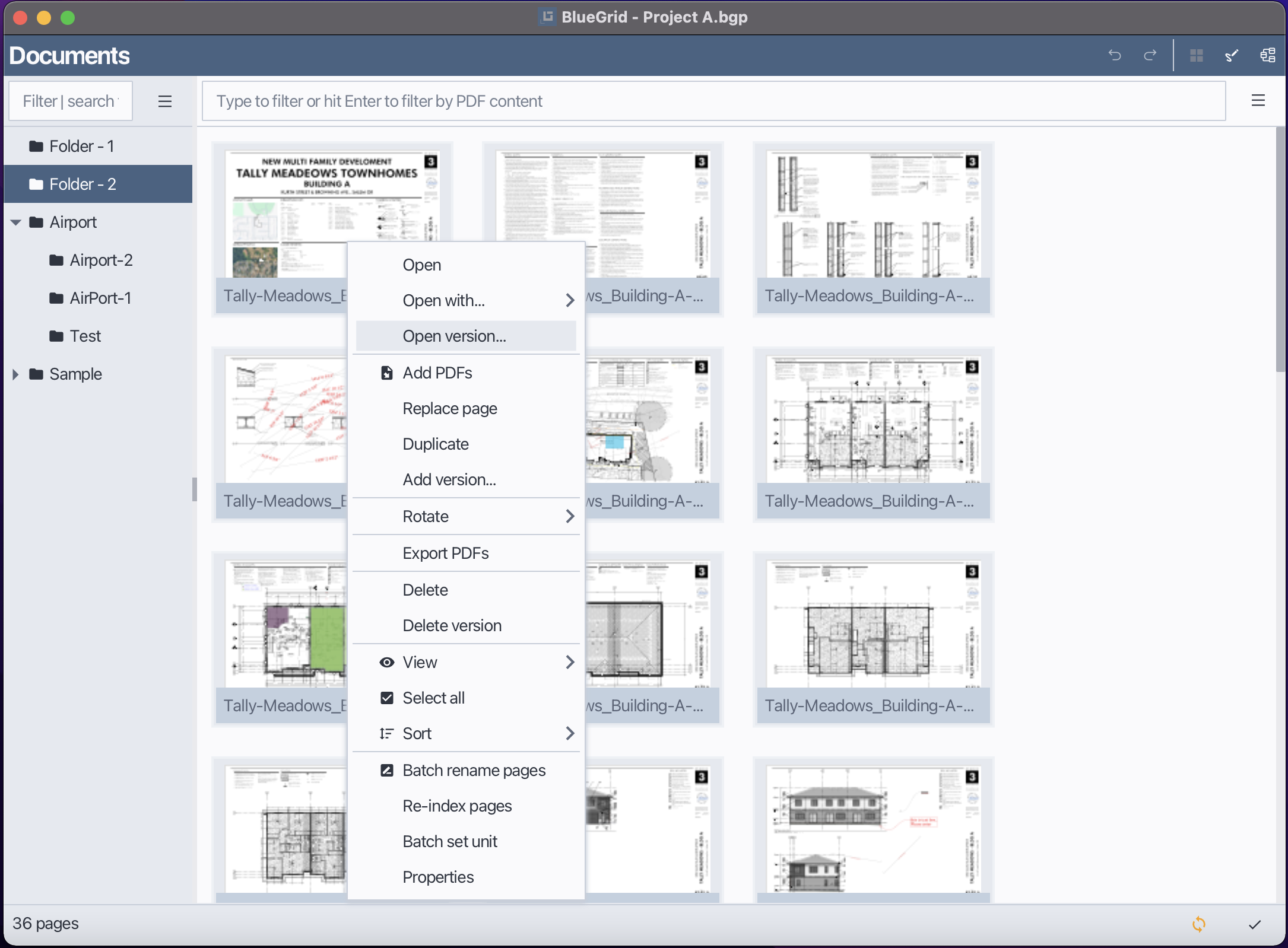
In Bluegrid, each page can have multiple versions, each version is a PDF page or image. By default, Bluegrid opens the latest version of a page. However, users can choose to open a specific version of a page by following these steps:
Select the page you want to open a specific version of.
Use the Page Menu or Right-click to open context menu and choose Open Version.
In the Open Version dialog, select the desired version from the list.
Click OK to open the selected version of the page.
Open version
2.4 Add PDF pages to a folder
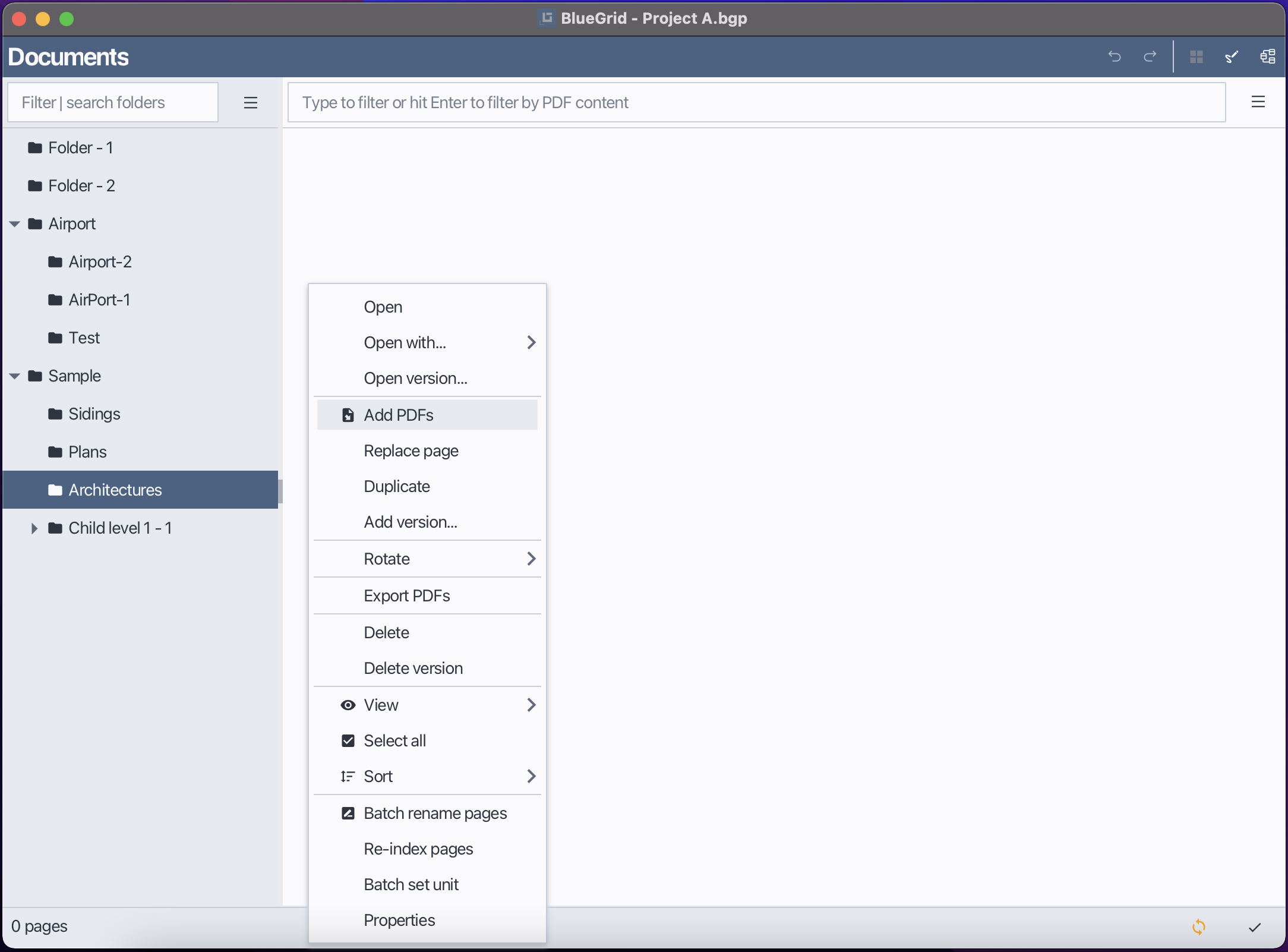
Bluegrid allows users to import PDF pages directly into a selected folder. You can perform this action using either the Page menu, or context menu or drag-and-drop feature.
Method 1: Using the Page Menu / context menu
Select the folder you want to import PDF pages into.
Open the Page menu.
Click Add PDFs item
In the file selection dialog, choose one or more PDF files to import.
Click Yes or No to either split the files into pages or keep them as they are.
Add PDF pages to a folder
Method 2: Using Drag and Drop
Select the folder you want to import PDF pages into.
Drag one or more PDF files from your file system.
Drop them into the Page View area.
Click Yes or No to either split the files into pages or keep them as they are.
Drop files to add PDFs to a folder
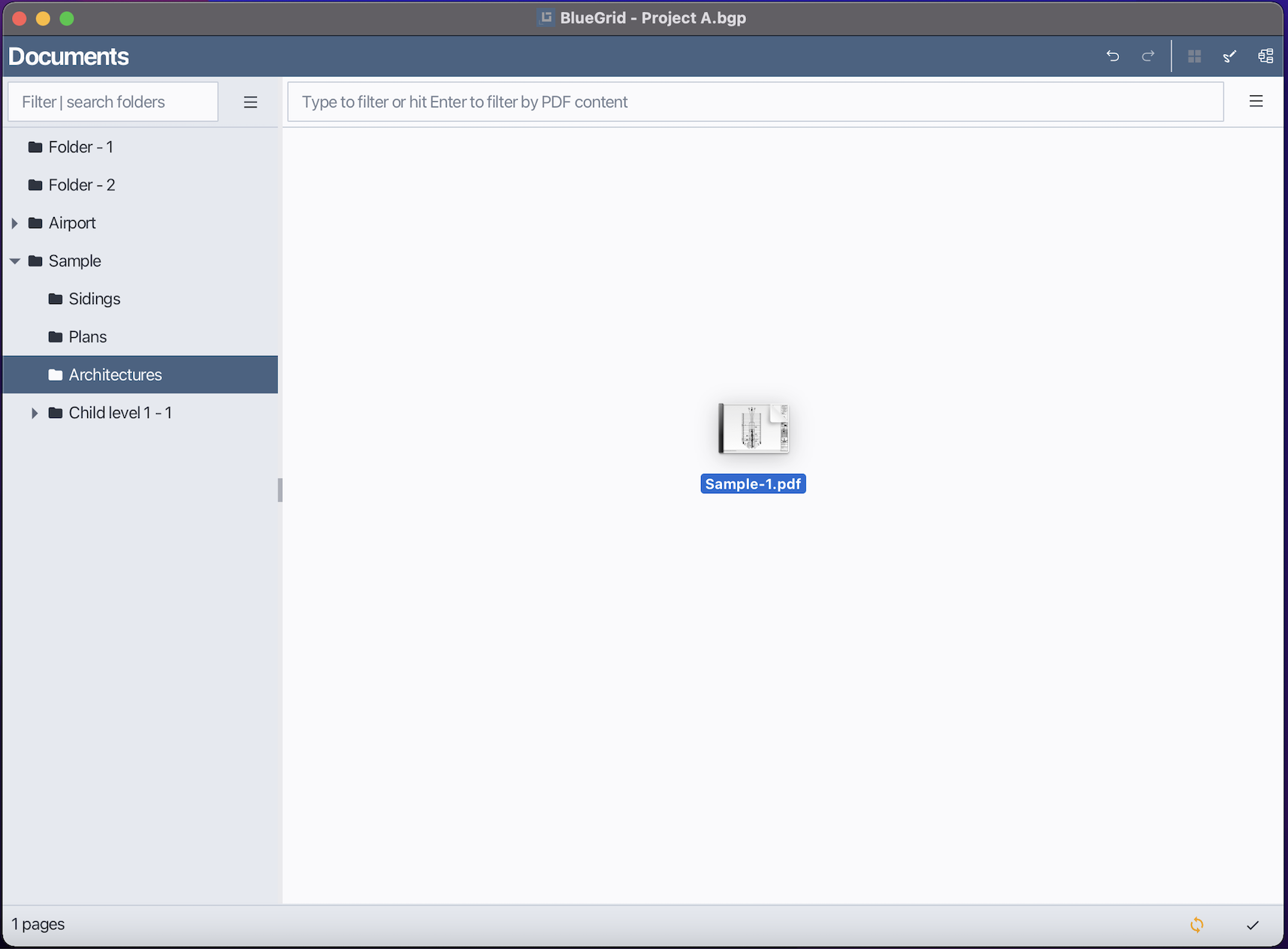
Confirm splitting PDFs

2.5 Replace page
Select the page you want to replace.
Open the Page menu or right-click to open context menu
Choose Replace.
In the file selection dialog, choose the new PDF file to replace the existing page.
Select the page of the new PDF file if it contains multiple pages.
Click OK to confirm the replacement.
Replace a page
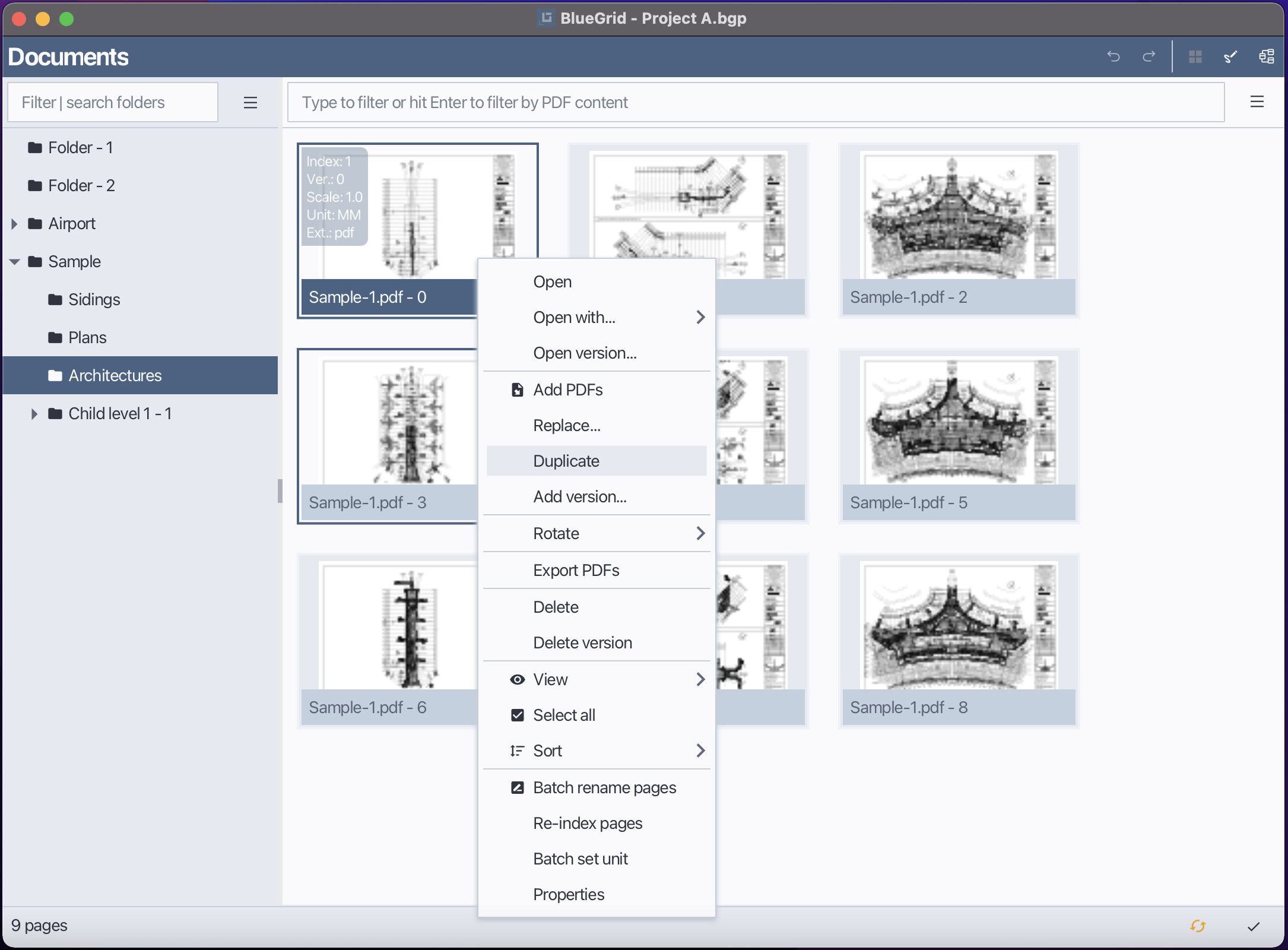
Select page to replace with
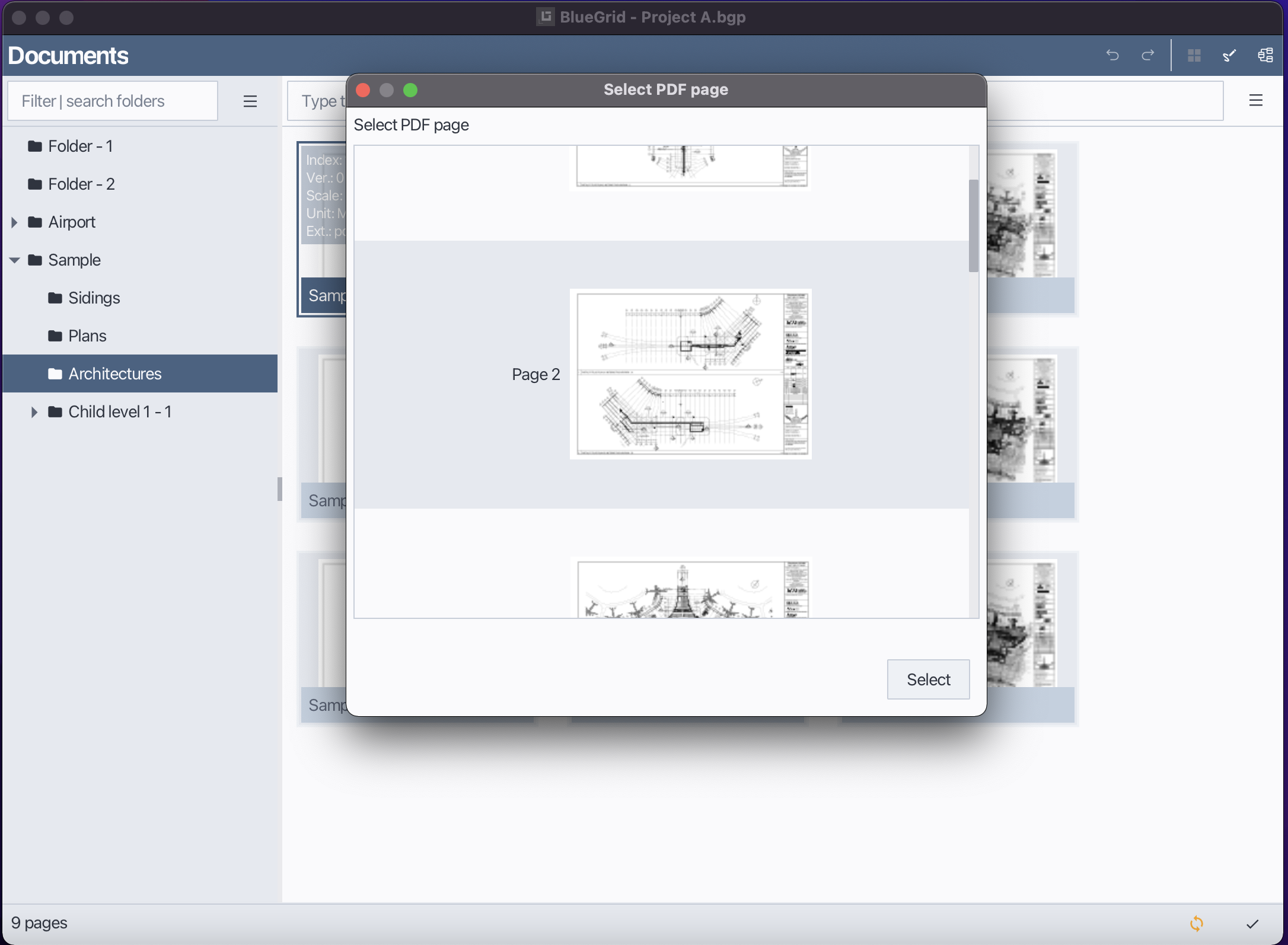
2.6 Duplicate a page
Select the page you want to duplicate.
Open the Page menu or right-click to open context menu
Choose Duplicate.
A copy of the selected page will be created in the same folder.
Duplicate a page
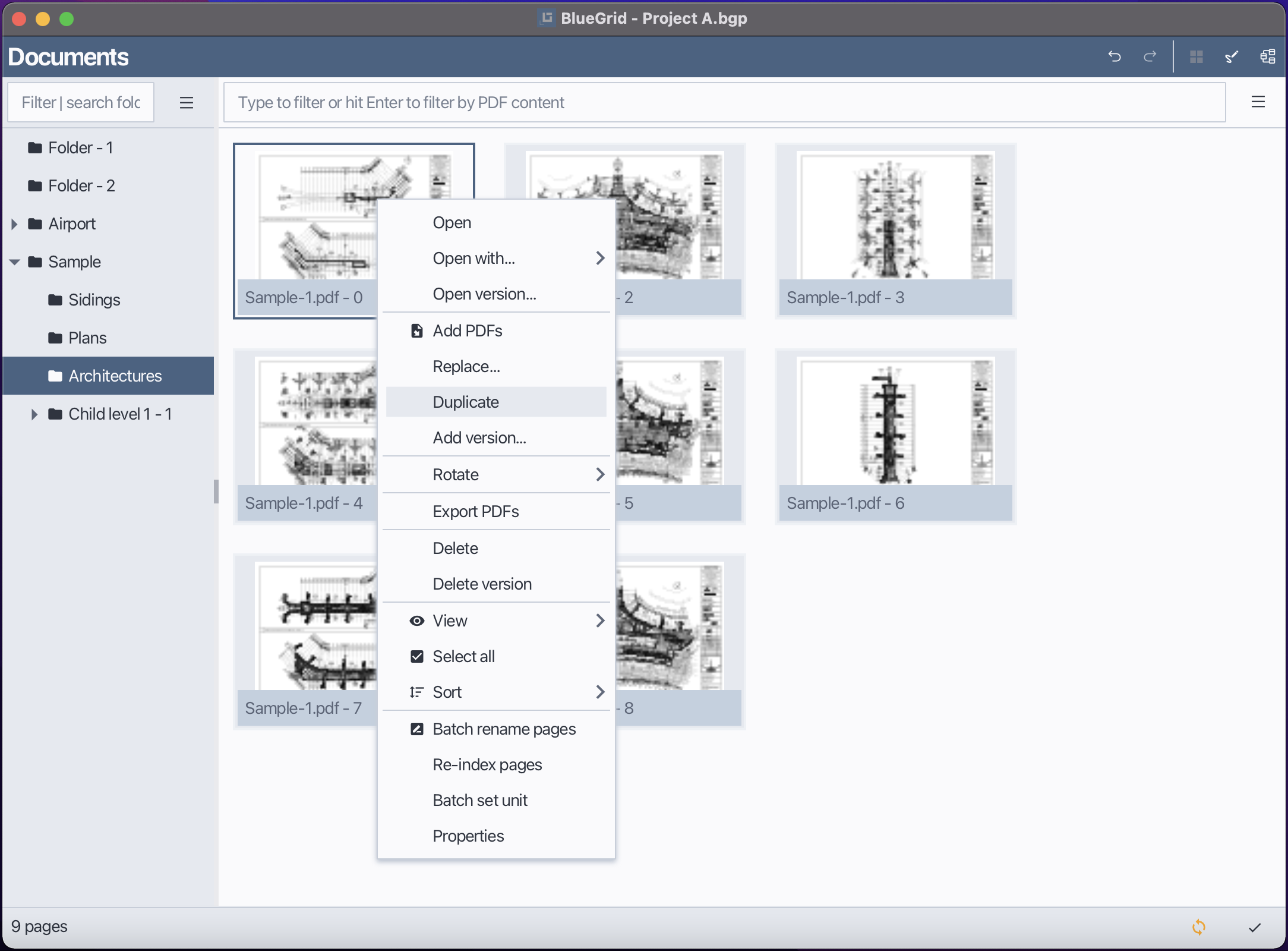
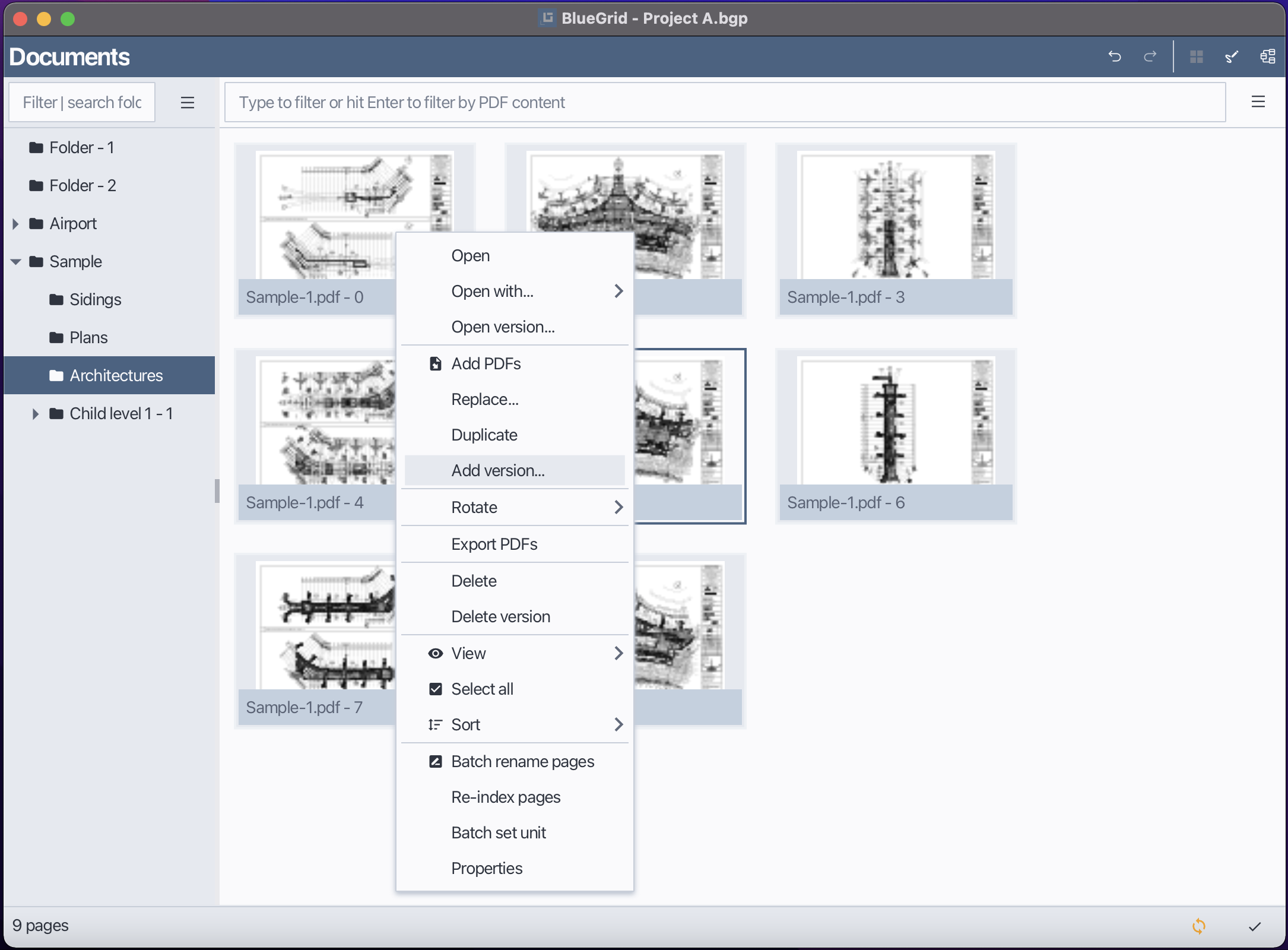
2.7 Add versions to a page
In Bluegrid, you can add multiple versions to a page. Each version is a separate PDF page or image associated with the main page. To add a new version to an existing page, follow these steps:
Select the page you want to add a version to.
Open the Page menu or right-click to open context menu
Choose Add Version.
In the file selection dialog, choose the new PDF file to add as a version.
Click OK to confirm the addition of the new version.
Add version to a page
Select the page as the new version
{ width=640 }
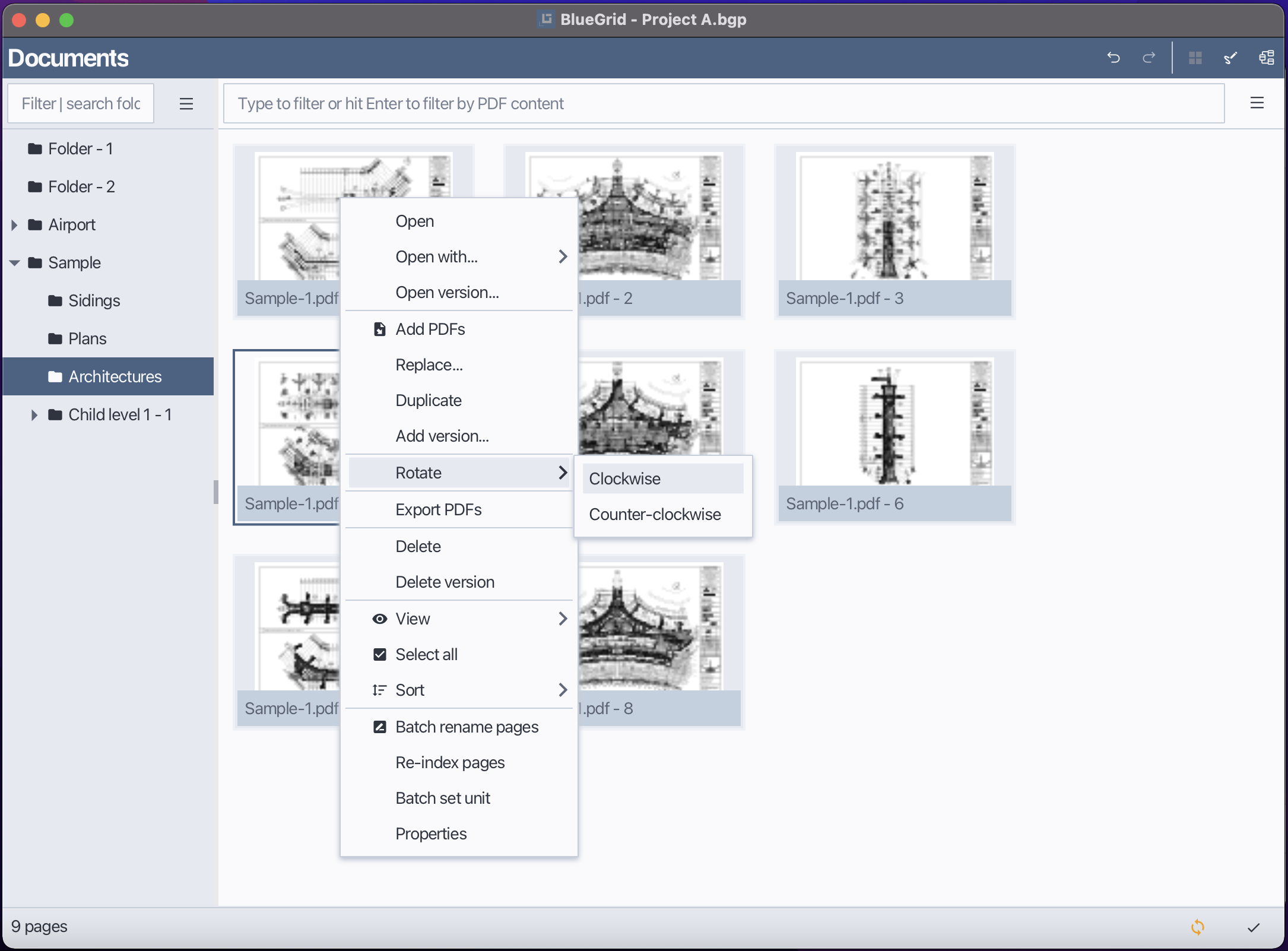
2.8 Rotate pages
Select the page or pages you want to rotate.
Open the Page menu or right-click to open context menu
Choose Rotate.
Select the desired rotation angle (90 degrees clockwise, 90 degrees counterclockwise, or 180 degrees).
The selected page(s) will be rotated accordingly.
Rotate a page
2.9 Export pages
In Bluegrid, you can export one or more pages as PDF files, the exported pages will contain all user-added shapes, markups, text, annotation... To export pages, follow these steps:
Select the page or pages you want to export.
Open the Page menu or right-click to open context menu
Choose Export PDFs.
In the file selection dialog, choose the destination folder for the exported PDF files.
Click OK to begin the export process.
Export pages

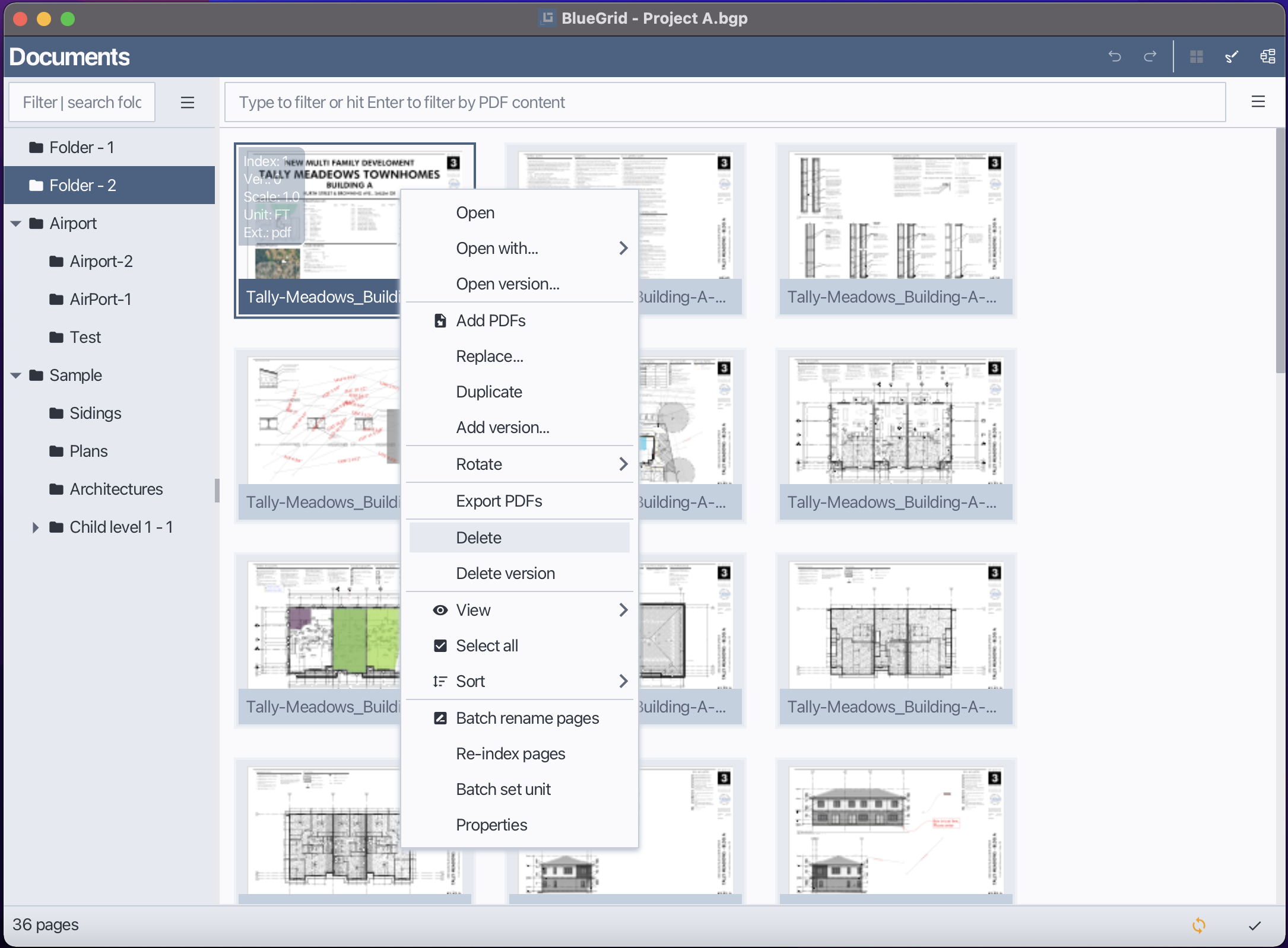
2.10 Delete pages
Select the pages you want to delete.
Open the Page menu or right-click to open context menu
Choose Delete.
Confirm the action when prompted.
Delete pages
2.11 Delete versions
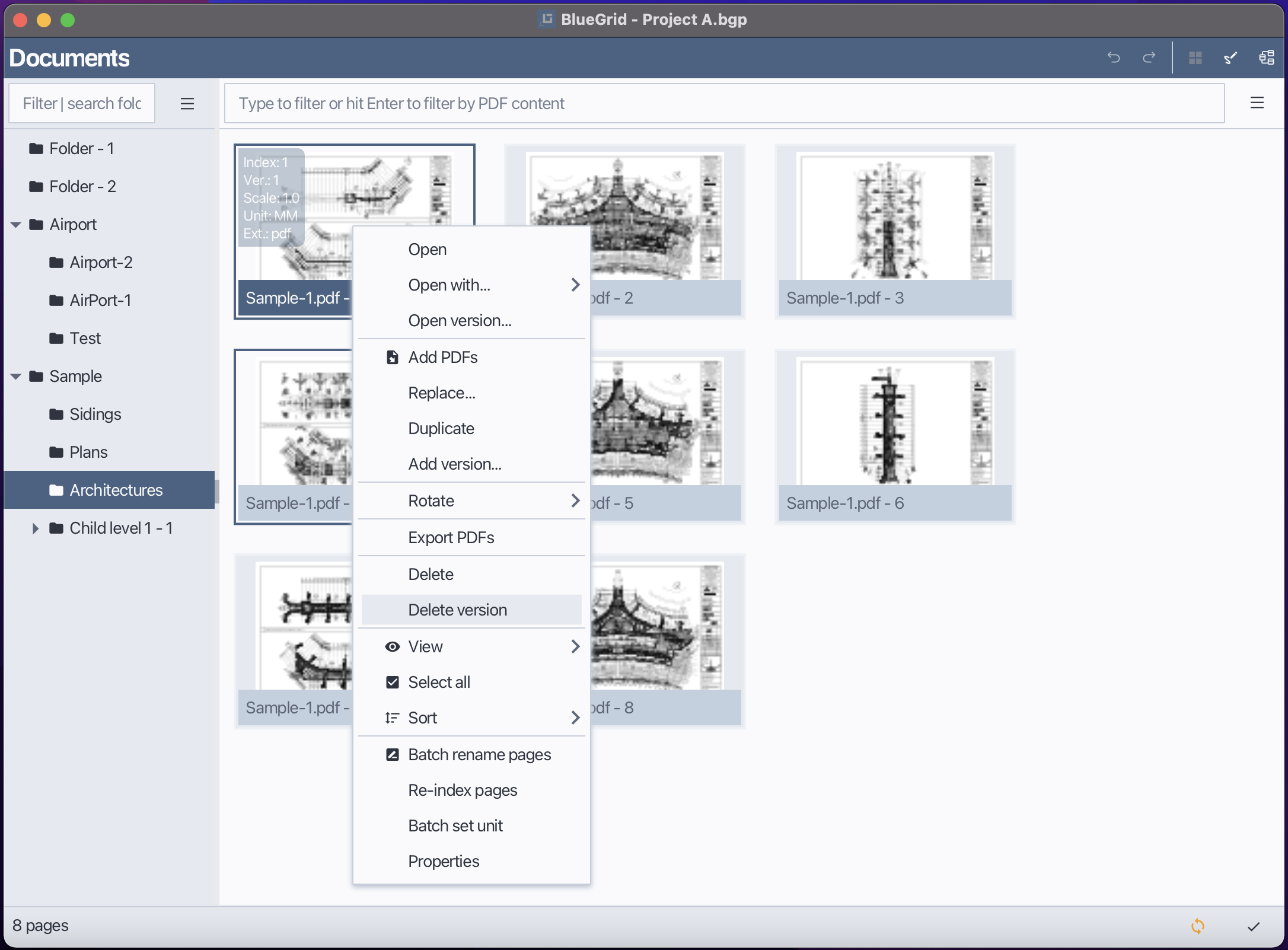
In Bluegrid, by doing delete version, you can remove the last PDF version of a page while keeping the main page intact.
Select the page whose version you want to delete.
Open the Page menu or right-click to open context menu
Choose Delete Version
Delete page version
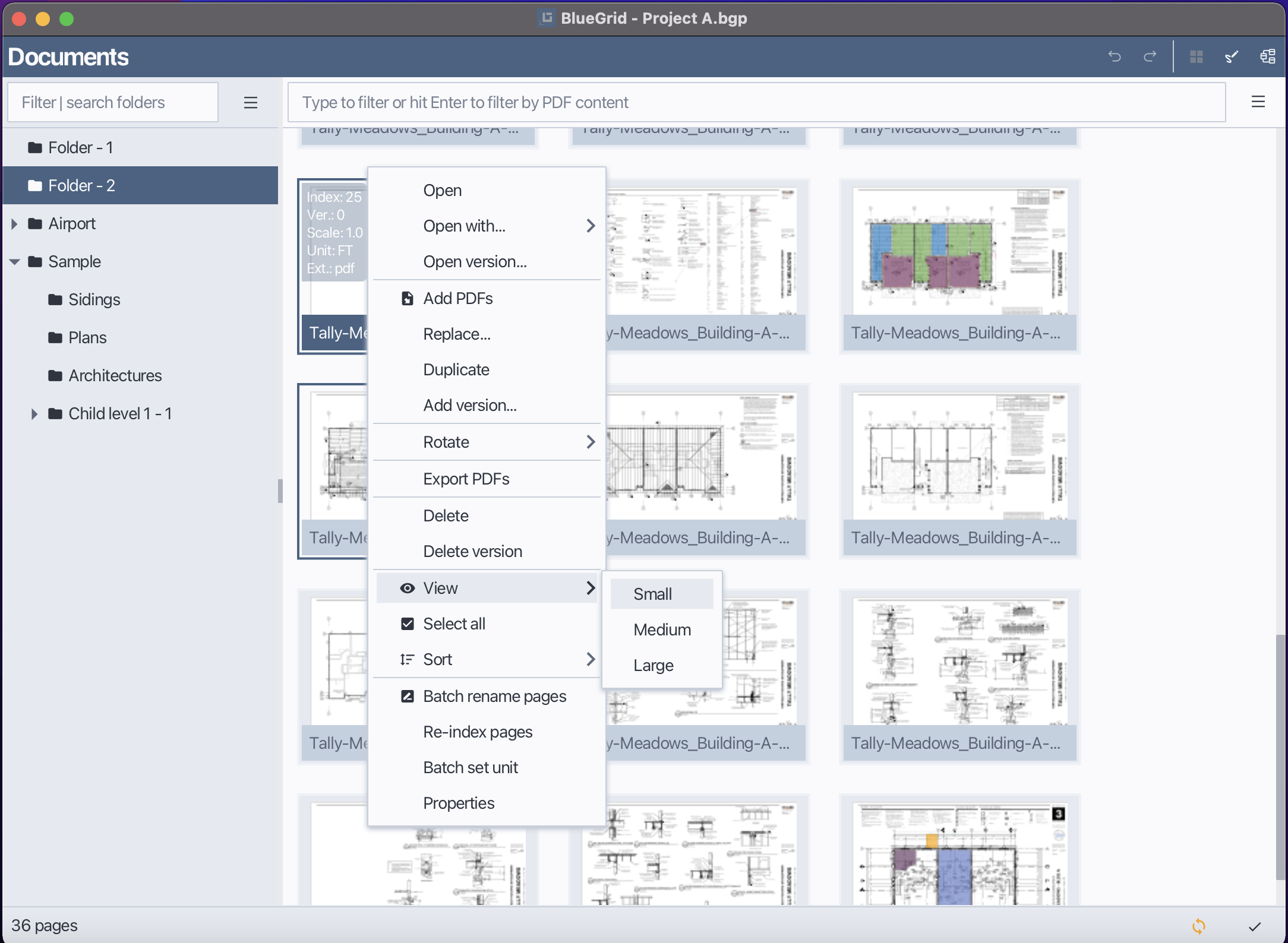
2.12 Change thumbnail size
Open the Page menu or right-click to open context menu
Hover mouse to View
Select the desired thumbnail size from the available options (Small, Medium, Large).
Change thumbnail size
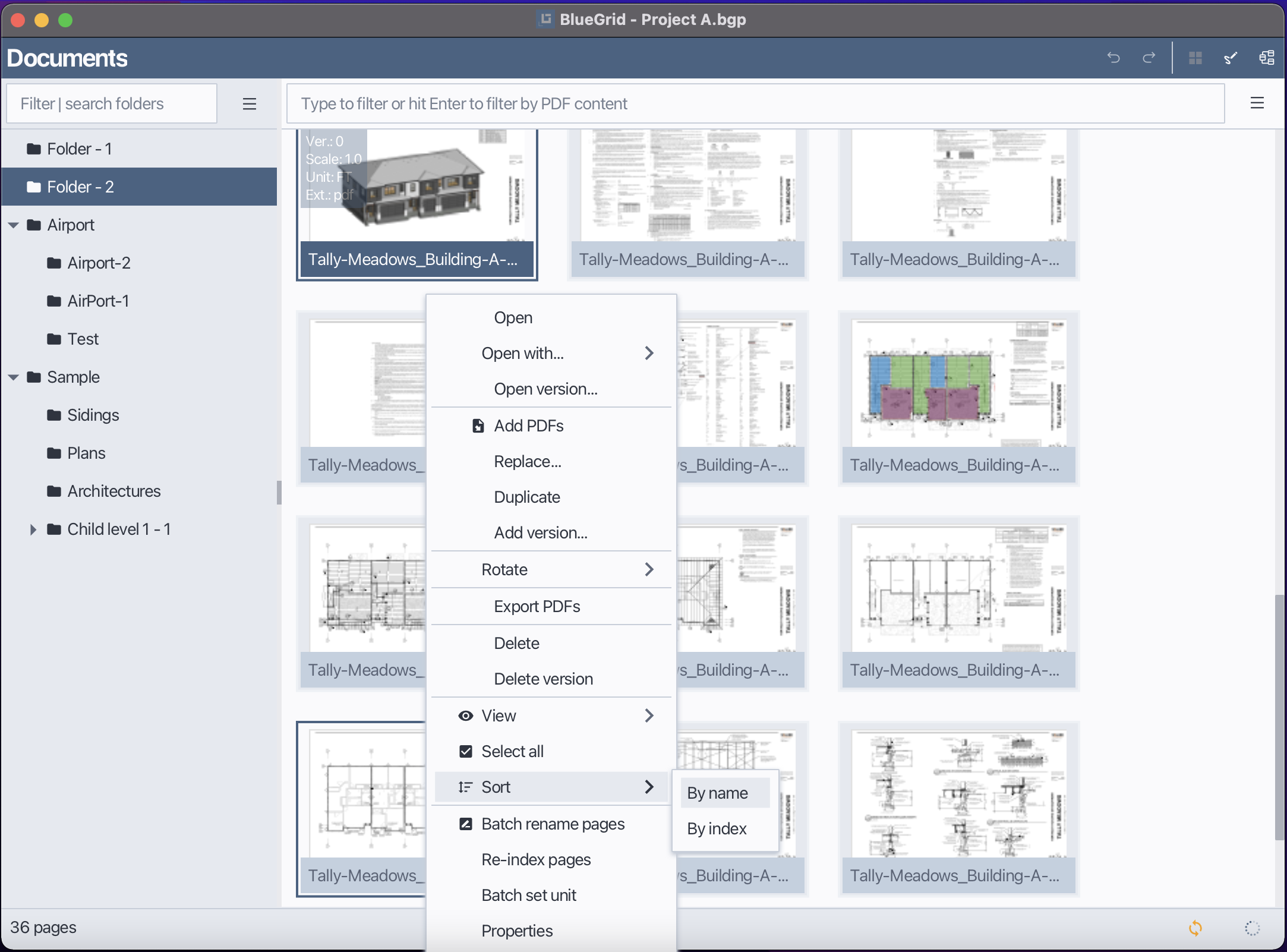
2.13 Sort pages
In Bluegrid, you can sort pages either by index or by name.
Open the Page menu or right-click to open context menu
Choose Sort, then select either By Index or By Name. Sort again to reverse sorting.
Sort pages
2.14 Select all pages
Open the Page menu or right-click to open context menu
Choose Select All.
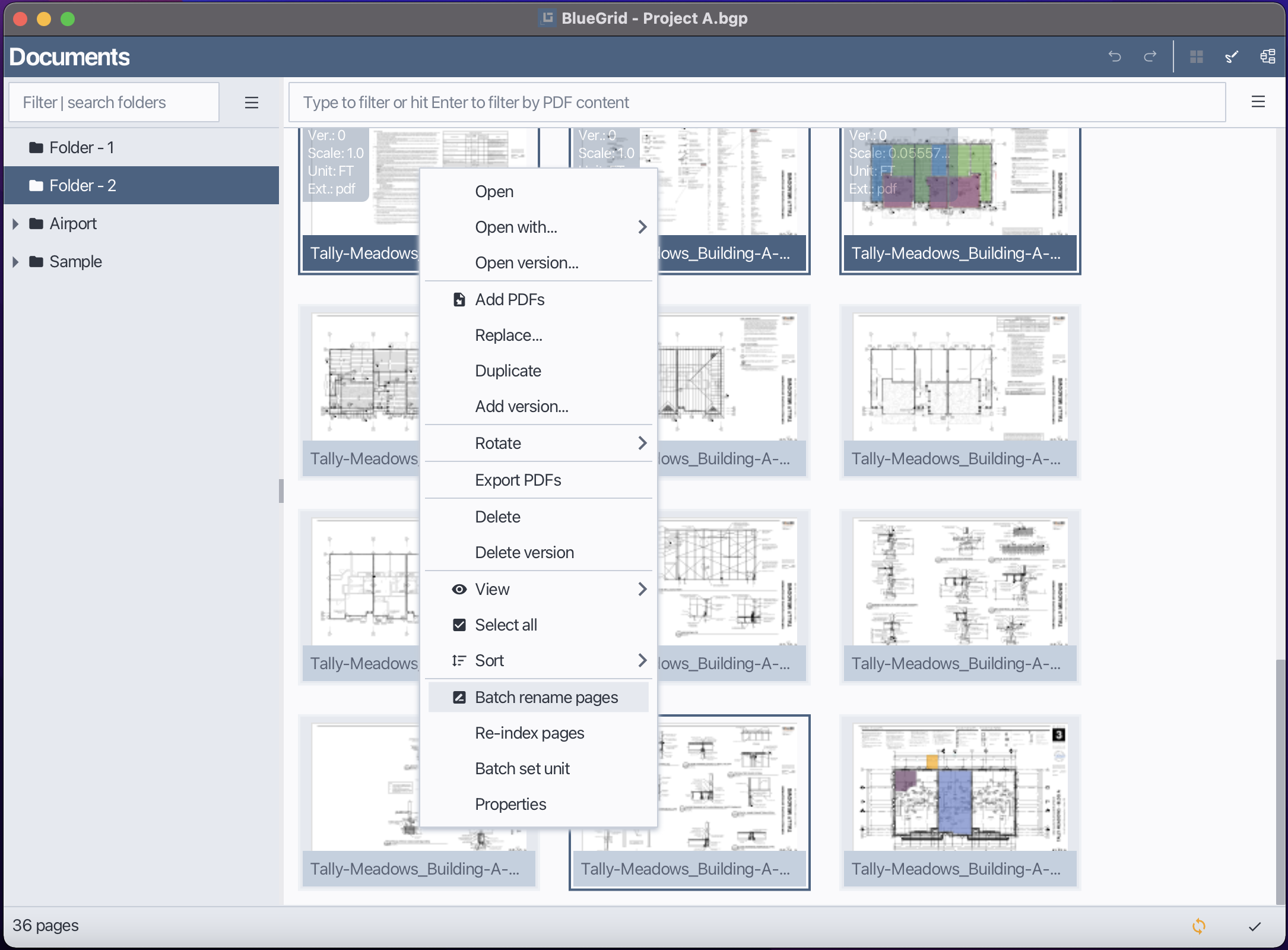
2.15 Batch rename pages
Select the pages you want to batch rename.
Open the Page menu or right-click to open context menu
Choose Batch Rename.
In the Batch Rename dialog, enter the new naming pattern.
Click OK to apply the new names to the selected pages.
Batch rename pages
2.16 Batch set unit
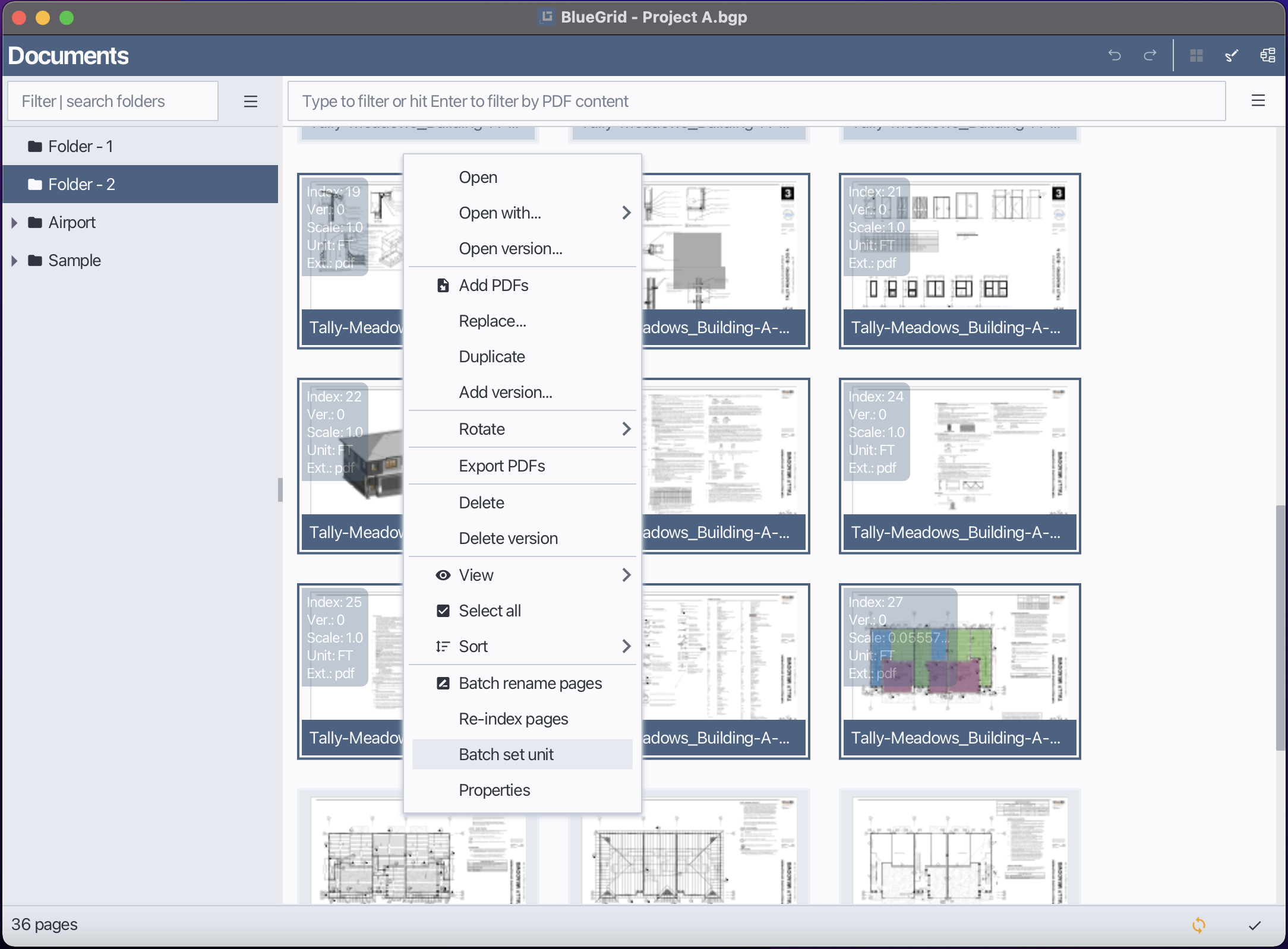
To set the unit for multiple pages at once:
Select the pages you want to batch set unit.
Open the Page menu or right-click to open context menu
Choose Batch Set Unit.
In the Batch Set Unit dialog, select the desired unit from the list.
Click OK to apply the selected unit to the chosen pages.
Set unit to multiple pages
2.17 Re-index pages
Select the pages you want to re-index.
Open the Page menu or right-click to open context menu
Choose Re-index.
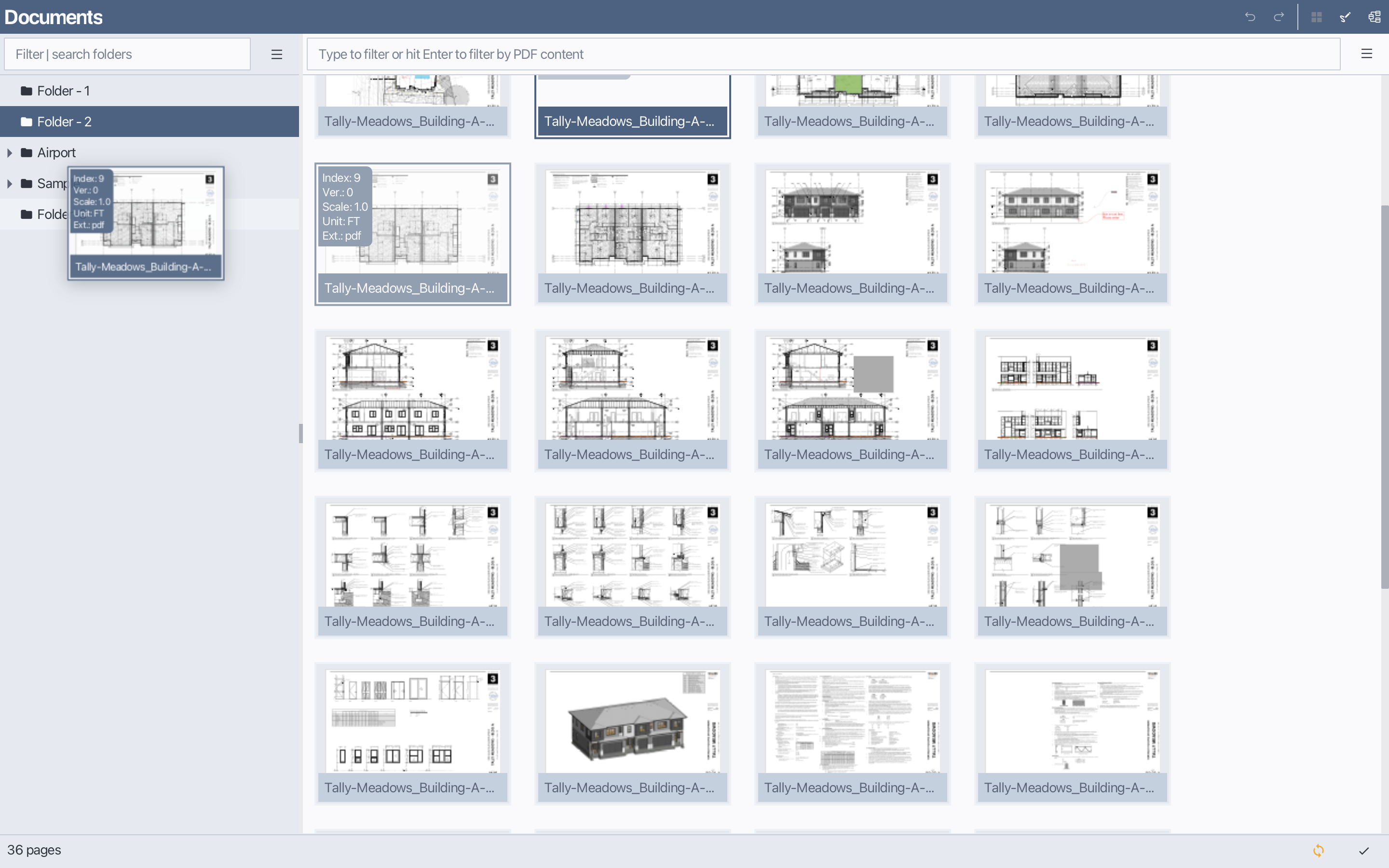
2.18 Move a page to another folder
Select and hold the page you want to move.
Drag the page to the desired folder in the folder view.
Release the mouse button to complete the move.
Move a page to another folder
2.19 Edit page properties
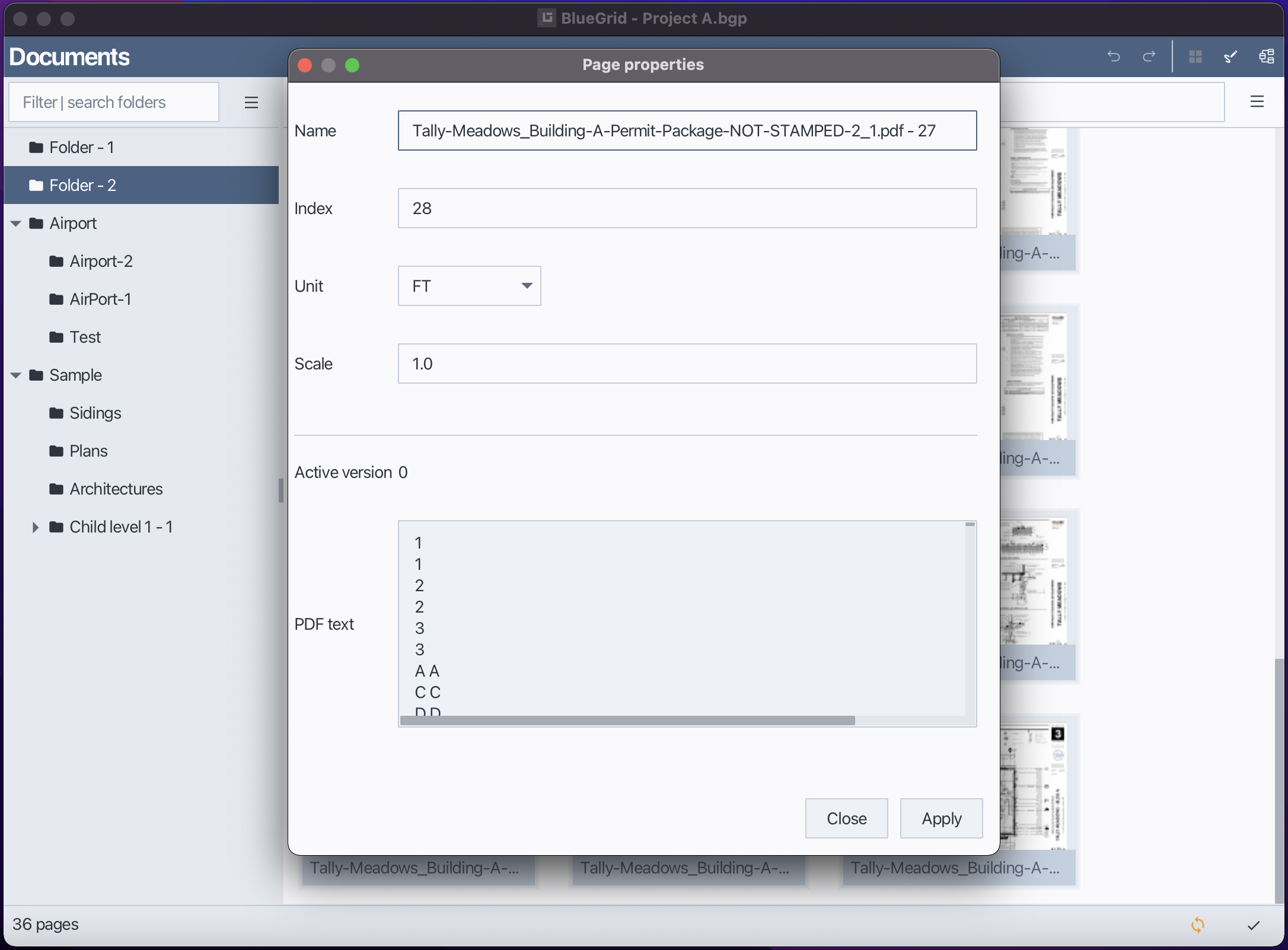
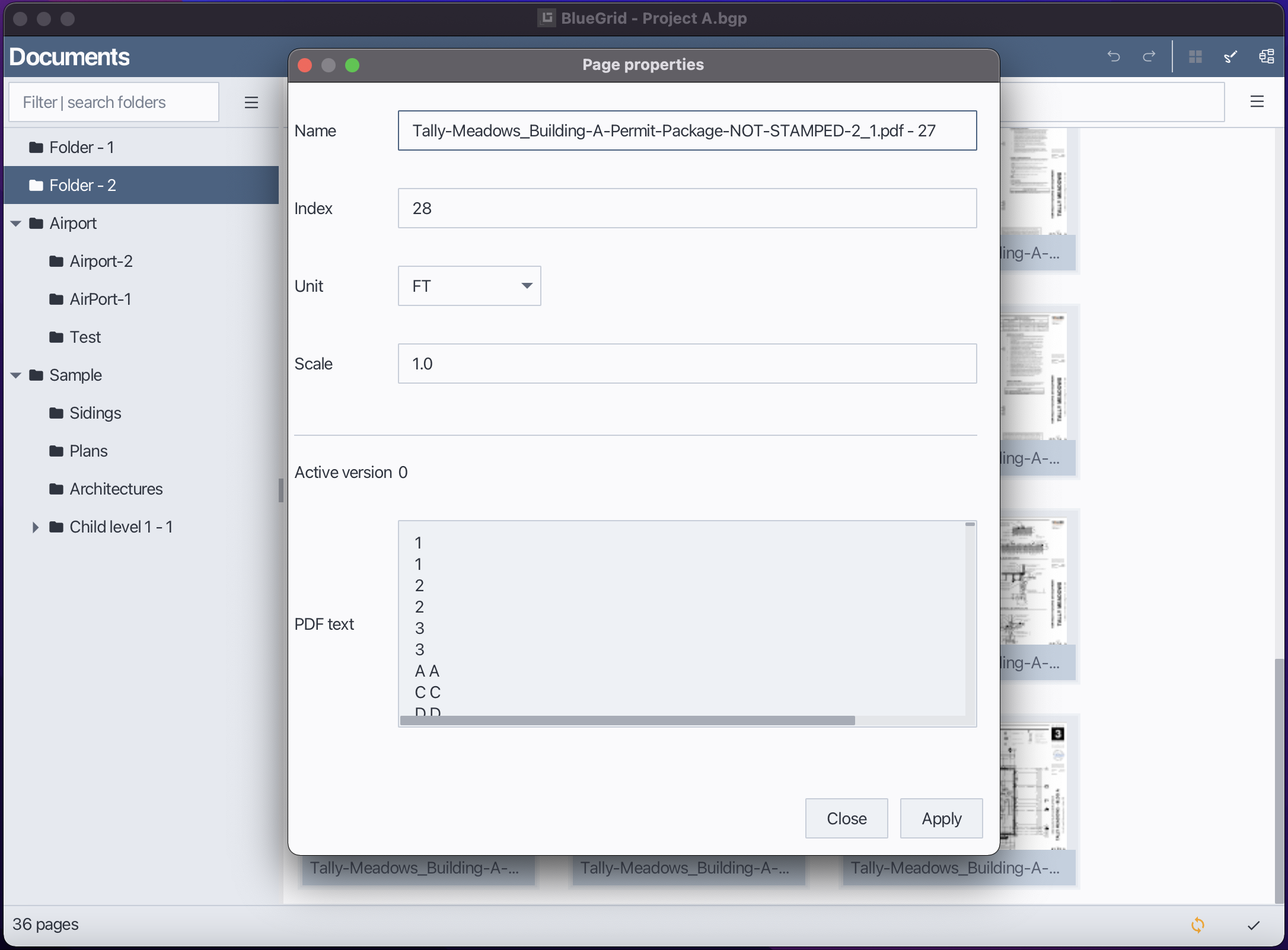
In Bluegrid, each page has properties such as name, scale, and unit that can be modified. To edit the properties of a page.
2.19.1 Set page name
Select the page you want to edit properties for.
Open the Page menu or right-click to open context menu
Choose Properties.
In the Properties dialog, enter the new page name in the appropriate field.
Click Apply to confirm the change.
Change page name
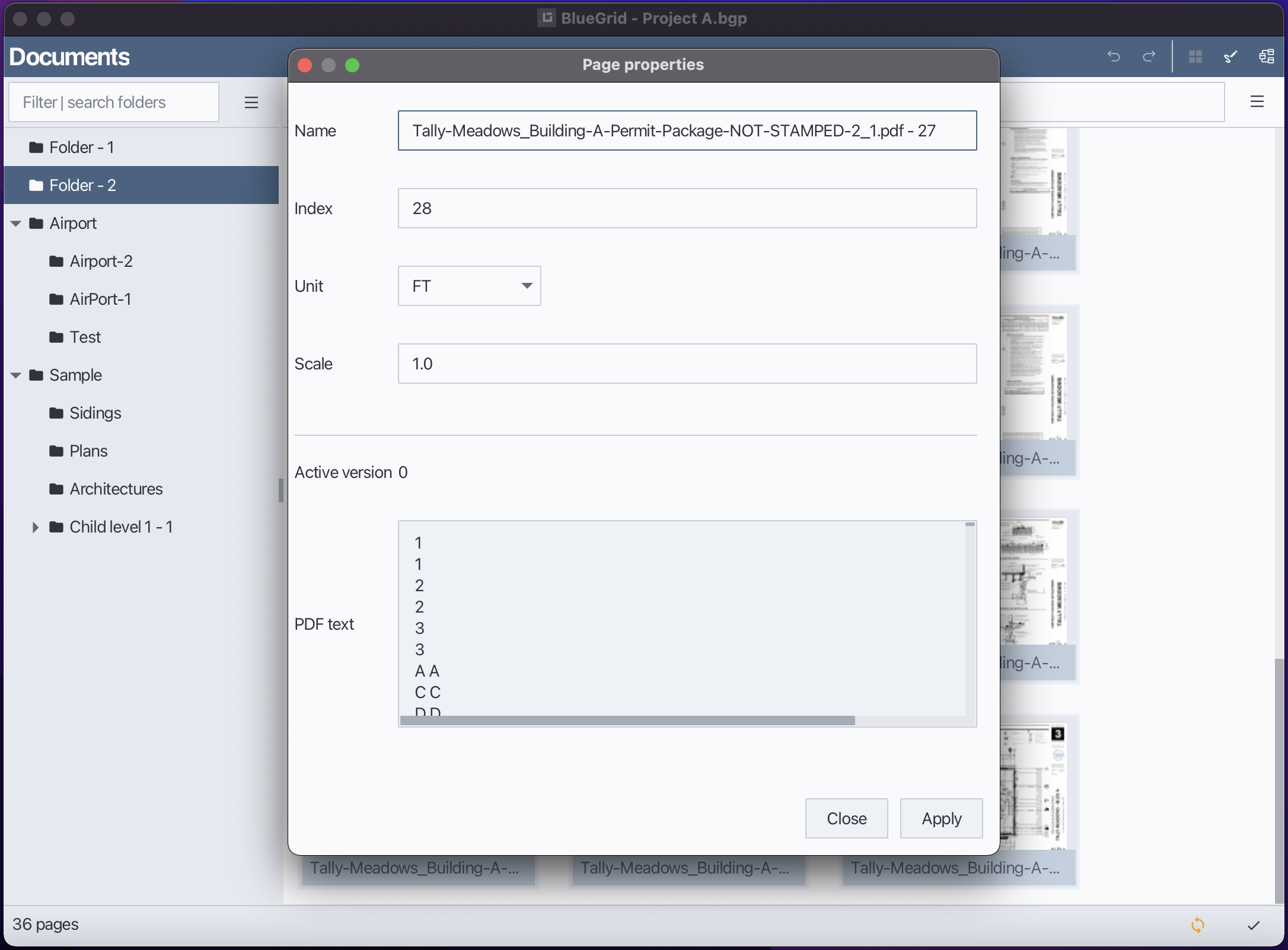
2.19.2 Set page scale
Select the page you want to edit properties for.
Open the Page menu or right-click to open context menu
Choose Properties.
In the Properties dialog, enter the new scale value in the appropriate field.
Click Apply to confirm the change.
Change page scale
2.19.3 Set page unit
Select the page you want to edit properties for.
Open the Page menu or right-click to open context menu
Choose Properties.
In the Properties dialog, select the desired unit from the dropdown menu.
Click OK to confirm the change.
Change page unit