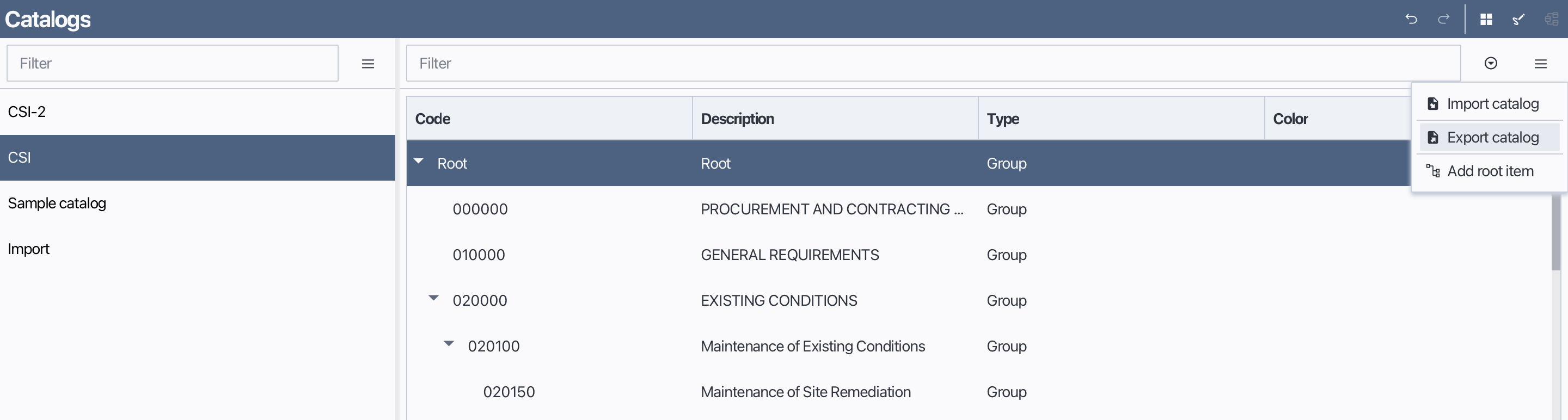
Catalog View
In Bluegrid, a catalog is equivalent to a material library that contains a list of materials organized in a hierarchical tree structure. Catalogs allow you to maintain a consistent set of materials across multiple pages and projects. The Catalog Manager provides tools to create, edit, and manage these catalogs effectively.
1. Overview of catalogs
The Catalog Manager in Bluegrid allows you to create and manage material catalogs for use in the project. Material catalogs help you maintain a consistent list of materials across multiple pages of the project. To create a material catalog, follow these steps:
Catalog view has two main sections, the catalog header list in the left and the catalog tree table view is in the right. Each catalog in the catalog header list associates to a catalog tree.
2. Add a new catalog entry
Open the Catalog Manager from the main menu.
In the catalog header list click on the menu the "New" button to create a new material catalog.
Enter a name for the new catalog and Enter.
Add a new catalog entry
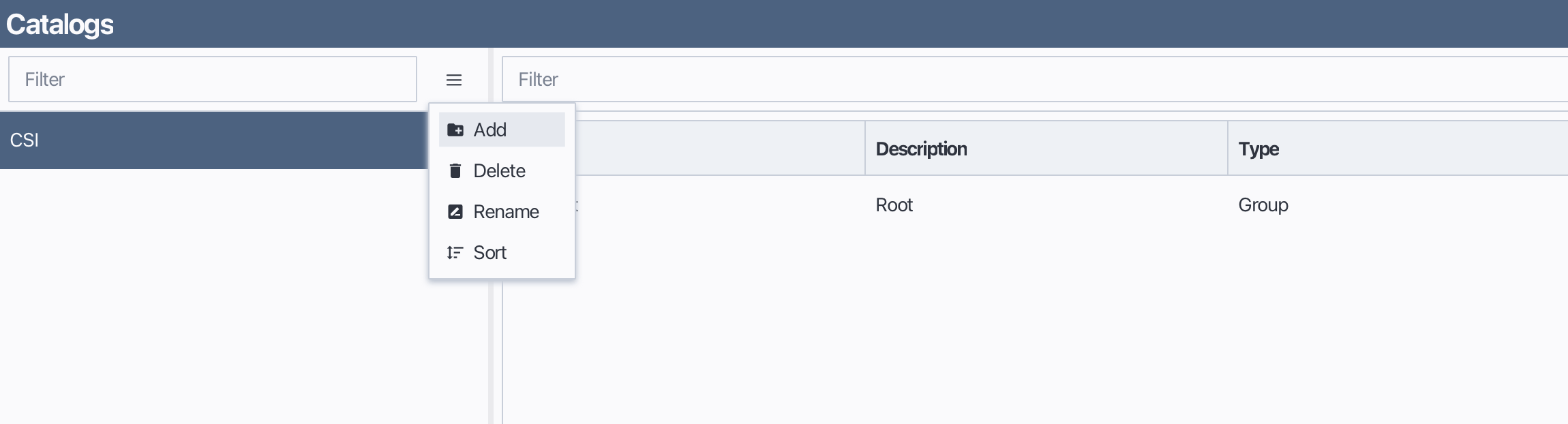
Rename a catalog entry
To rename an existing catalog entry, follow these steps:
Open the Catalog Manager from the main menu.
In the catalog entry list, select the catalog you want to rename.
Open catalog menu or right-click to open the context menu.
Choose Rename.
Type in the new name and press Enter to confirm.
Rename a catalog entry
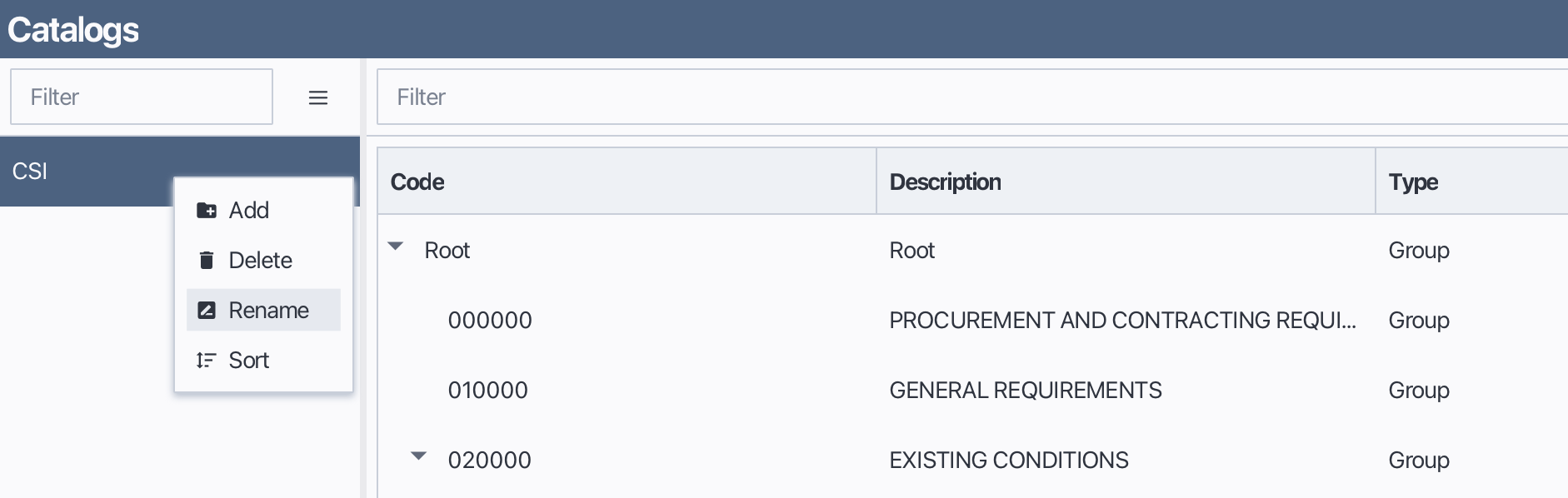
Delete a catalog entry
To delete an existing catalog entry, follow these steps:
Open the Catalog Manager from the main menu.
In the catalog entry list, select the catalog you want to delete.
Open catalog menu or right-click to open the context menu.
Choose Delete.
Delete a catalog entry
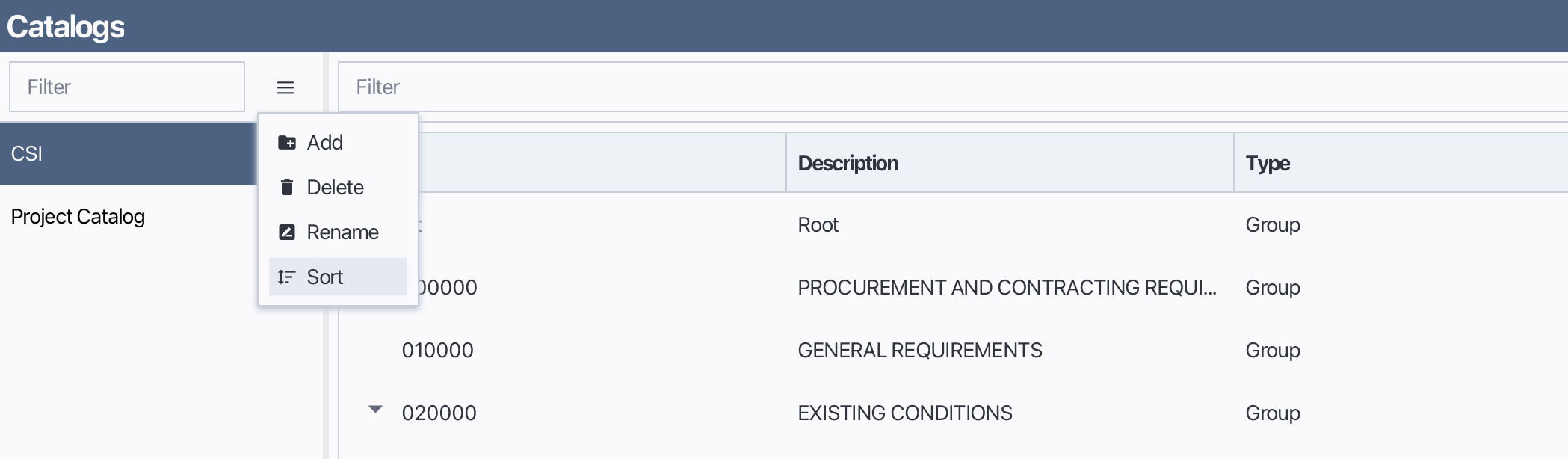
Sort catalog entries
To sort catalog entries in the catalog header list, follow these steps:
Open the Catalog Manager from the main menu.
In the catalog entry list, open catalog menu or right-click to open the context menu.
Choose Sort.
Sort catalog entries
3. Build a catalog
After creating a new catalog entry, you can build the catalog tree by adding categories and materials.
3.1 Add tree root item
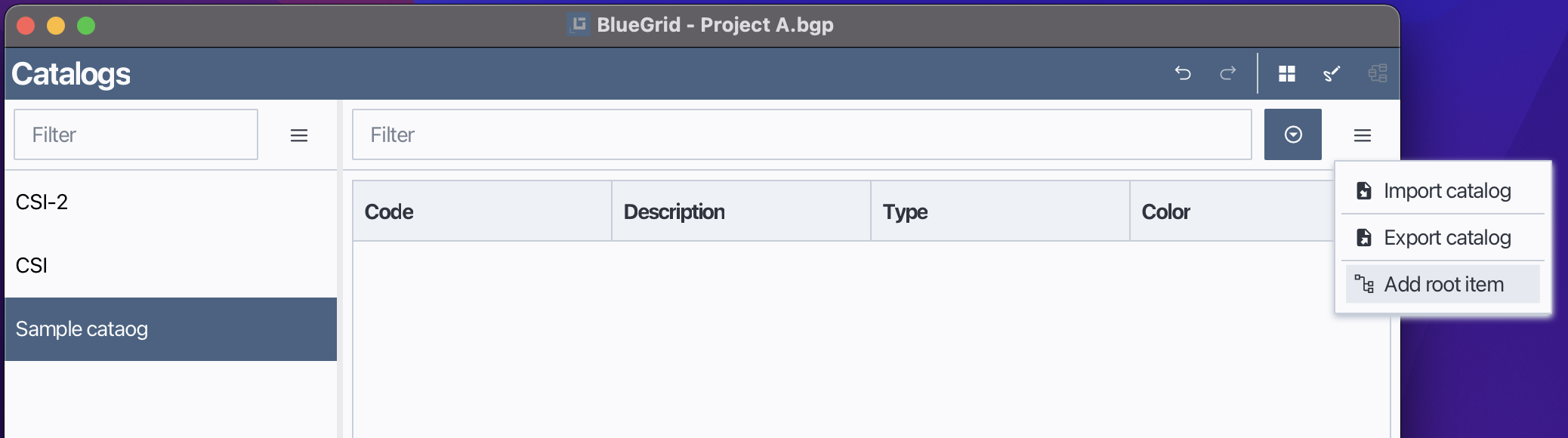
Before adding categories and materials, you need to create a root item for the catalog tree. To add a root item, follow these steps:
Select the catalog you want to add a root item to from the catalog header list.
In the catalog tree view, open catalog menu or right-click to open the context menu.
Choose Add Root Item.
Enter a name for the root item and press Enter to confirm.
Add catalog tree root item
3.2 Add category group items
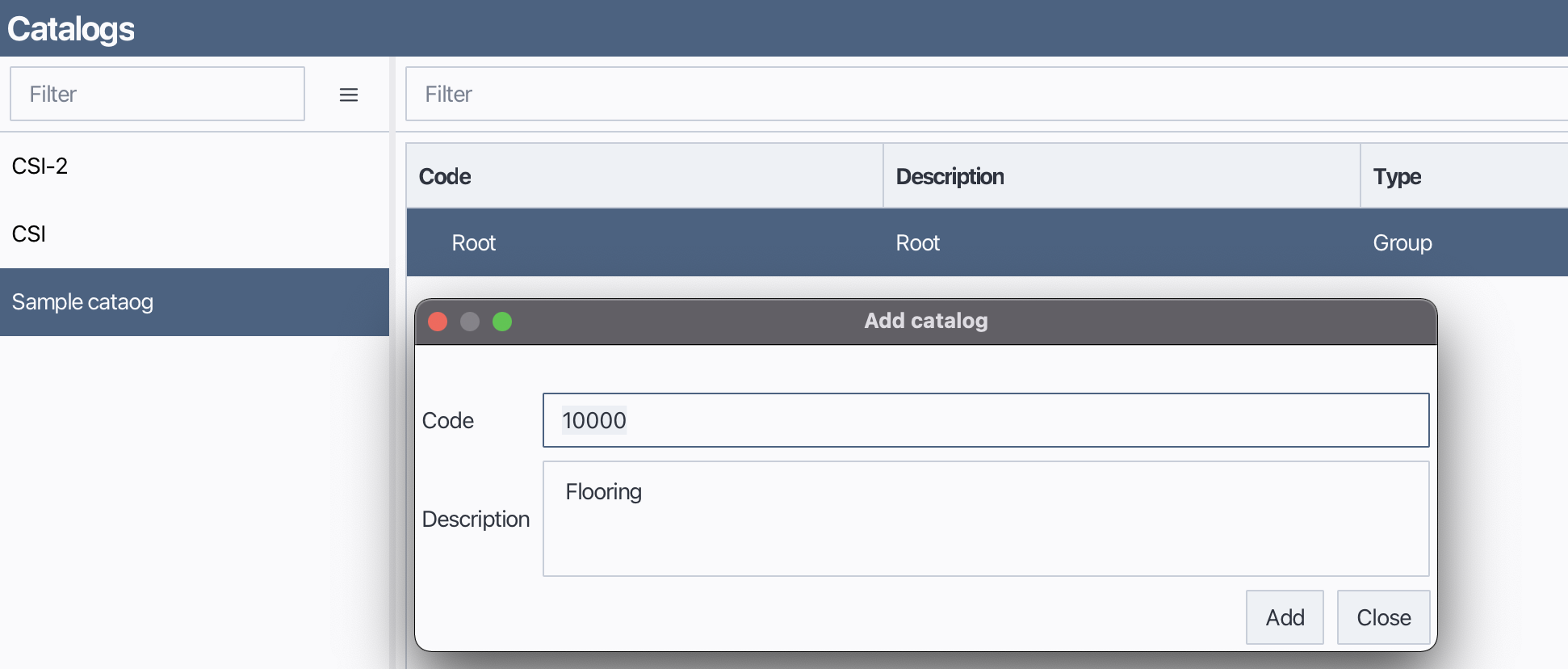
To add a new category to the catalog tree, follow these steps:
Select the catalog you want to add a category to from the catalog header list.
Select the parent item (root or category) under which you want to add the new category.
In the catalog tree view, right-click to open the context menu.
Choose Add Group.
Enter a name and description for the new Group and press click Add.
Add catalog group
3.3 Add catalog material items
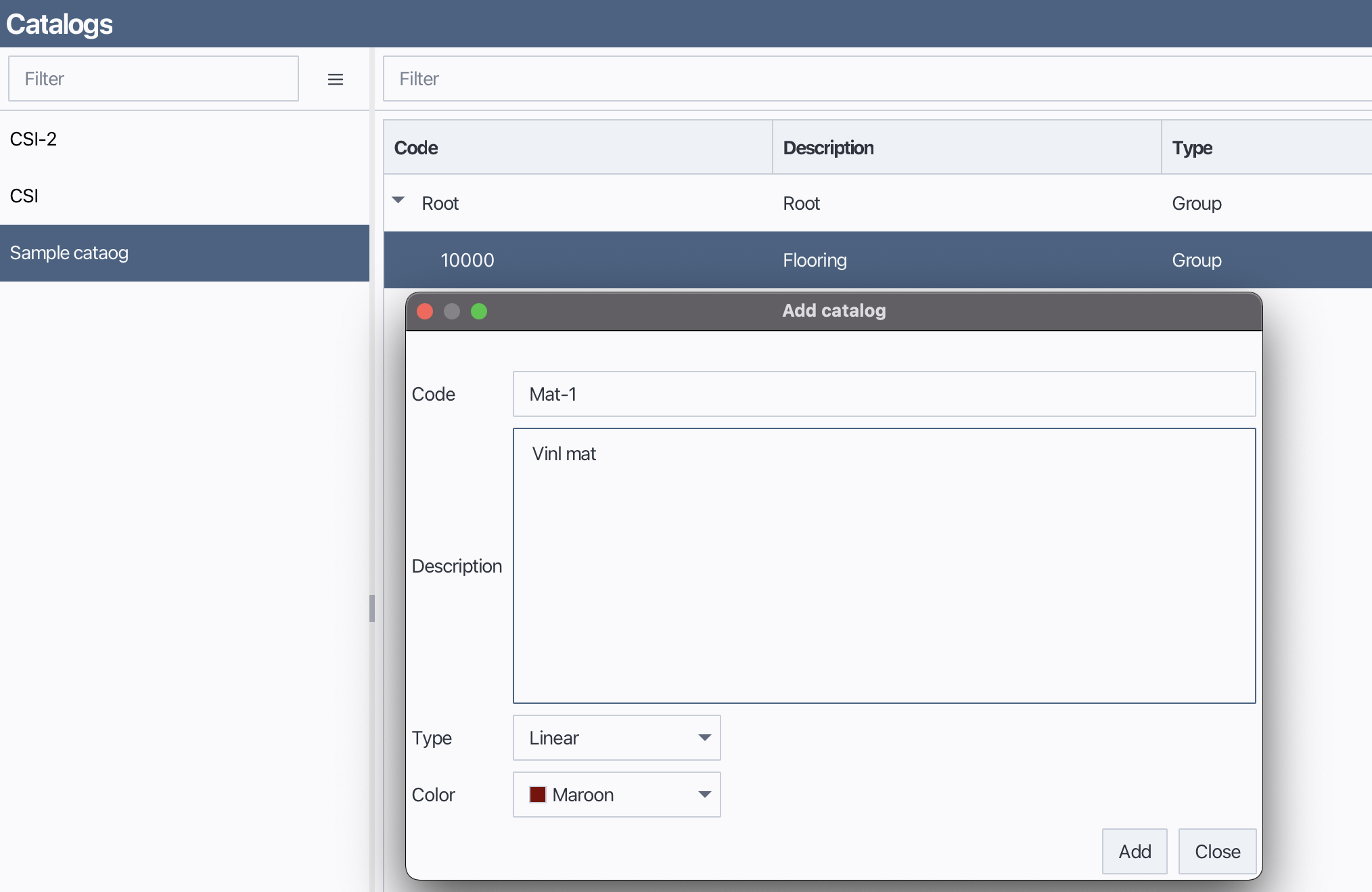
To add a new material to the catalog tree, follow these steps:
Select the catalog you want to add a material to from the catalog header list.
Select the parent item (root or category) under which you want to add the new material.
In the catalog tree view, open catalog menu or right-click to open the context menu.
Click Add Material and then a material dialog will pop up.
Type in the material properties and then click Add.
Add catalog material
3.4 Edit catalog items
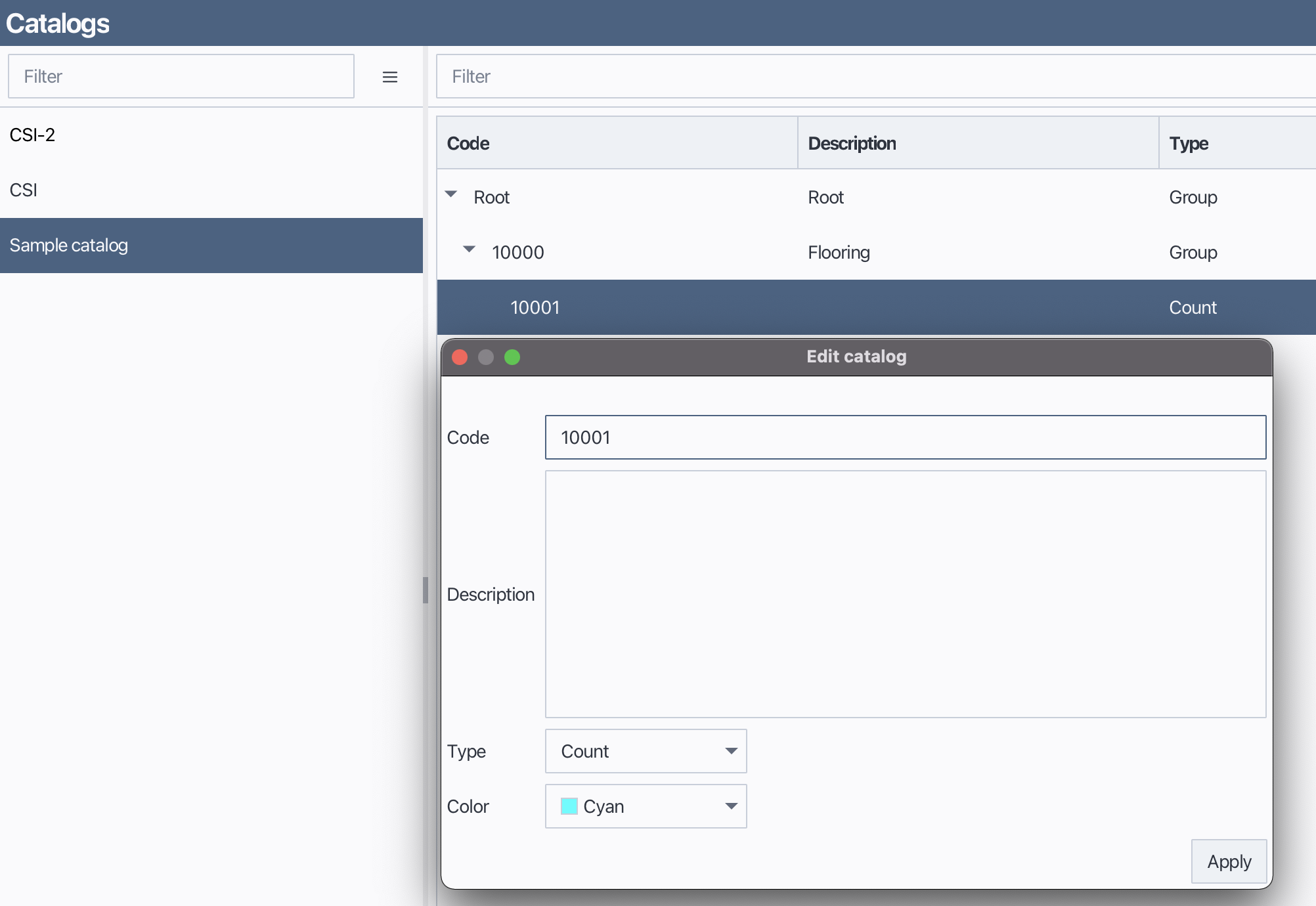
To edit an existing catalog item (category or material), follow these steps:
Select the catalog item you want to edit from the catalog tree view.
In the Properties panel, modify the desired properties such as name, description, type, fill color, stroke color...
Edit catalog item
3.5 Delete catalog items
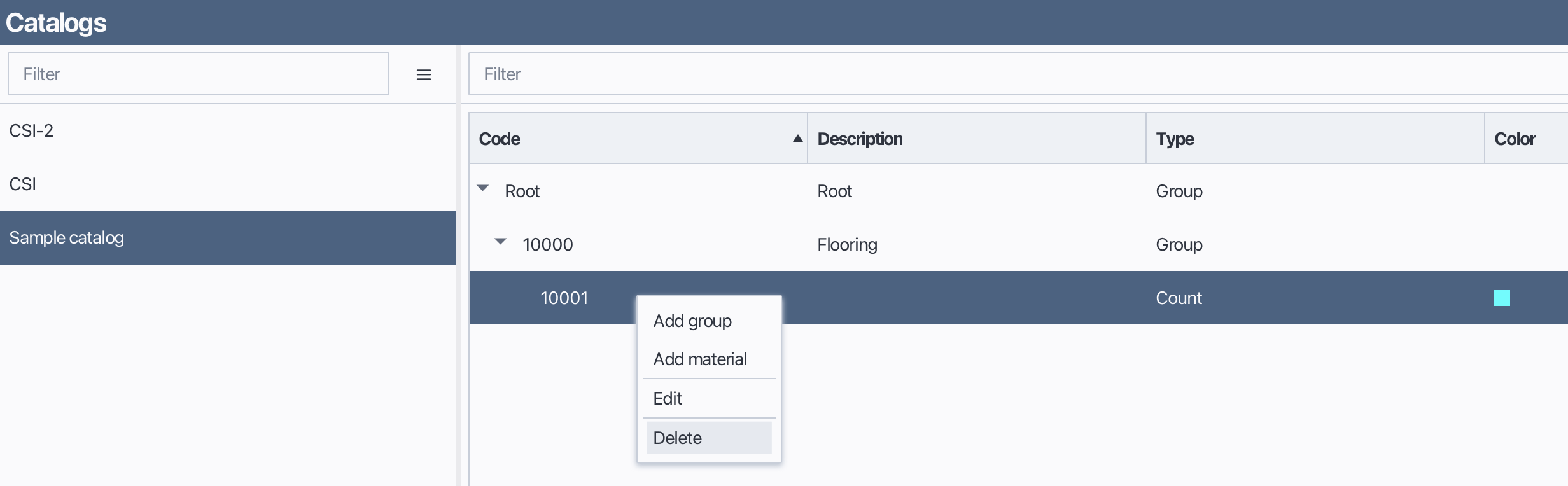
To delete an existing catalog item (category or material), follow these steps:
Select the catalog item you want to delete from the catalog tree view.
Open catalog menu or right-click to open the context menu.
Choose Delete Item.
Delete catalog item
3.6 Import catalogs
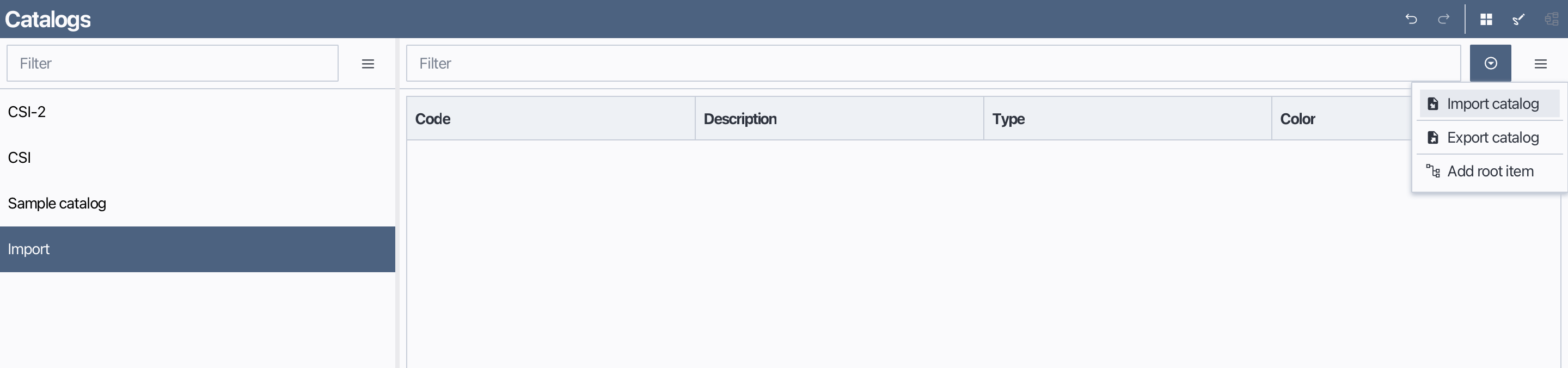
In Bluegrid, you can import material catalogs from external files into your current project. To import a catalog, follow these steps:
Open the Catalog Manager from the main menu.
In the catalog header list, open catalog menu or right-click to open context menu.
Choose Import Catalog.
In the file selection dialog, choose the catalog file you want to import.
Click OK to complete the import process.
Import a catalog
3.7 Export catalogs
In Bluegrid, you can export material catalogs to external files for backup, sharing purposes or using across projects. To export a catalog, follow these steps:
Open the Catalog Manager from the main menu.
In the catalog header list, select the catalog you want to export.
Open catalog menu or right-click to open context menu.
Choose Export Catalog.
In the file selection dialog, choose the destination folder and file name for the exported catalog.
Click OK to complete the export process.
Export a catalog