Draw View
1. Open PDF in Draw view
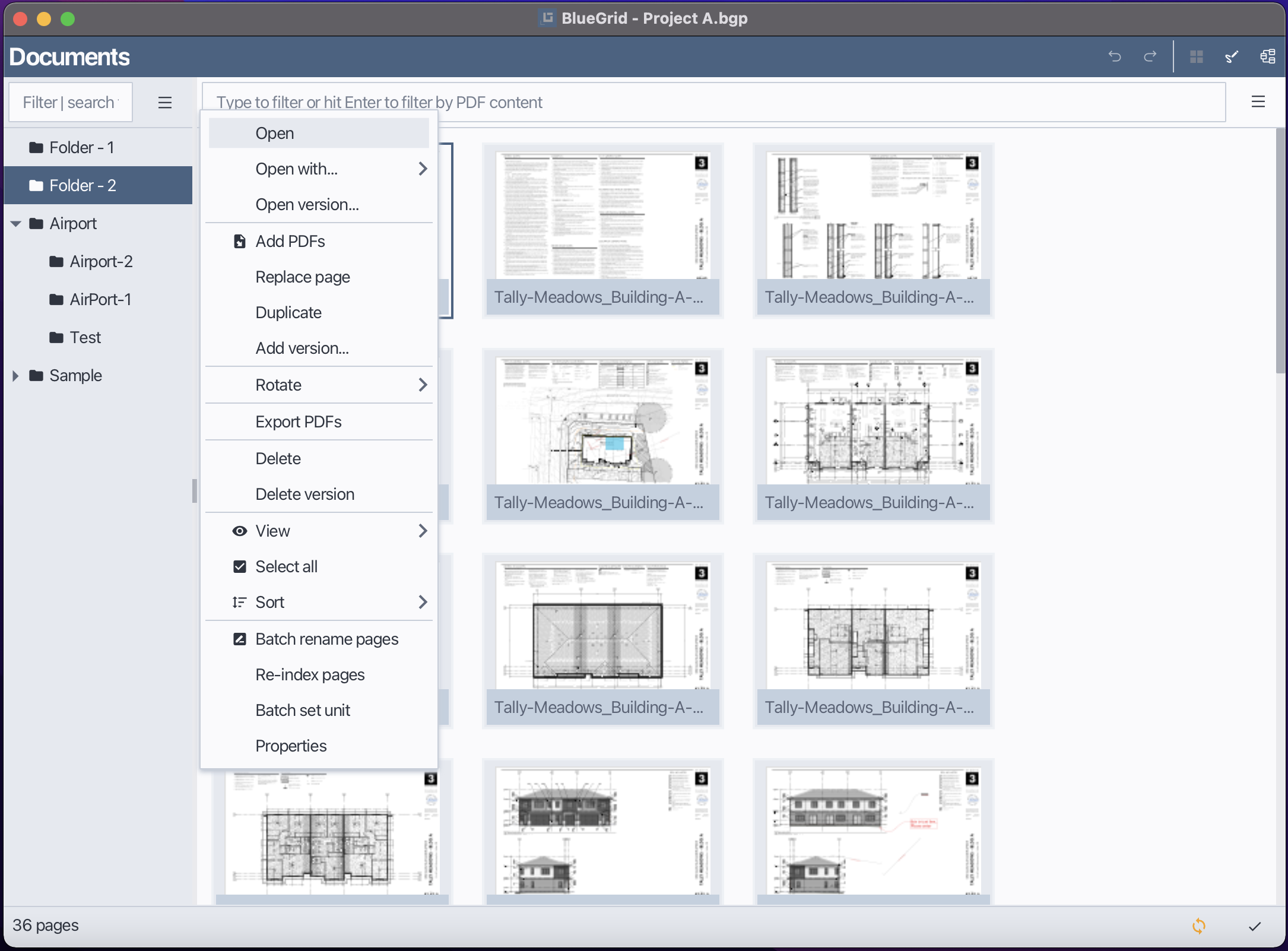
In Bluegrid, Draw View is at page level, meaning to work on a specific page, you need to open that page in Draw View. To open a PDF page in Draw View, follow these steps:
Select the page you want to open in Document view.
Double-click the page or right-click to open context menu and choose Open in Draw View.
Click Open
2. Draw tools
2.1 Set page scale with scale tool
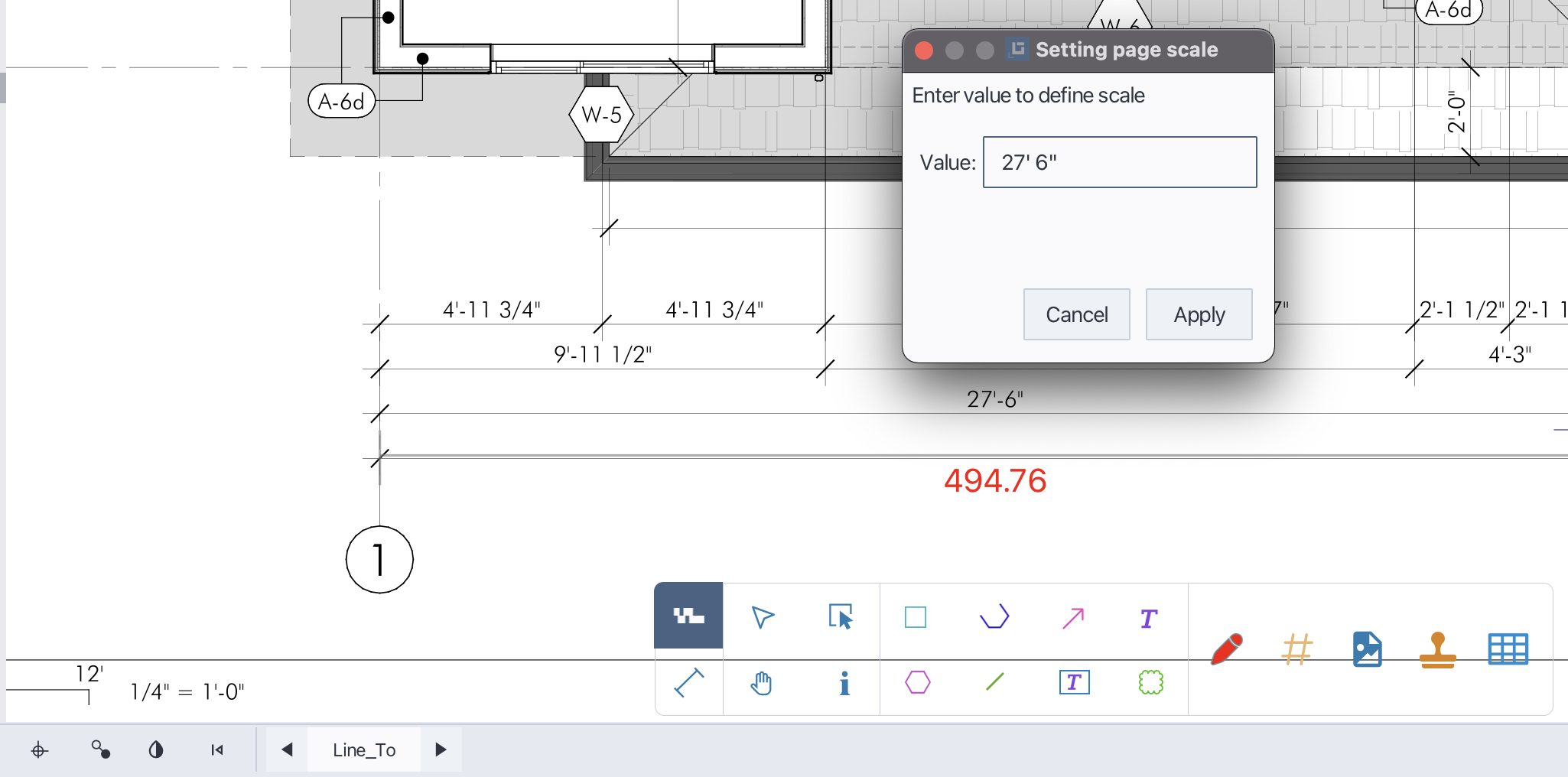
In Bluegrid, setting the correct scale for your drawing is crucial for accurate measurements and takeoffs. The Scale Tool allows you to define the scale of your drawing by specifying a known distance on the page. To set the page scale using the Scale Tool, follow these steps:
In the Draw view select the Scale Tool from the toolbar.
Click on the starting point of the known distance on the drawing.
Move the cursor to the endpoint of the known distance and click again.
In the Scale dialog, enter the actual distance that corresponds to the drawn distance.
Click Apply to apply the scale to the page.
Set page scale with Scale Tool
2.2 Measure distances with dim tool
The Dim Tool in Bluegrid allows you to measure distances directly on your drawing. This tool is useful for verifying dimensions and ensuring accuracy in your takeoffs. To have correct distance measurement, page scale should be set in advance. To measure distances using the Dim Tool, follow these steps:
In the Draw view, select the Dim Tool from the toolbar.
Click on the starting point of the distance you want to measure.
Move the cursor to the endpoint of the distance and click again.
The measured distance will be displayed on the drawing.
Measure distances with Dim Tool

2.3 Pan tool
The Pan Tool allows you to navigate around your drawing by clicking and dragging the view. To use the Pan Tool, follow these steps:
In the Draw view, select the Pan Tool from the toolbar.
Click and hold the left mouse button on the drawing area.
Move the mouse to pan around the drawing.
Release the mouse button to stop panning.
Pan tool

2.4 Select tool
The Select Tool allows you to select shapes and objects on your drawing for editing or manipulation. To use the Select Tool, follow these steps:
2.4.1 Select single shape
In the Draw view, select the Select Tool from the toolbar.
Click on a shape or object to select it. To select multiple shapes, hold down the Control key while clicking on each shape.
Once selected, you can move, resize, or modify the shapes as needed.
2.4.2 Select multiple shapes
In the Draw view, select the Select Tool from the toolbar.
Click and hold the left mouse button on an empty area of the drawing.
Drag the mouse to create a selection rectangle that encompasses the shapes you want to select.
Release the mouse button to complete the selection. All shapes within the rectangle will be selected.
Select multiple shapes with Select tool
{ width=640 }
2.5 Select PDF-Shape tool
The Select PDF-Shape Tool allows you to select and manipulate shapes that are part of the original PDF content. To use the Select PDF-Shape Tool, follow these steps:
In the Draw view, select the Select PDF-Shape Tool from the toolbar.
Press and hold the left mouse button and drag to create a selection rectangle around the PDF shapes you want to select.
Release the mouse button to complete the selection. All PDF shapes within the rectangle will be selected.
2.6 Shape info tool
2.7 Rectangle
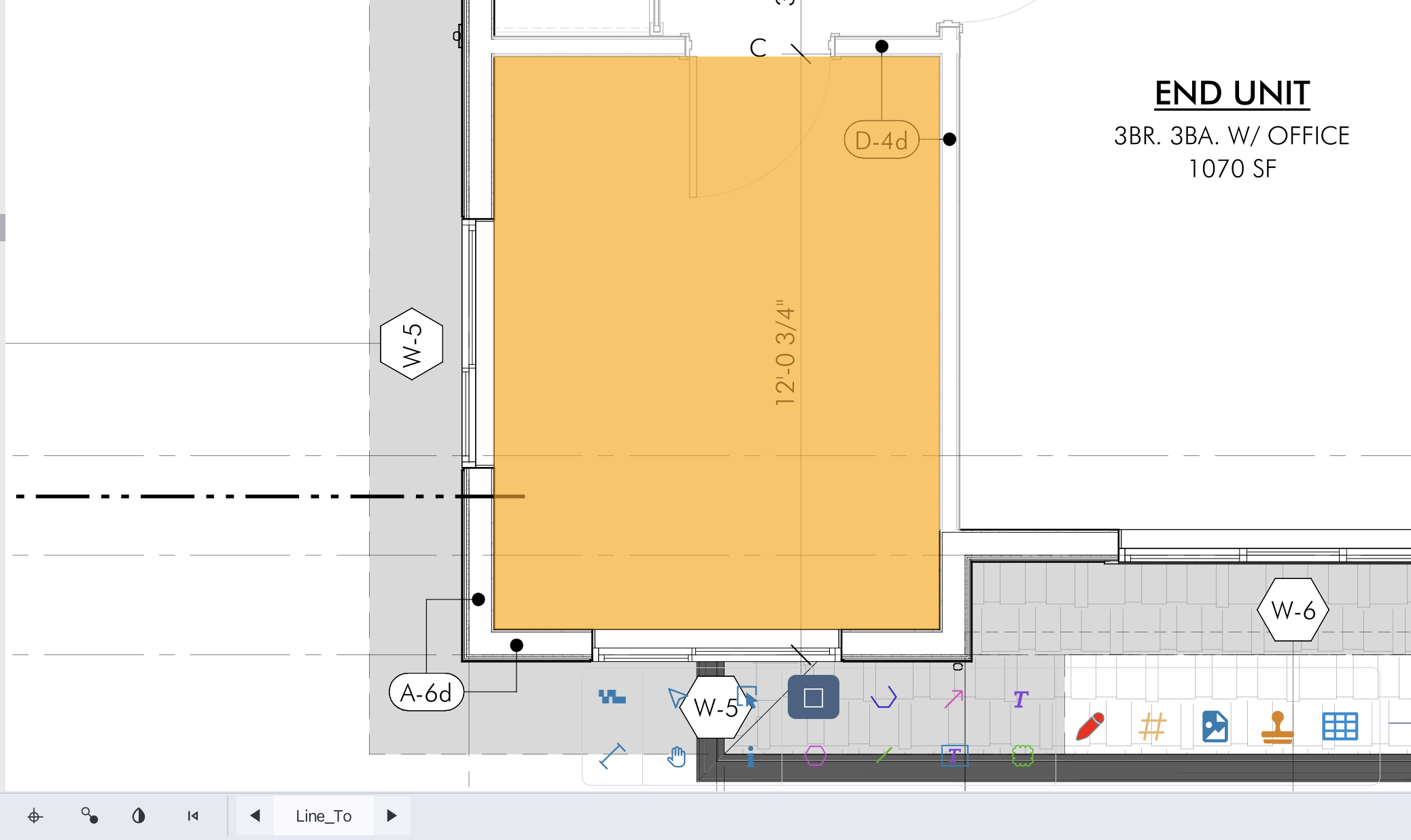
The Rectangle Tool allows you to create rectangular shapes on your drawing. To use the Rectangle Tool, follow these steps:
In the Draw view, select the Rectangle Tool from the toolbar.
Click the left mouse button at the starting point of the rectangle.
Move the mouse to define the size of the rectangle.
Click the left mouse button again to complete the rectangle.
Create rectangle shape
2.8 Polyline
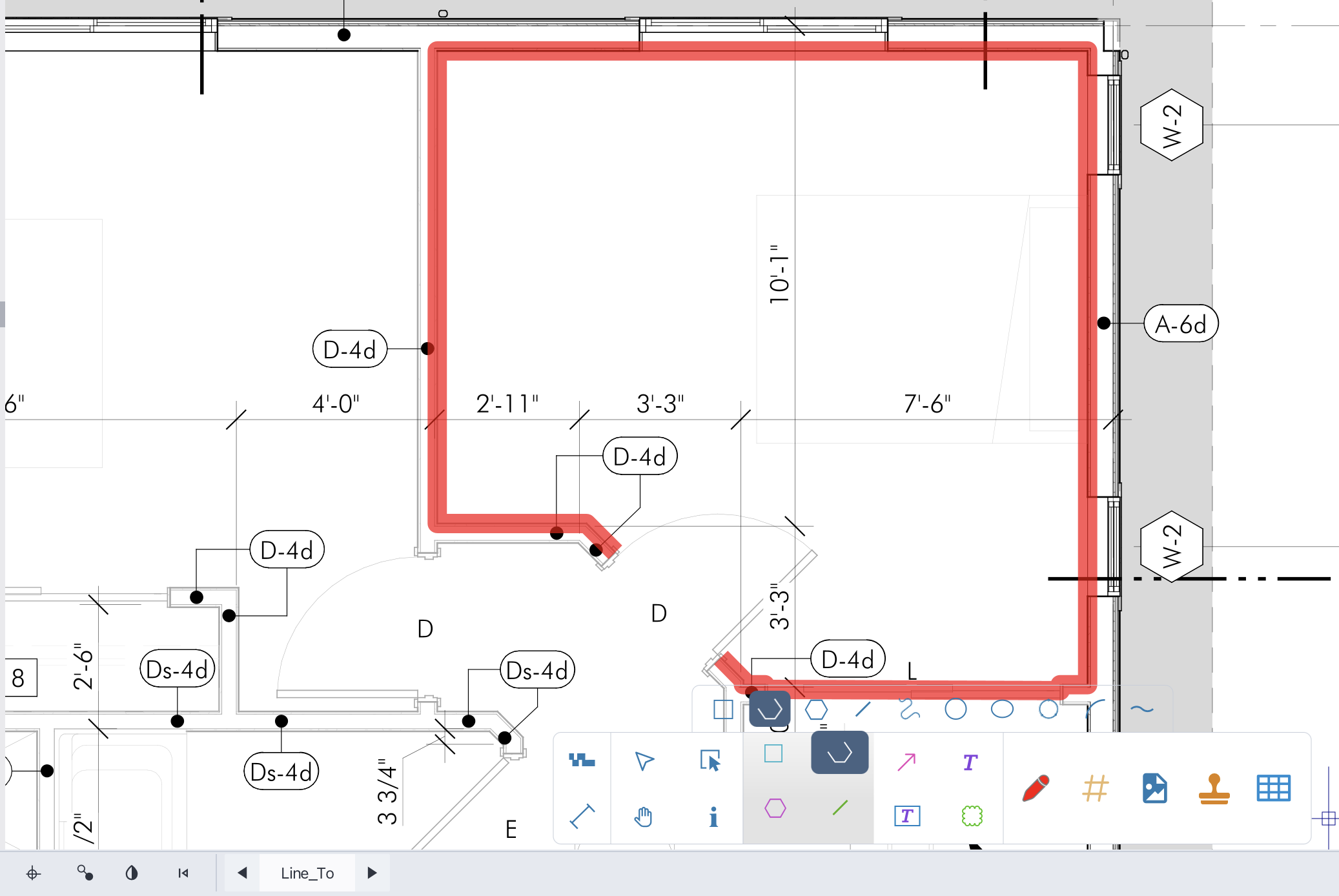
The Polyline Tool allows you to create a series of connected line segments. A polyline is usually used to take-off linear items. To use the Polyline Tool, follow these steps:
In the Draw view, select the Polyline Tool from the toolbar.
Click the left mouse button at the starting point of the polyline.
Move the mouse to the next point and click again to create a line segment.
Repeat step 3 to add more segments.
Right-click to complete the polyline.
Create polyline shape
2.9 Polygon
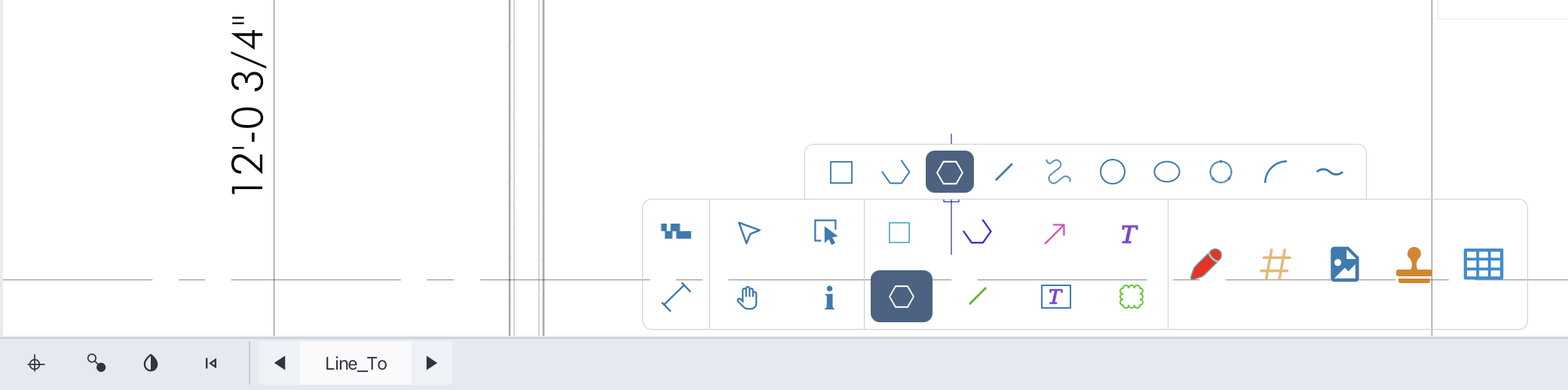
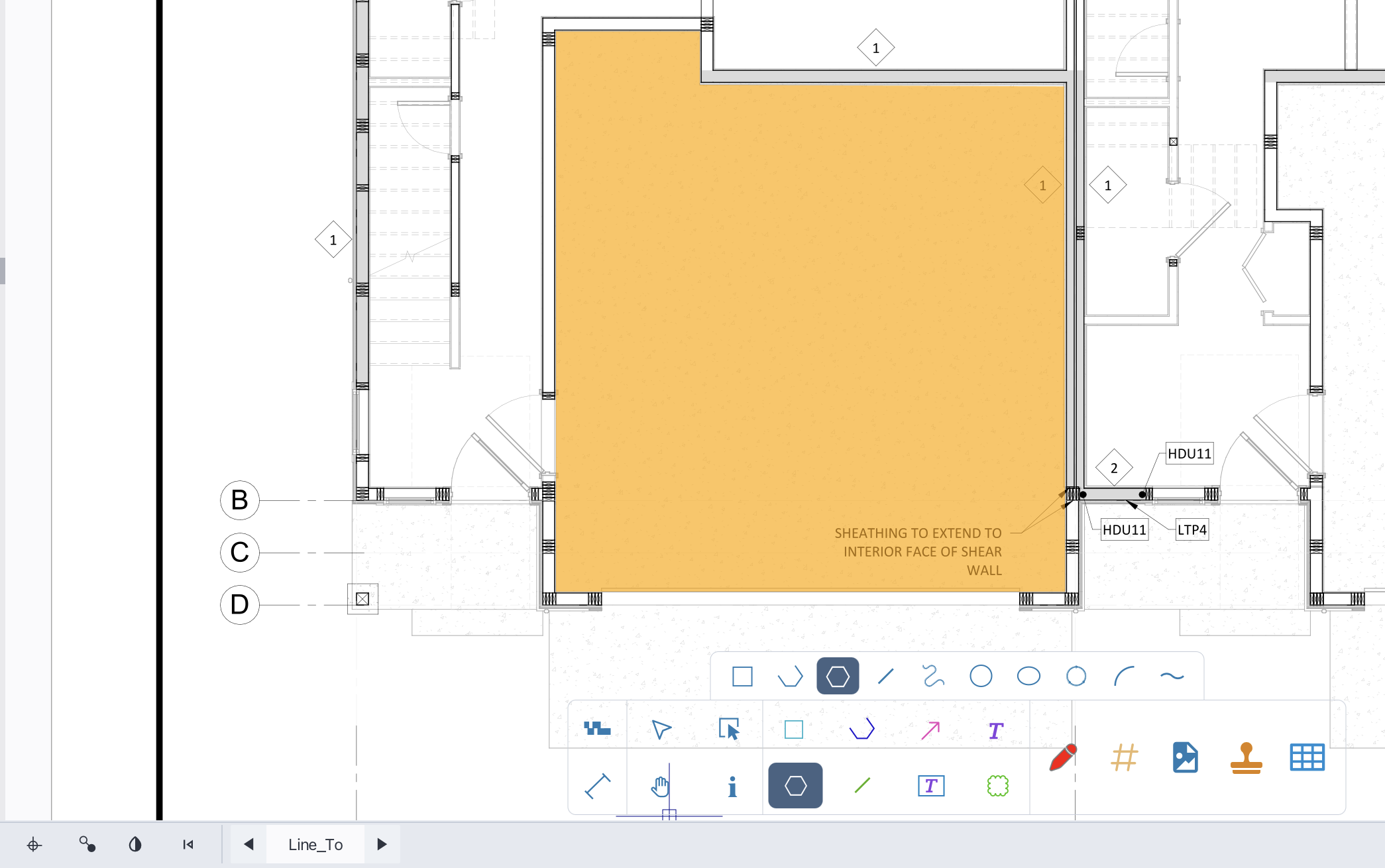
The Polygon Tool allows you to create closed shapes with multiple sides. A polygon is usually used to take-off area items. To use the Polygon Tool, follow these steps:
In the Draw view, select the Polygon Tool from the toolbar.
Click the left mouse button at the starting point of the polygon.
Move the mouse to the next vertex and click again to create a side.
Repeat step 3 to add more sides.
Right-click to complete the polygon.
Create polygon shape
2.10 Line
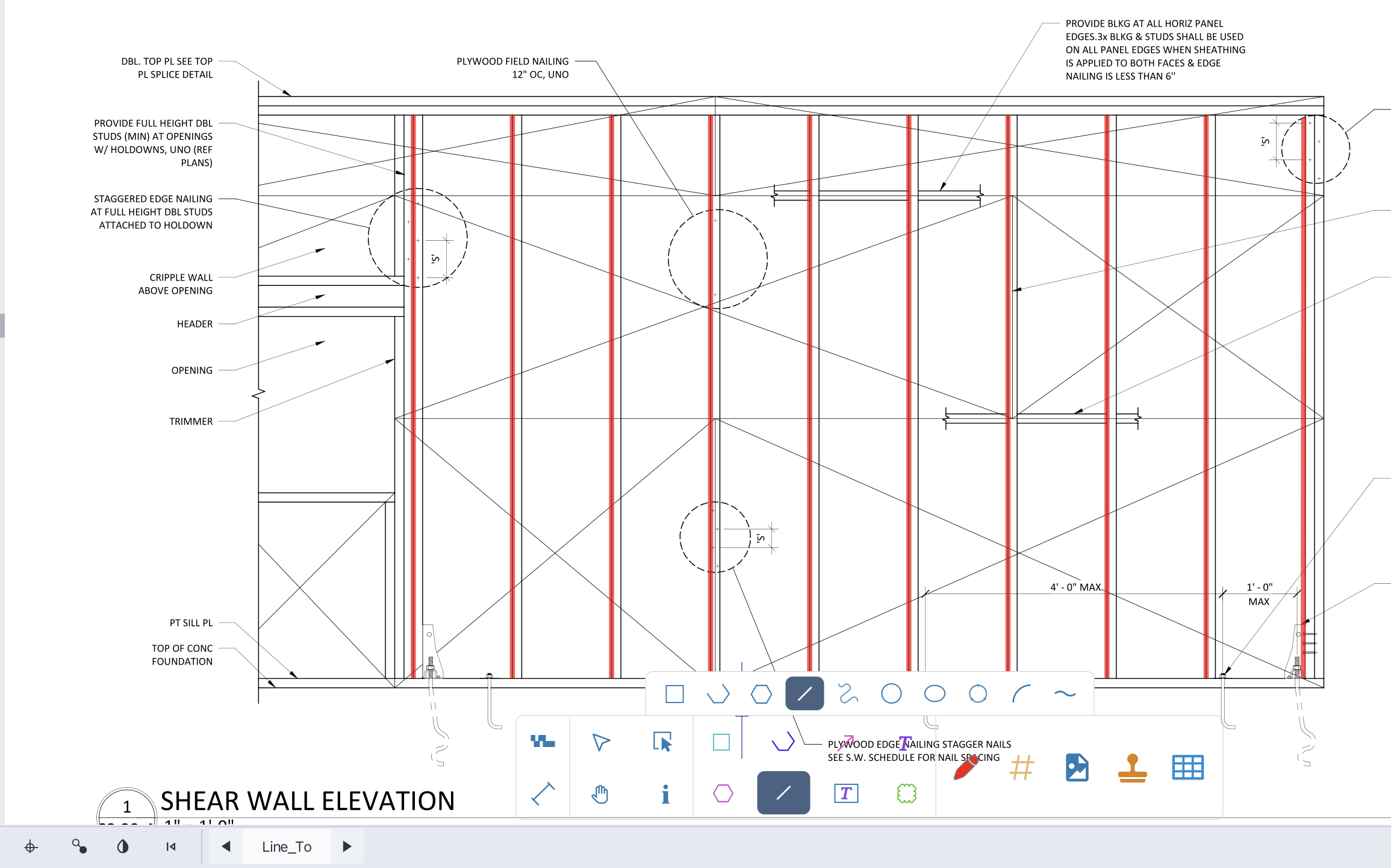
The L**ine Tool allows you to create straight line segments on your drawing. Line tool is usually used to take-off linear items. To use the Line Tool, follow these steps:
In the Draw view, select the Line Tool from the toolbar.
Click the left mouse button at the starting point of the line.
Move the mouse to the endpoint of the line and click again to complete the line.
Create line shape
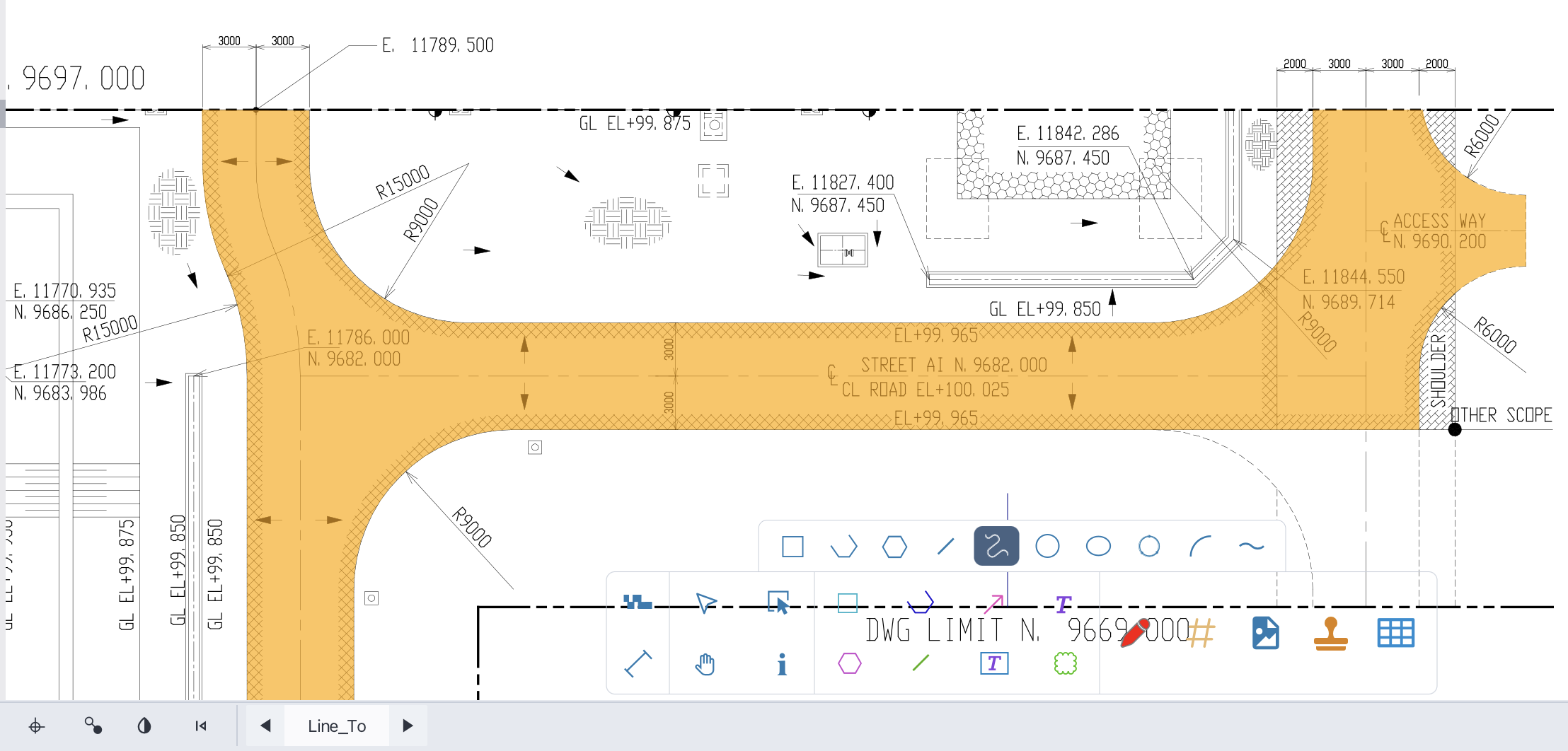
2.11 Path
The Path Tool allows you to create freeform shapes by drawing curves and lines. To use the Path Tool, follow these steps:
In the Draw view, select the Path Tool from the toolbar.
Click and hold the left mouse button to start drawing the path.
Move the mouse to create the desired shape. To switch between straight lines and curves, select Path Mode in the status bar.
Repeat step 3 to add more segments.
Right-click to complete the path.
Create path shape
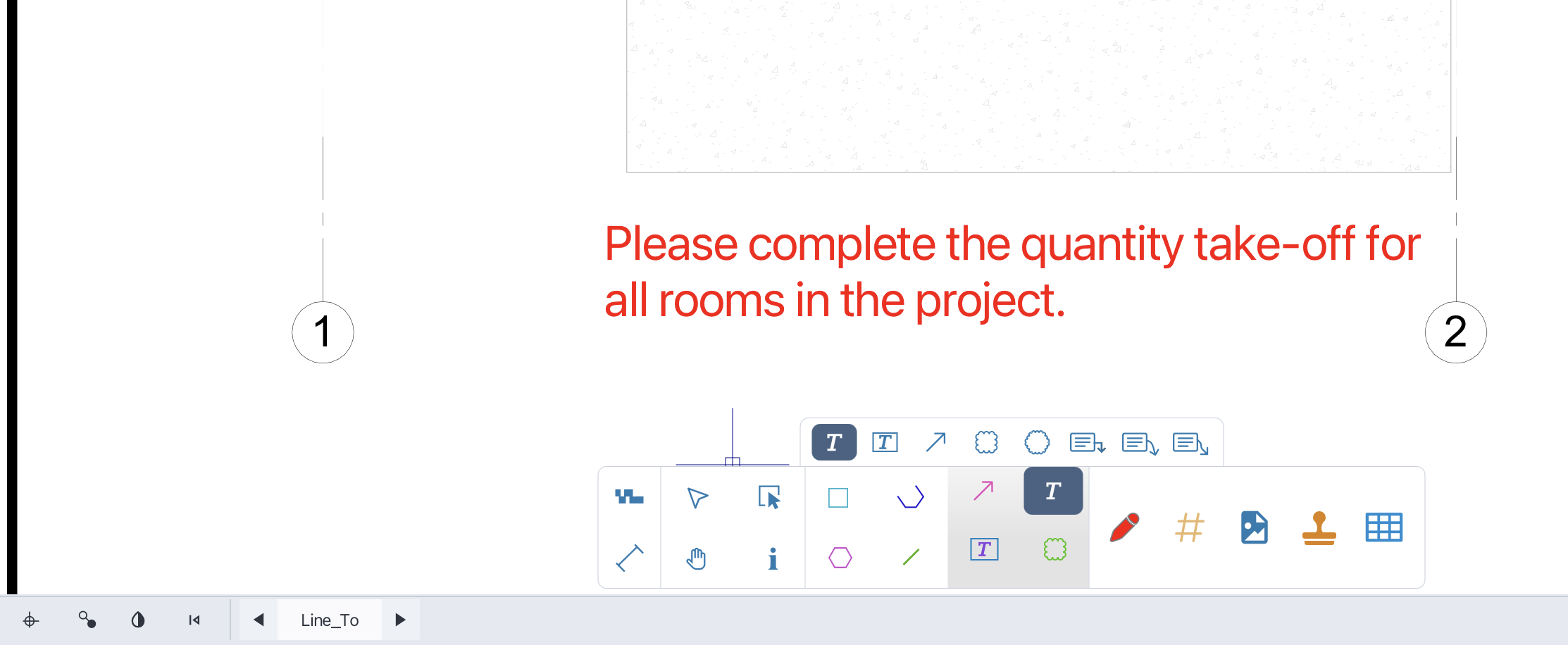
2.12 Text tool
The Text Tool allows you to add plain text annotations to your drawing. To use the Text Tool, follow these steps:
In the Draw view, select the Text Tool from the toolbar.
Click on the drawing area where you want to add the text.
Type the desired text.
Click outside the text to complete the text annotation.
Add text annotation
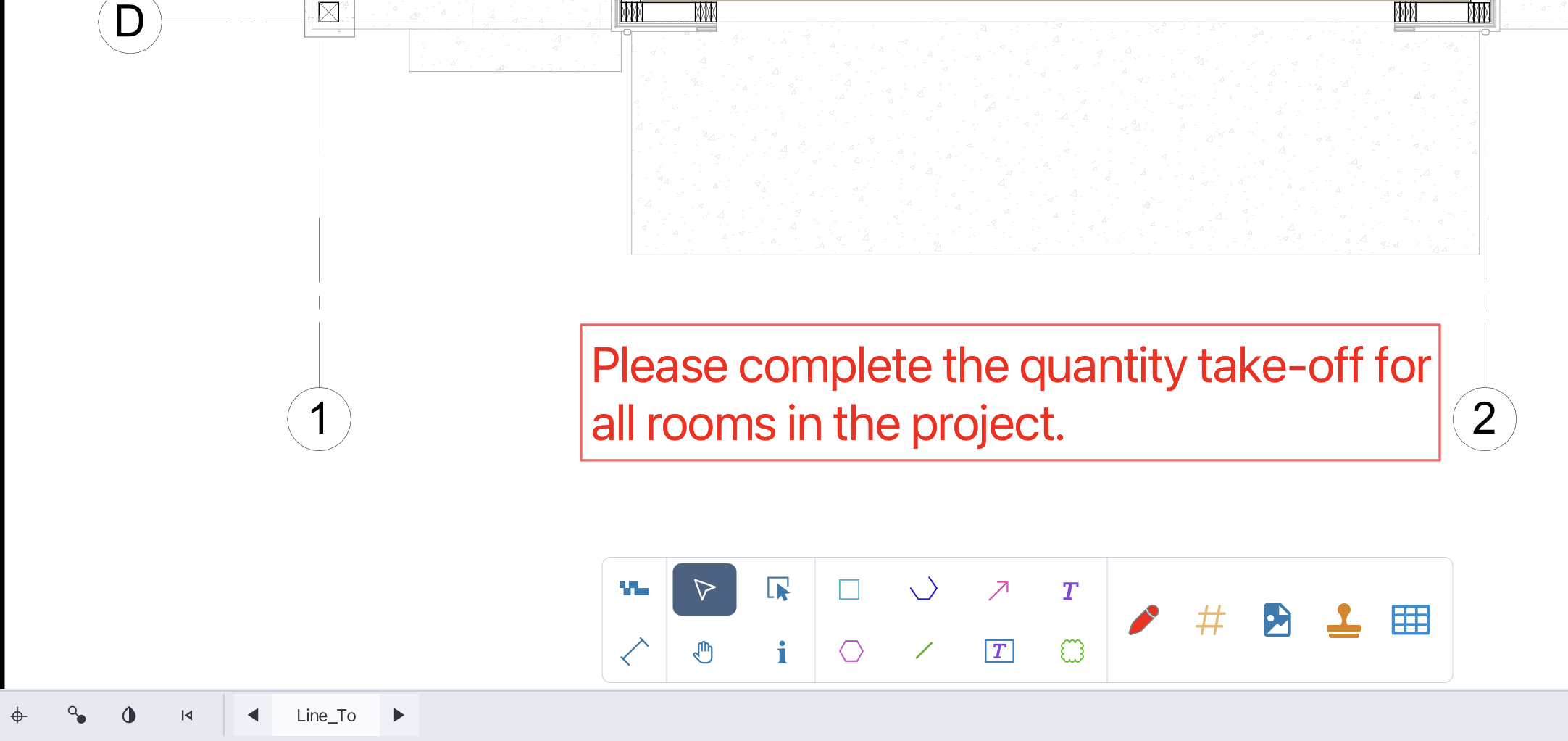
2.13 Textbox tool
The Textbox Tool allows you to add text annotations within a defined rectangular area. To use the Textbox Tool, follow these steps:
In the Draw view, select the Textbox Tool from the toolbar.
Click on the drawing area to define the top-left corner of the textbox.
Type the desired text within the textbox.
Click outside the textbox to complete the text annotation.
Add textbox annotation
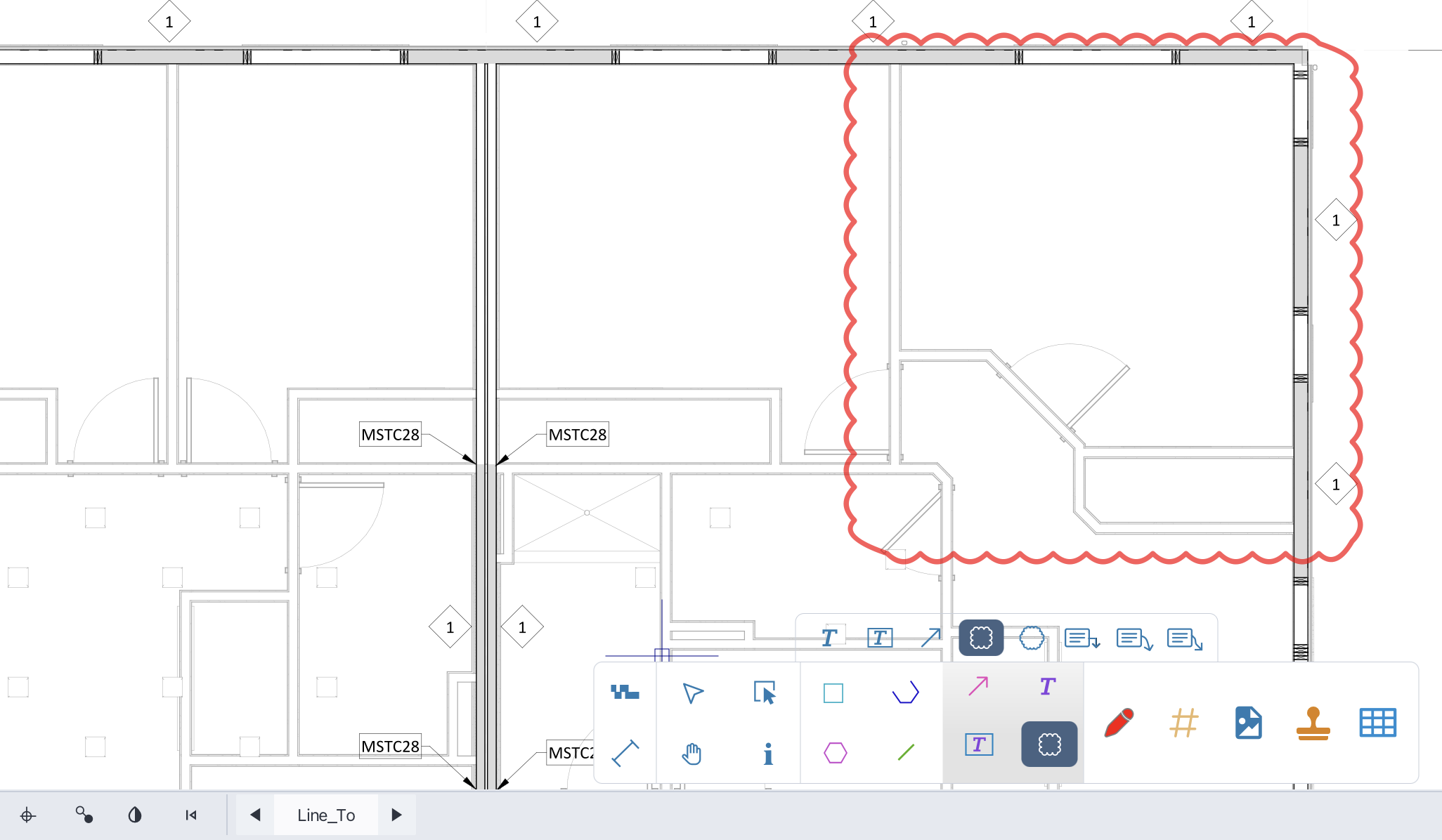
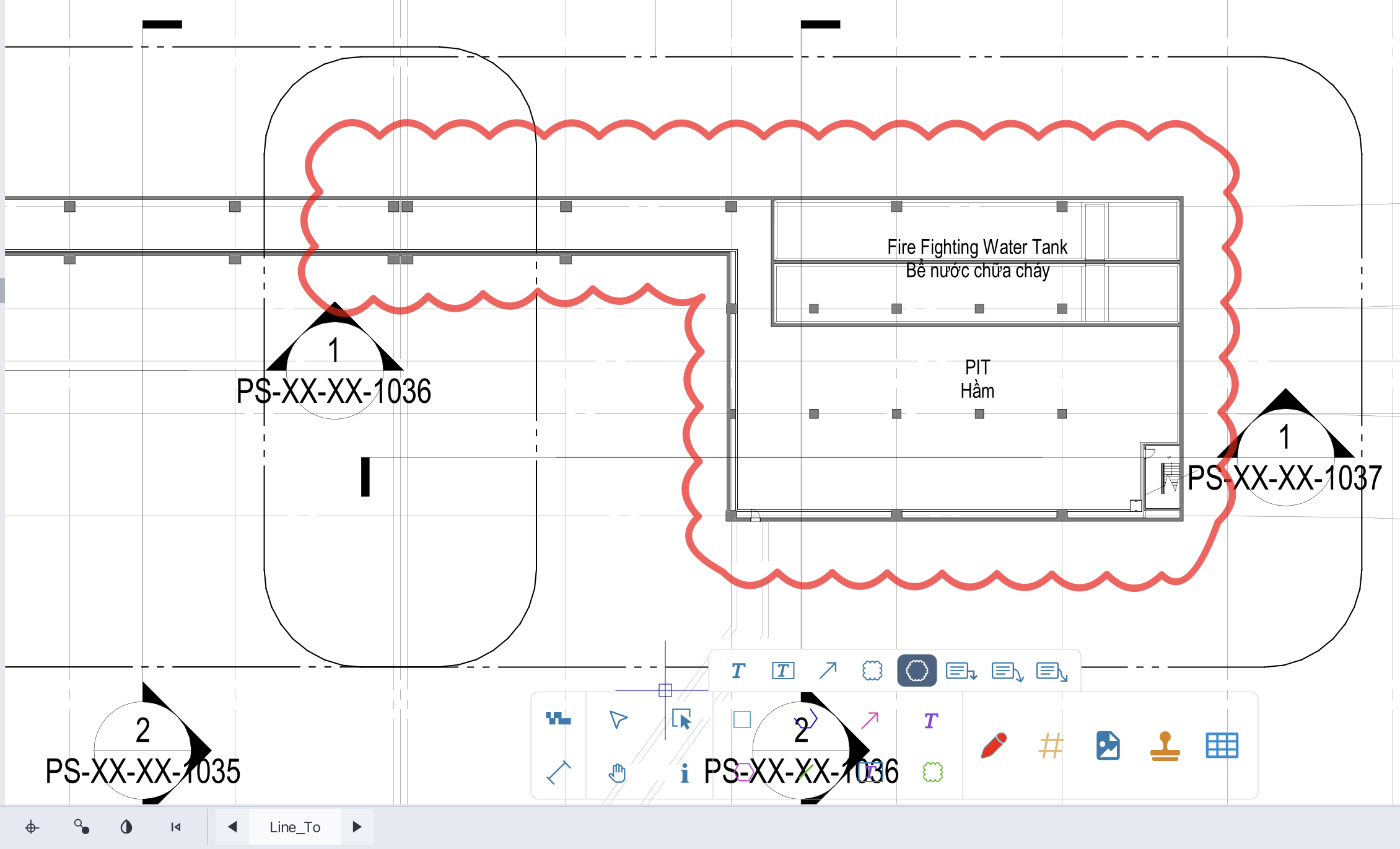
2.14 Cloud tool
The Cloud Tool allows you to draw cloud-shaped annotations around areas of interest on your drawing. To use the Cloud Tool, follow these steps:
In the Draw view, select the Cloud Tool from the toolbar.
Click and hold the left mouse button to start drawing the cloud shape.
Move the mouse to create the cloud shape.
Release the mouse button to complete the cloud annotation.
2.15 Multiple point cloud tool
The Multiple Point Cloud Tool allows you to draw cloud-shaped annotations by specifying multiple points on your drawing. To use the Multiple Point Cloud Tool, follow these steps:
In the Draw view, select the Multiple Point Cloud Tool from the toolbar.
Click the left mouse button at each point to define the cloud shape.
Right-click to complete the cloud annotation.
Multiple point cloud
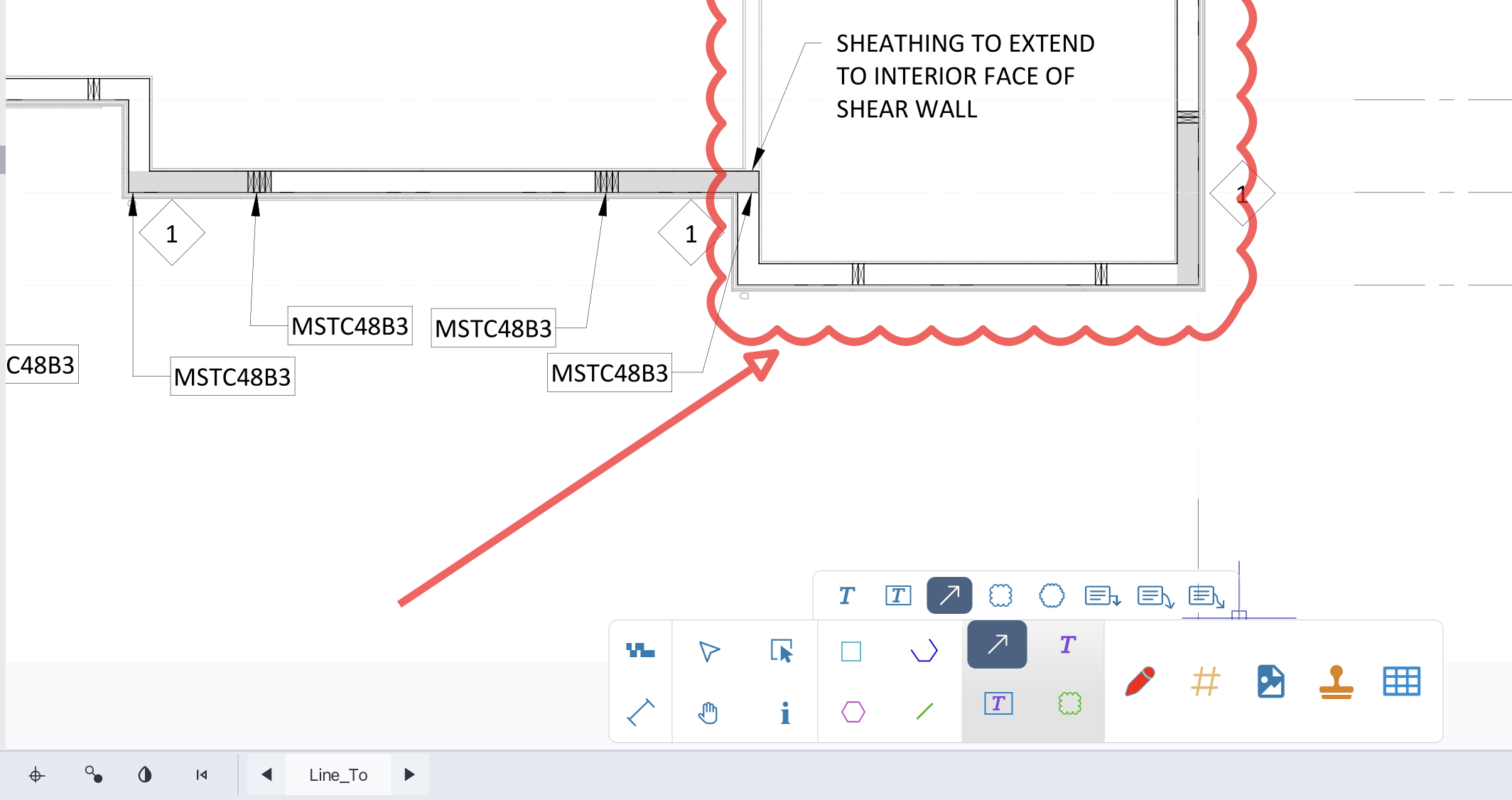
2.16 Arrow tool
The Arrow Tool allows you to draw arrows on your drawing to point out specific areas or items. To use the Arrow Tool, follow these steps:
In the Draw view, select the Arrow Tool from the toolbar.
Click the left mouse button at the starting point of the arrow.
Move the mouse to the endpoint of the arrow and click again to complete the arrow.
Add arrow annotation
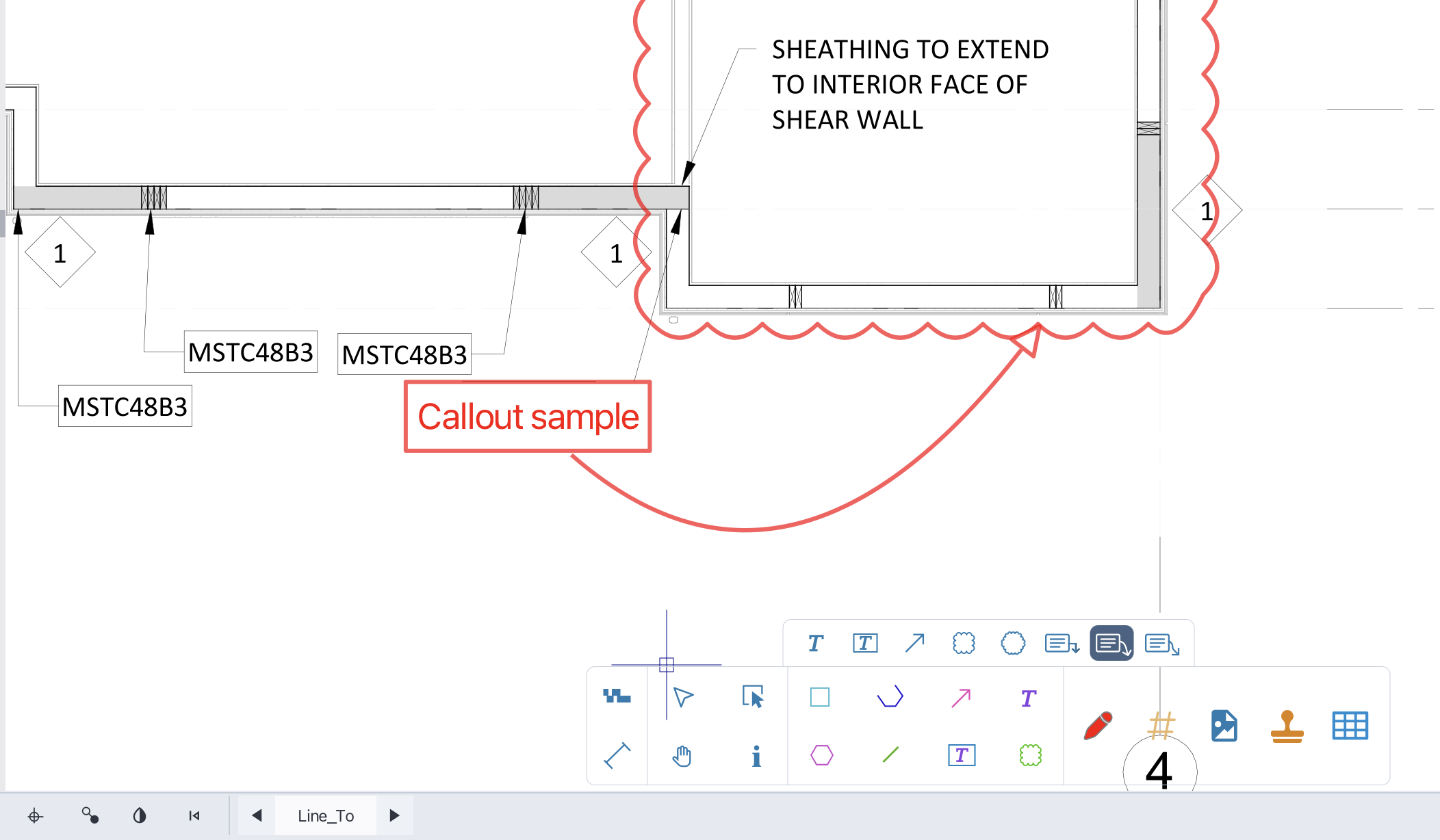
2.17 Callout tool
The Callout Tool allows you to create callouts to highlight specific areas on your drawing. There are three types of callouts available: Linear Callout, Quadratic Callout, and Cubic Callout. To use the Callout Tool, follow these steps:
In the Draw view, select the Callout Tool from the toolbar.
Choose the desired callout type from the dropdown menu.
Click the left mouse button at the starting point of the callout.
Move the mouse to define the callout shape and click again to set control points as needed.
Type the desired text for the callout.
Click outside the callout to complete the annotation.
Callout annotation
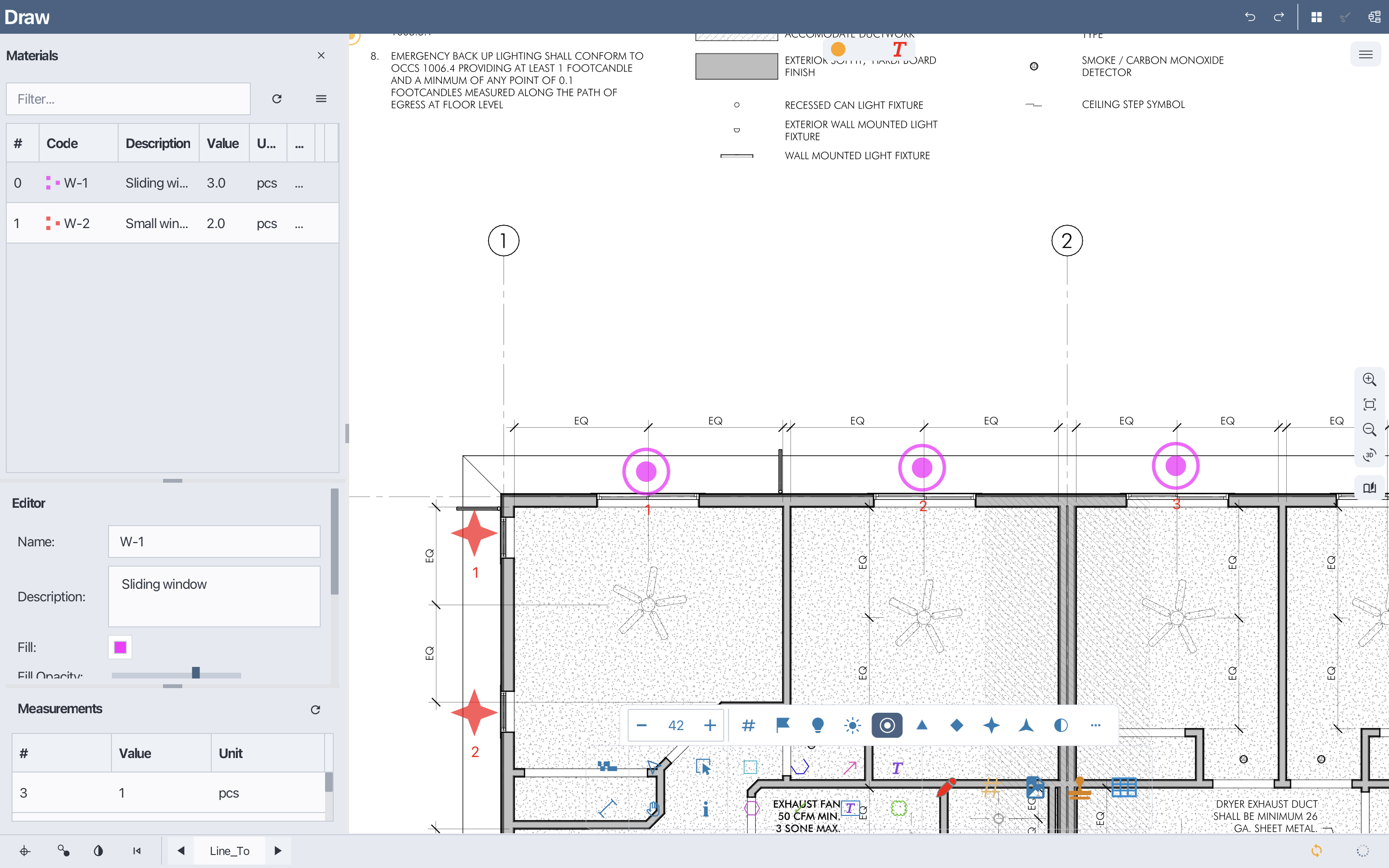
2.18 Count tools
The Count Tool in Bluegrid allows you to count and mark items on your drawing. This tool is useful for quantifying items such as fixtures, equipment, or any other countable objects. When count blocks are subscribed to a material, count indices with automatically increase. To use the Count Tool, follow these steps:
In the Draw view, select the Count Tool from the toolbar.
Click on each item you want to count on the drawing.
Each click will place a count marker with an incremented index number if the count block is associated with a material.
Count tool
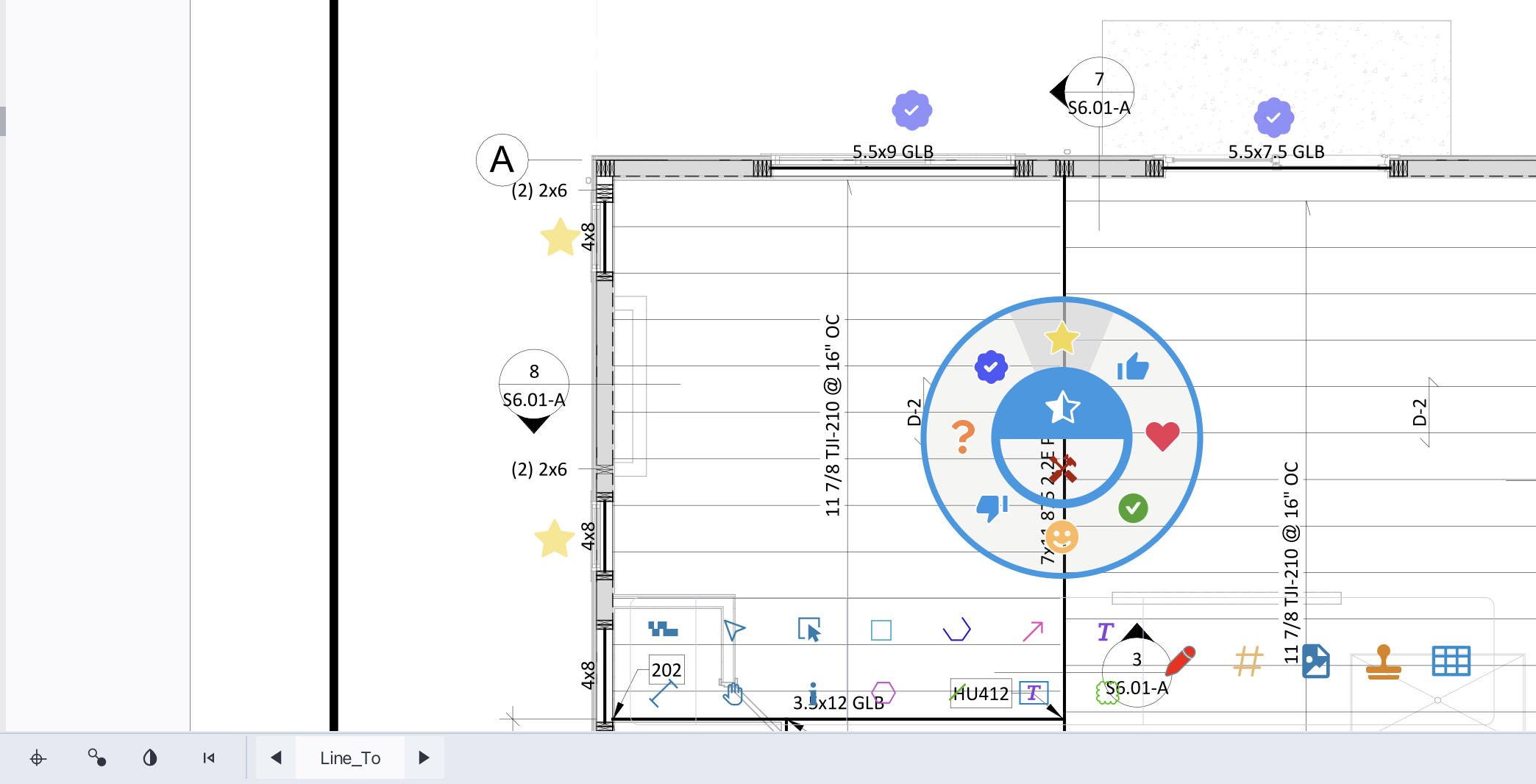
2.19 Stamps
The Stamp Tool in Bluegrid allows you to add predefined stamp shapes to your drawing. Stamps can be used for various purposes, such as marking areas, indicating status, or adding symbols. To use the Stamp Tool, follow these steps:
In the Draw view, select the Stamp Tool from the toolbar.
Choose the desired stamp from the stamp library.
Click on the drawing area where you want to place the stamp.
Add stamp to drawings
2.20 Point snaps
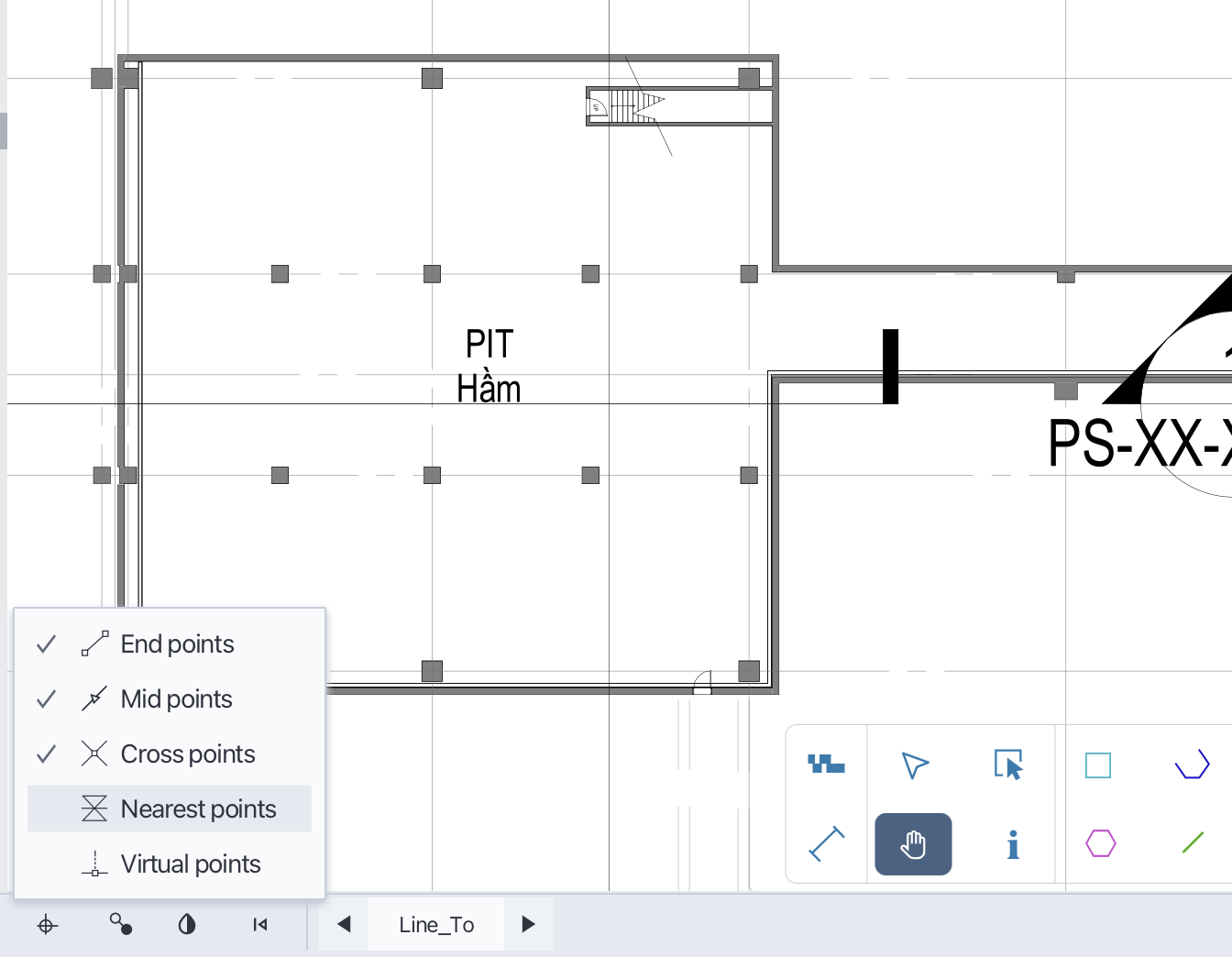
In Bluegrid, Point snaps are optional while drawing shapes to have precise points as well as to deliver the best accurate quantity take-offs. To access and modify the Snap Settings, follow these steps:
In the Draw view, locate the Snap Settings icon in the status bar at the bottom of the window.
Click the Snap Settings icon to open the Snap Settings dialog.
In the Snap Settings dialog, you can enable or disable various snap options such as Endpoint, Midpoint, Center, Intersection, Perpendicular, and Nearest.
Snap settings
3. Drawboard
Drawboard is the workspace to perform drawing and take-off activities on a PDF page. It provides various tools and functionalities to create, edit, and manage shapes and annotations on the drawing. Shapes, texts and annotations created in the Drawboard are associated with the current page and can be exported as a PDF page.
3.1 Open drawboard
The drawboard is the workspace to perform drawing and take-off activities on a PDF page. To open the drawboard for a specific page, follow these steps:
In Document view, select the page you want to open in Drawboard.
Double-click the page or right-click to open context menu and choose Open in Draw View.
Click Open to open the Drawboard for the selected page.
3.2 Perform drawing shapes / annotations
Once the Drawboard is opened, you can use various drawing tools available in the toolbar to create shapes and annotations on the PDF page. Select the desired tool from the toolbar and follow the instructions to draw shapes or add annotations as needed.
3.3 Drawboard menu / functions
4. Material table
Materials feature allows you to manage and organize the materials used in a page. Materials can be created, edited, imported, exported, and assigned to shapes in your drawings. The quantity of each material is calculated based on the shapes it is assigned to. This section provides an overview of the various functionalities related to materials in Bluegrid. Material table is at page level, meaning each page has its own material list. Materials created in one page will not be available in other pages unless you pull or import them. To have consistent material list across multiple pages, you can create a material catalog and pull materials from the catalog into each page as needed.
4.1 Add a new material
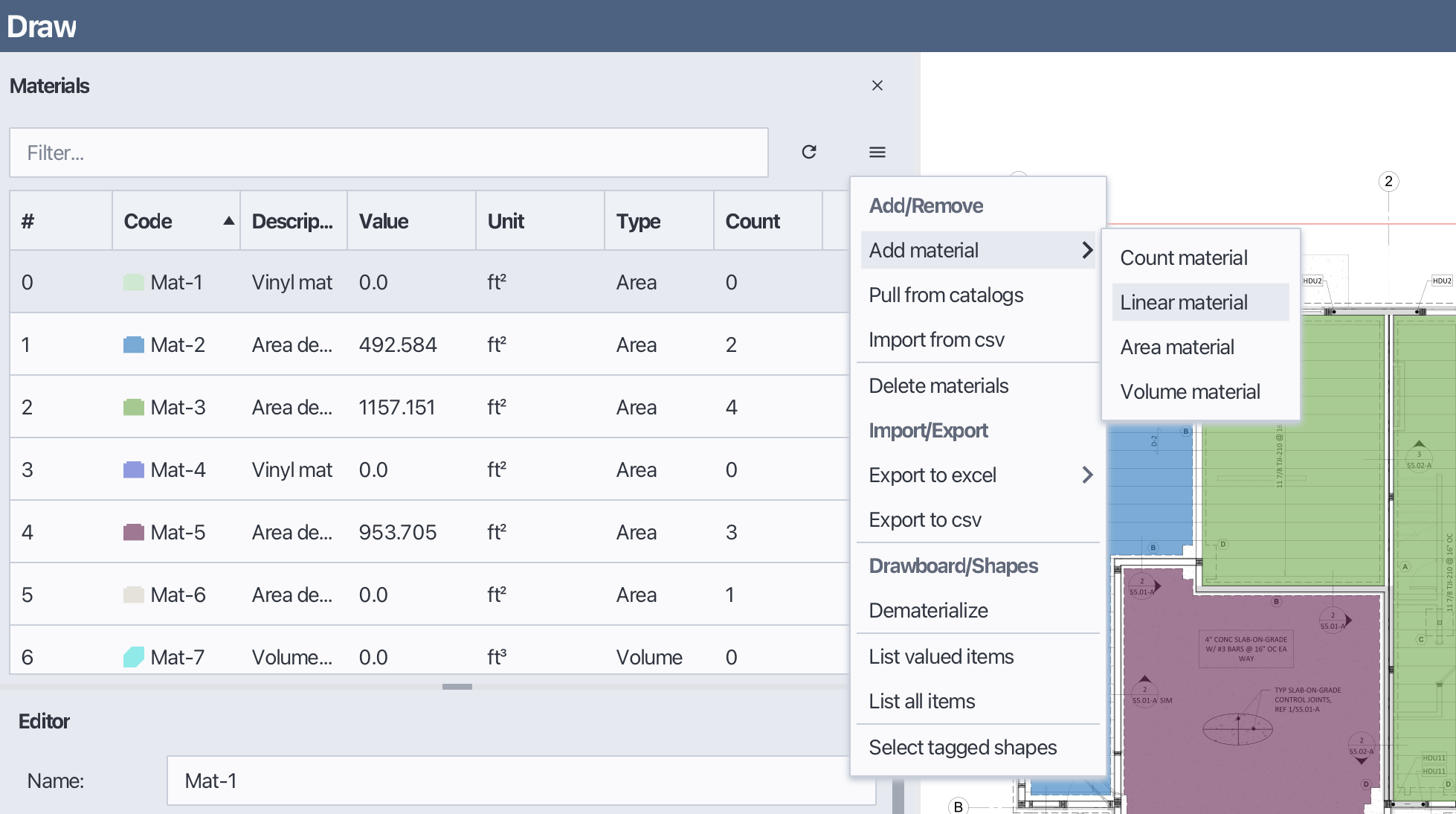
To add a new material to your project, follow these steps:
Open the Materials panel.
Open the Material Menu or right-click to open context menu.
Hover Add Material and then select the material type you wanted to add Count material, Linear material, Area linear or Volume linear.
Once the material is added, you can edit its properties such as name, type and description in the Properties panel.
Add a new material
4.2 Edit material properties
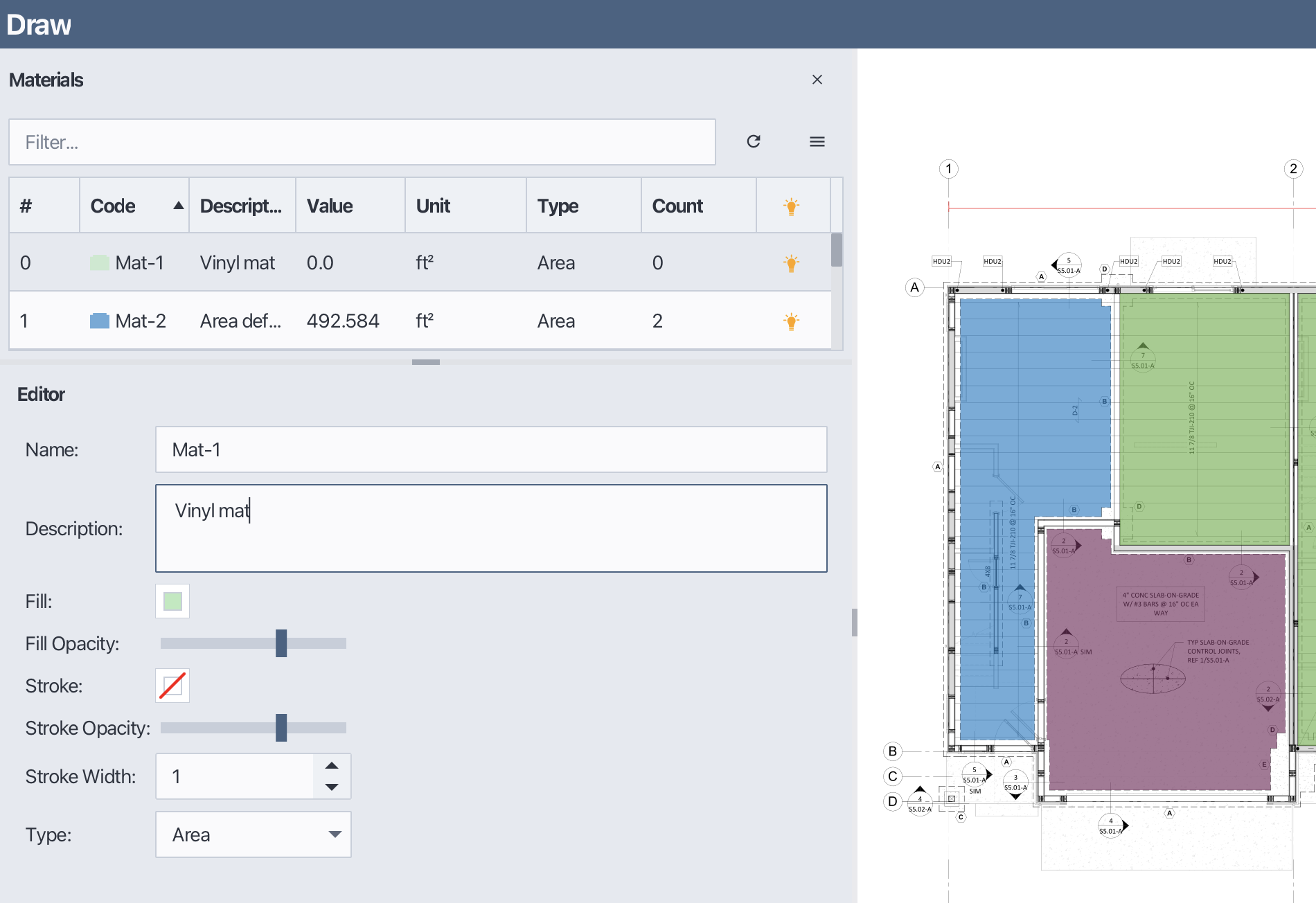
To edit the properties of an existing material, follow these steps:
Select the material you want to edit from the Materials table.
In the Properties panel, modify the desired properties such as name, type, description, and type, fill color, stroke color...
Edit material
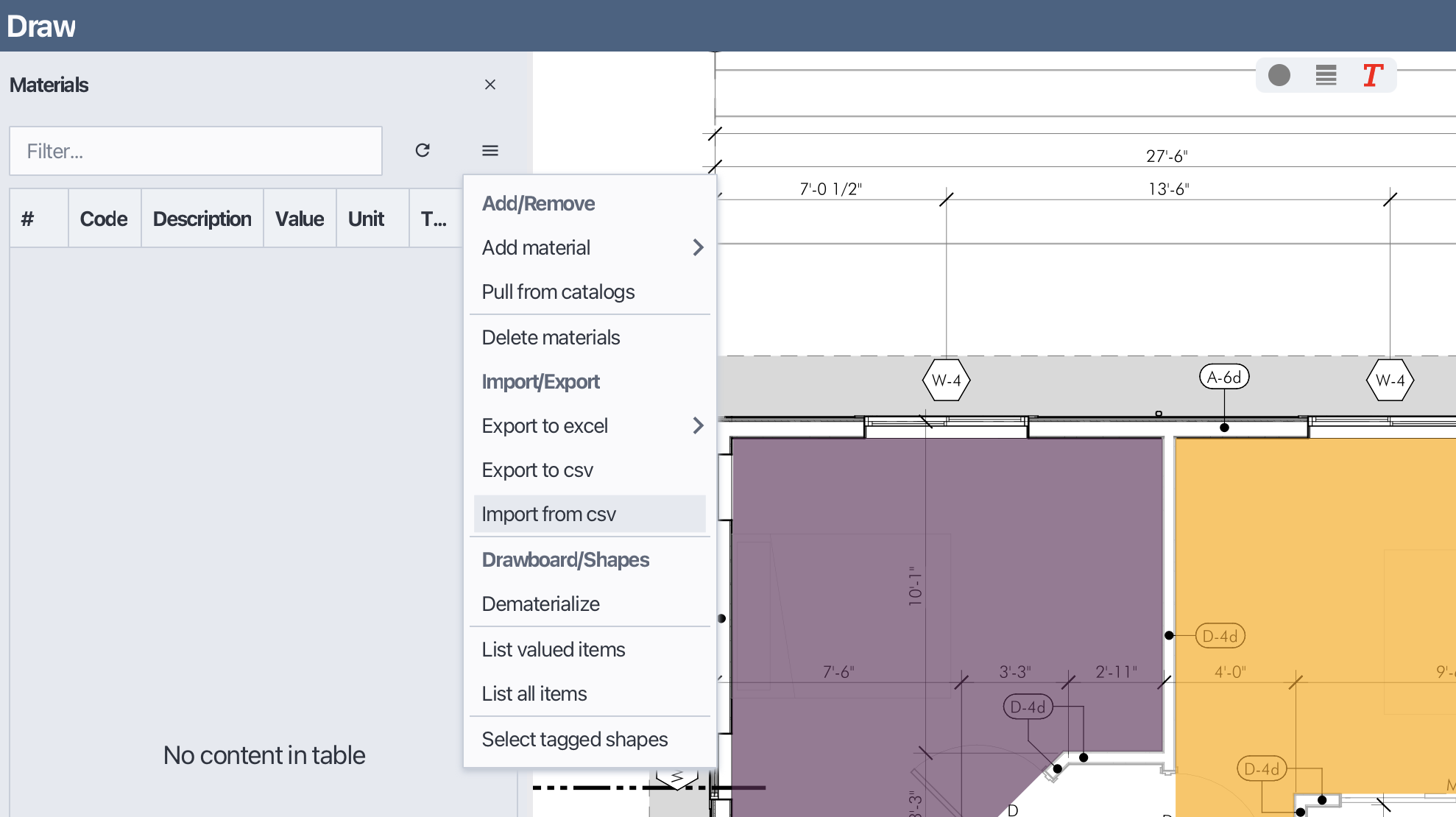
4.3 Import materials
In Bluegrid, you can import materials from CSV files into your current project. To import materials, follow these steps:
Open the Materials panel.
Open the Material Menu or right-click to open context menu.
Select Import Materials from CSV.
In the file selection dialog, choose the CSV file containing the materials you want to import.
Click OK to complete the import process.
Import materials
4.4 Pull materials from catalog
To pull materials from another catalog into your current project, follow these steps:
Open the Materials panel.
Open the Material Menu or right-click to open context menu.
Select Pull Materials.
In the Pull Materials dialog, select the catalog from which you want to pull materials.
Choose the materials you want to import and click Pull to add them to your project.
Pull materials
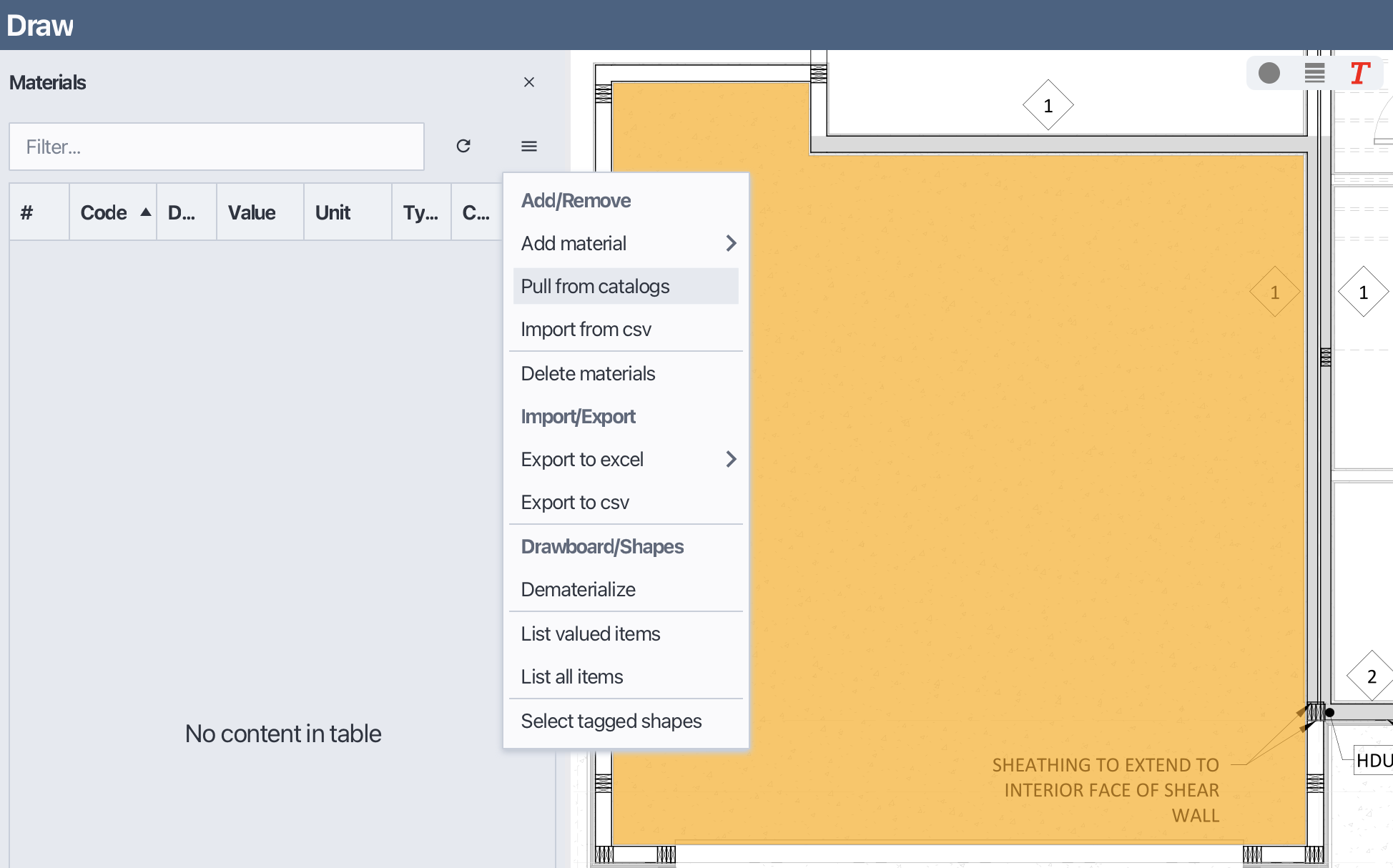
Select catalog item to pull materials

4.5 Delete materials
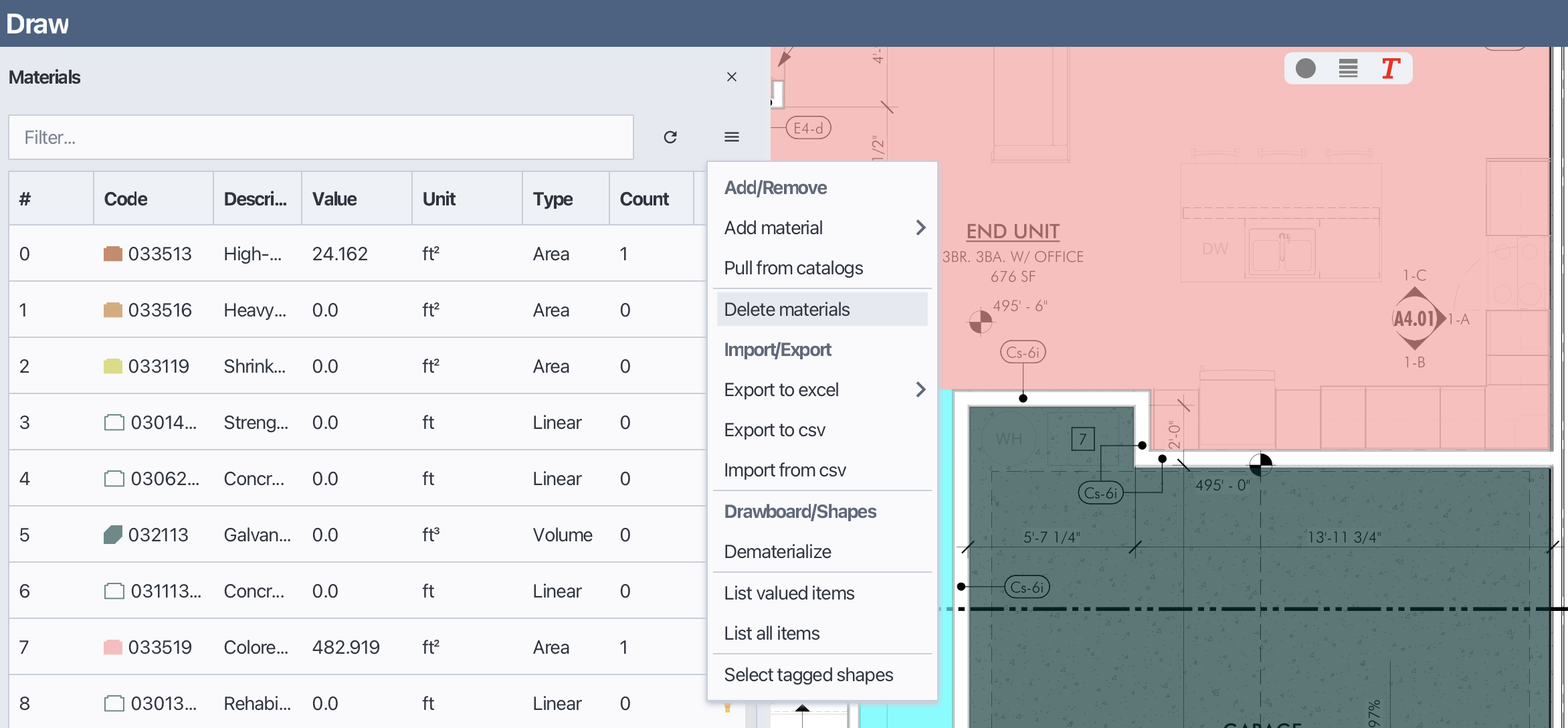
To delete an existing material from your current page, follow these steps:
Open the Materials panel.
Select the material you want to delete from the Materials table.
Open the Material Menu or right-click to open context menu.
Select Delete Material.
Delete material
4.6 Export materials as templates
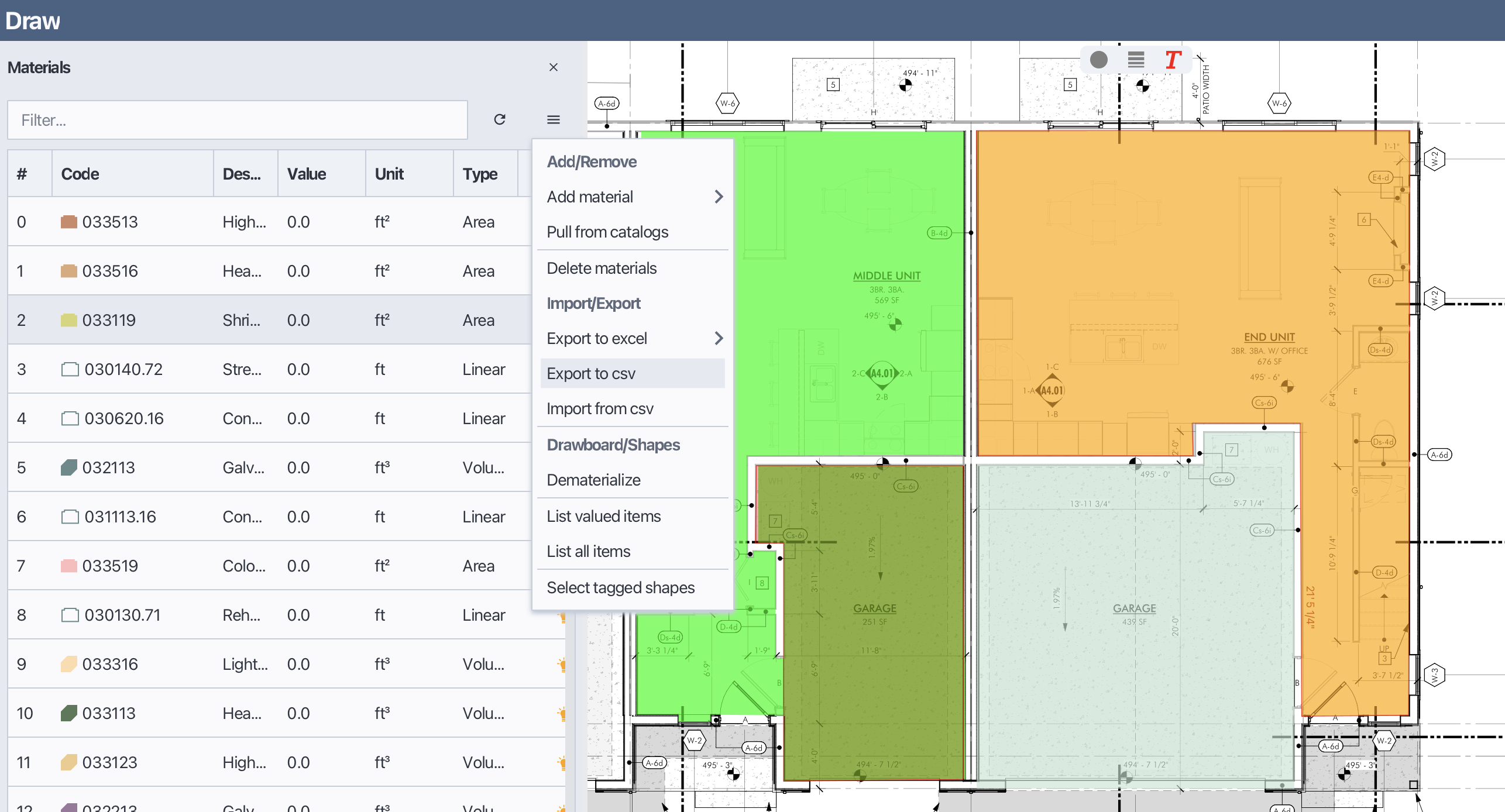
In Bluegrid, you can export materials as templates for use in other pages or projects. To export materials, follow these steps:
Open the Materials panel.
Open the Material Menu or right-click to open context menu.
Select Export Materials to CSV.
In the Export Materials dialog, choose the destination folder and file name for the exported materials.
Click OK to complete the export process.
Export materials
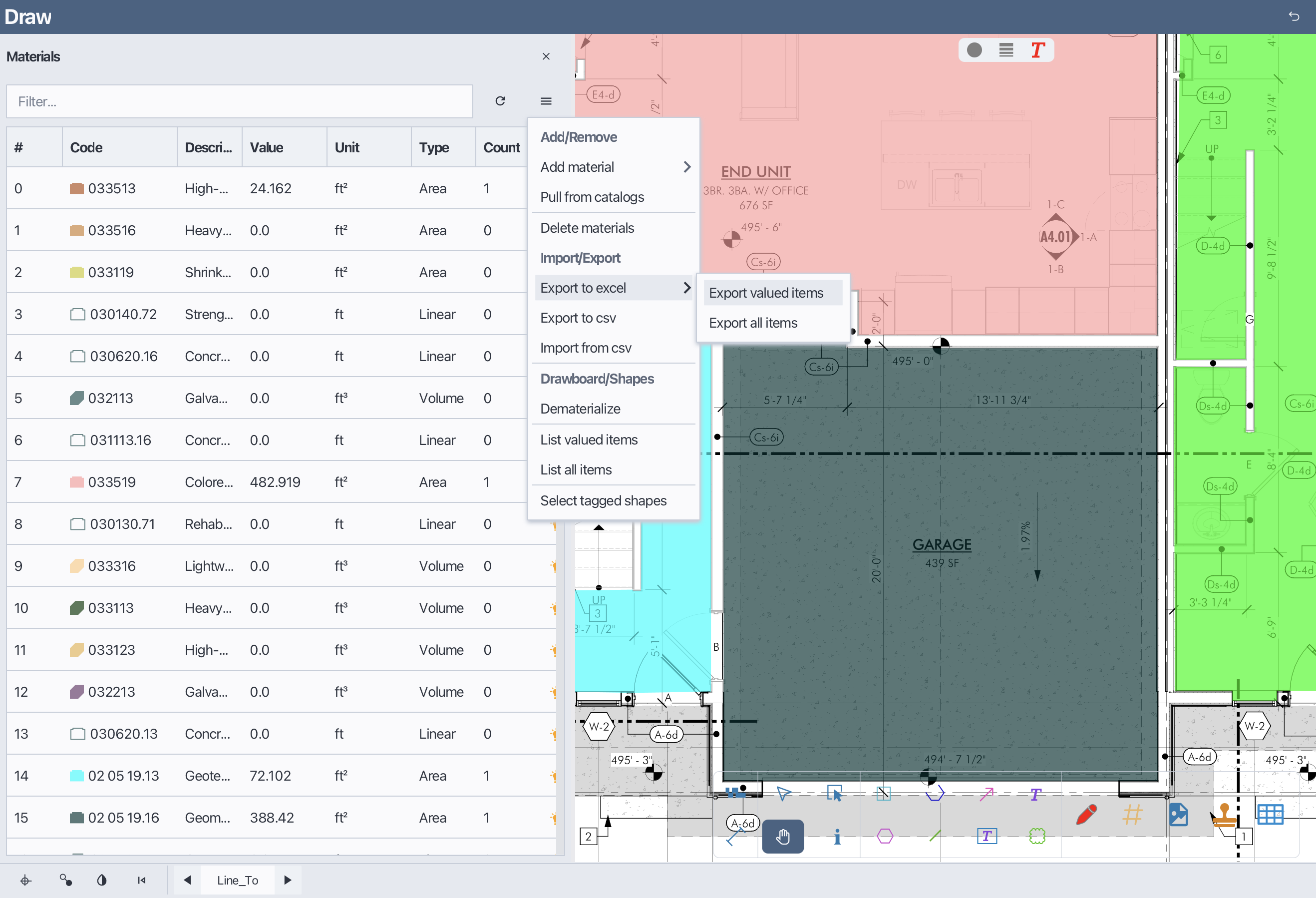
4.7 Export page quantity report to excel
In Bluegrid, you can export the quantity report of your materials to an Excel file for further analysis and documentation. To export the quantity report, follow these steps:
Open the Materials panel.
Open the Material Menu or right-click to open context menu.
Select Export Quantity Report to Excel.
In the Export Quantity Report dialog, choose the destination folder and file name for the exported report.
Click OK to complete the export process.
Export quantity report to excel
4.8 Assign materials to shapes
In Bluegrid, shapes drawn on your PDF pages can be assigned to specific materials for accurate quantity takeoffs. By assigning a material to a shape, the shape's measurements will contribute to the total quantity of the associated material. To assign a material to a shape on your drawing, follow these steps:
Open the Materials panel.
Move mouse to the desired material in the Materials table.
Click and hold the left mouse button on the material.
Drag the material onto the shape you want to assign it to.
Release the mouse button to complete the assignment.
Besides drag-and-drop method, you can also assign a material to a shape by selecting the material before drawing the shape. The selected material will be automatically assigned to the shape once it is created.
Assign material to shape

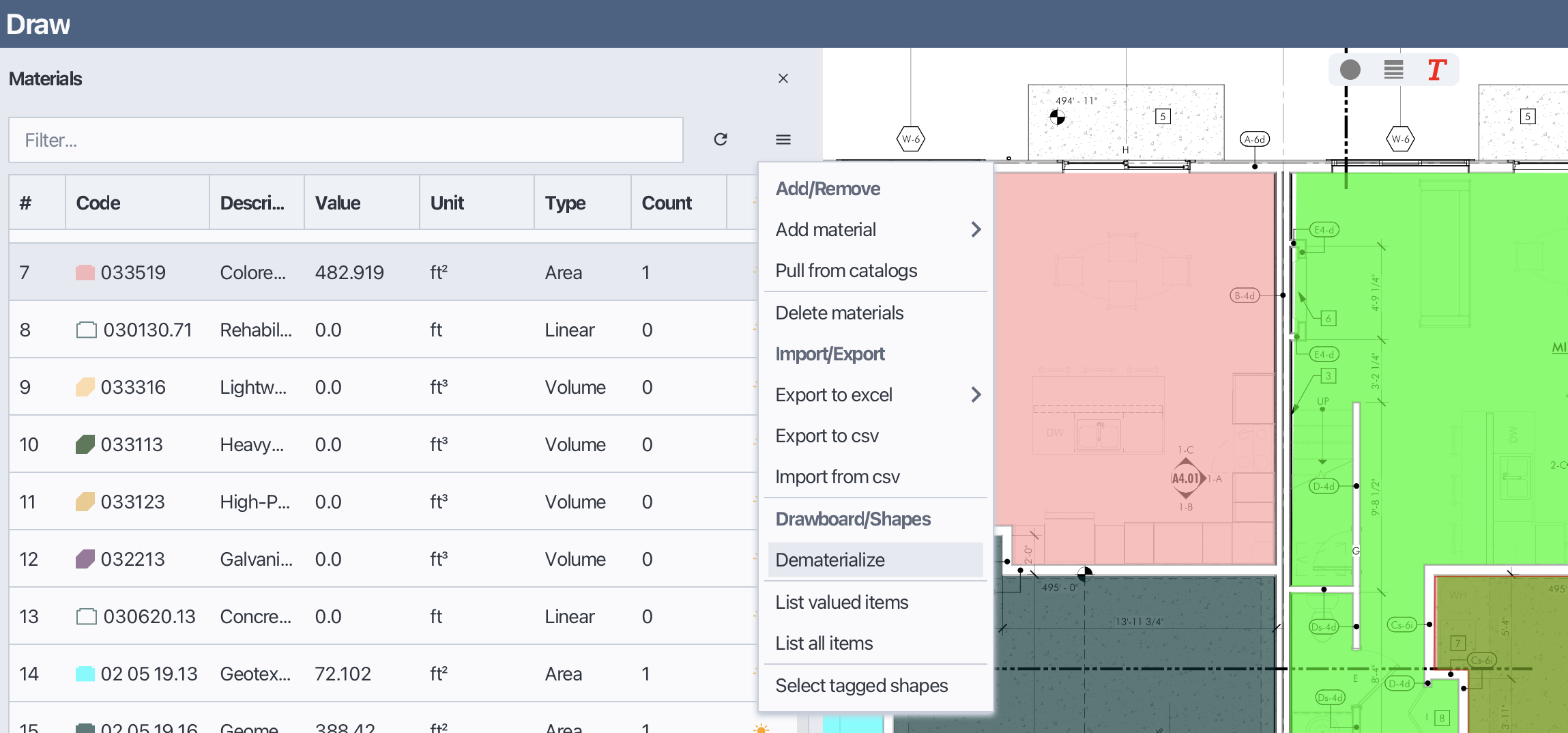
4.9 Remove shapes from materials
In Bluegrid, you can unassign a material from a shape if you need to change the material assignment or if the shape no longer requires a material association. To unassign a material from a shape, follow these steps:
Select the shape from which you want to unassign the material.
Open the Materials panel.
Open the Material Menu or right-click to open context menu.
Select Dematerialize.
Unassign material from shape
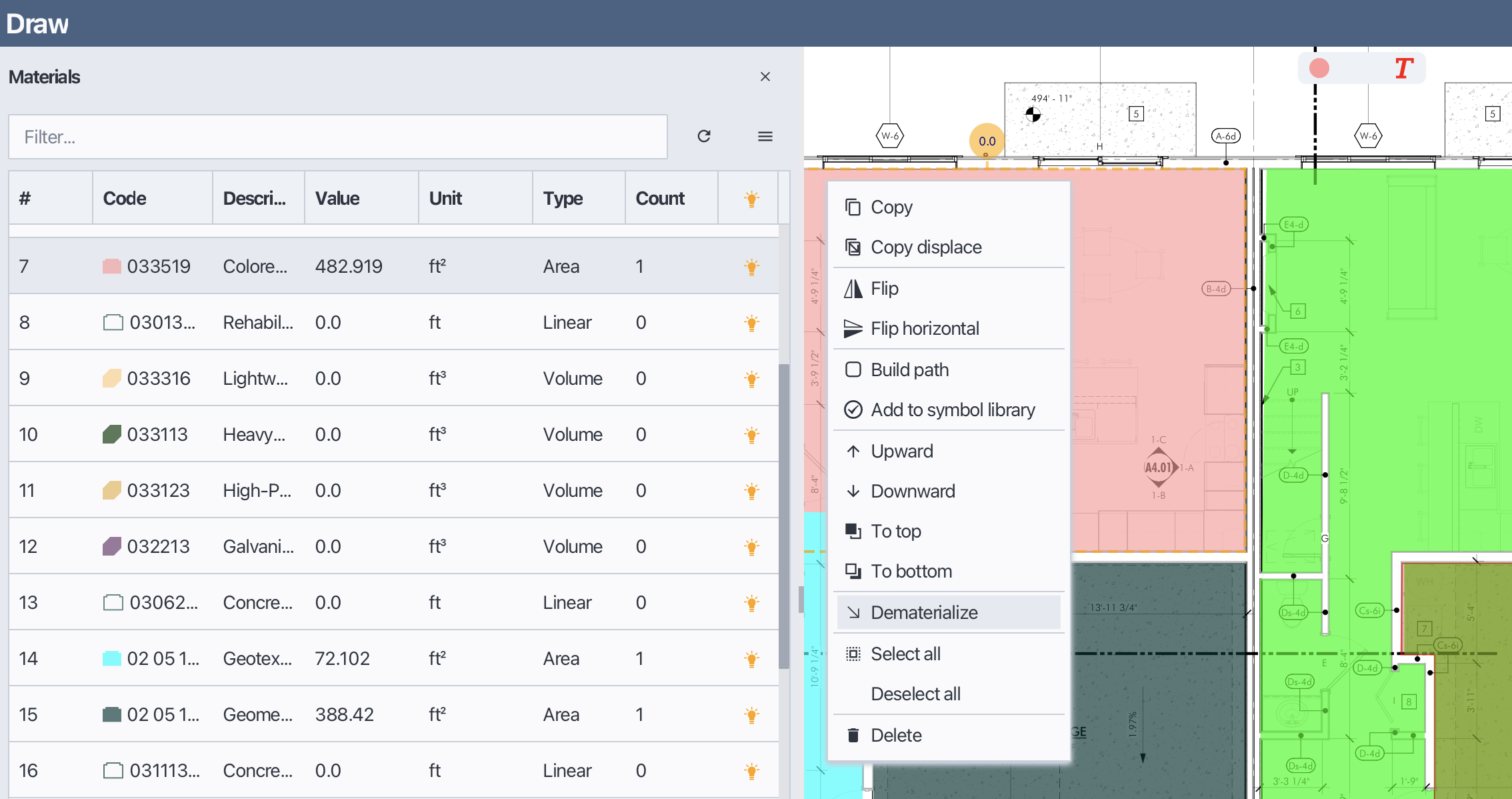
4.10 Unsubscribe shapes to no material
In Bluegrid, you can unsubscribe shapes from any material, effectively removing their association with all materials. This is useful when you want to reset the material assignments for specific shapes. To unsubscribe shapes from all materials, follow these steps:
Select the shapes you want to unsubscribe from materials.
Open draw menu or right-click to open context menu.
Select Dematerialize menu item.
Unsubscribe shapes from all materials
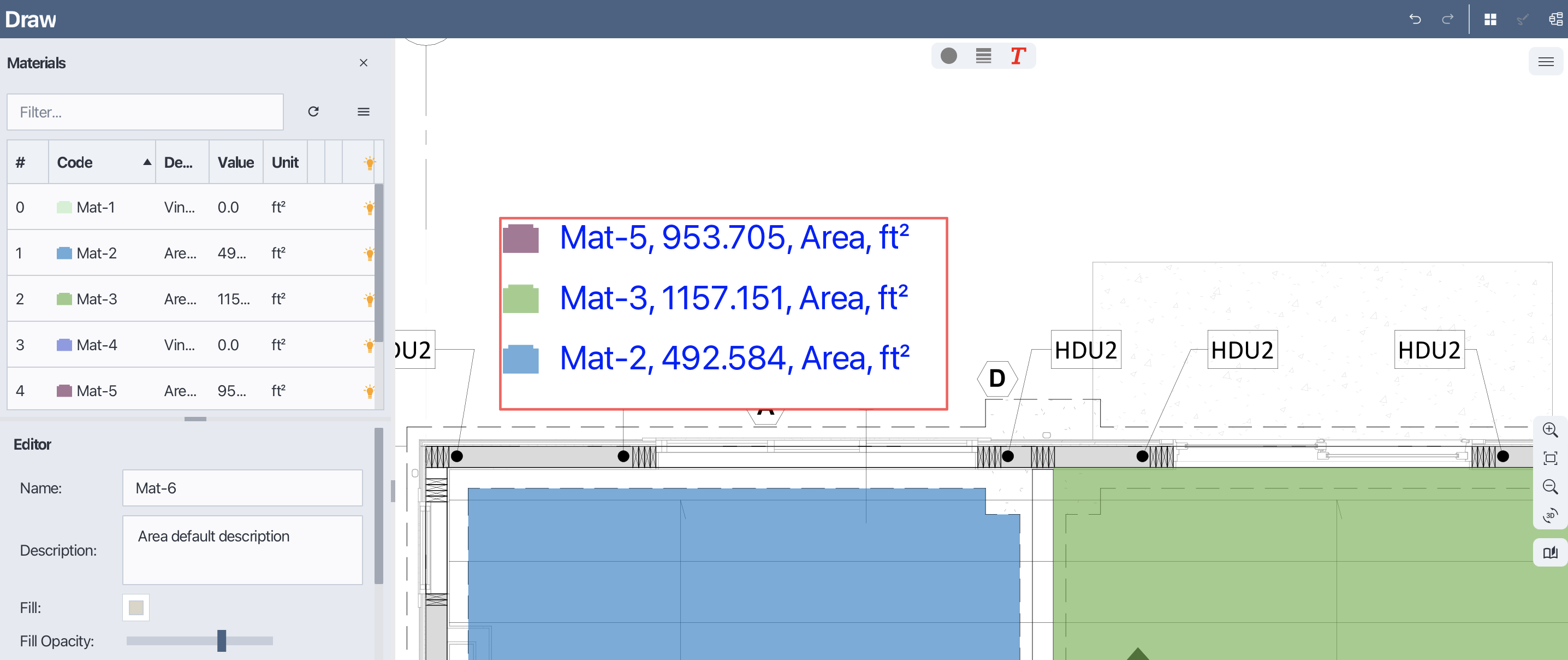
4.11 List page quantity report
In Bluegrid, you can view a detailed quantity report for the materials used on the current page on PDF. To list the page quantity report, follow these steps:
Open the Materials panel.
Open the Material Menu or right-click to open context menu.
Select List Valued items / List all items.
The quantity list will be added to the drawboard as an annotation and can be exported along with the PDF page.
List page quantity report
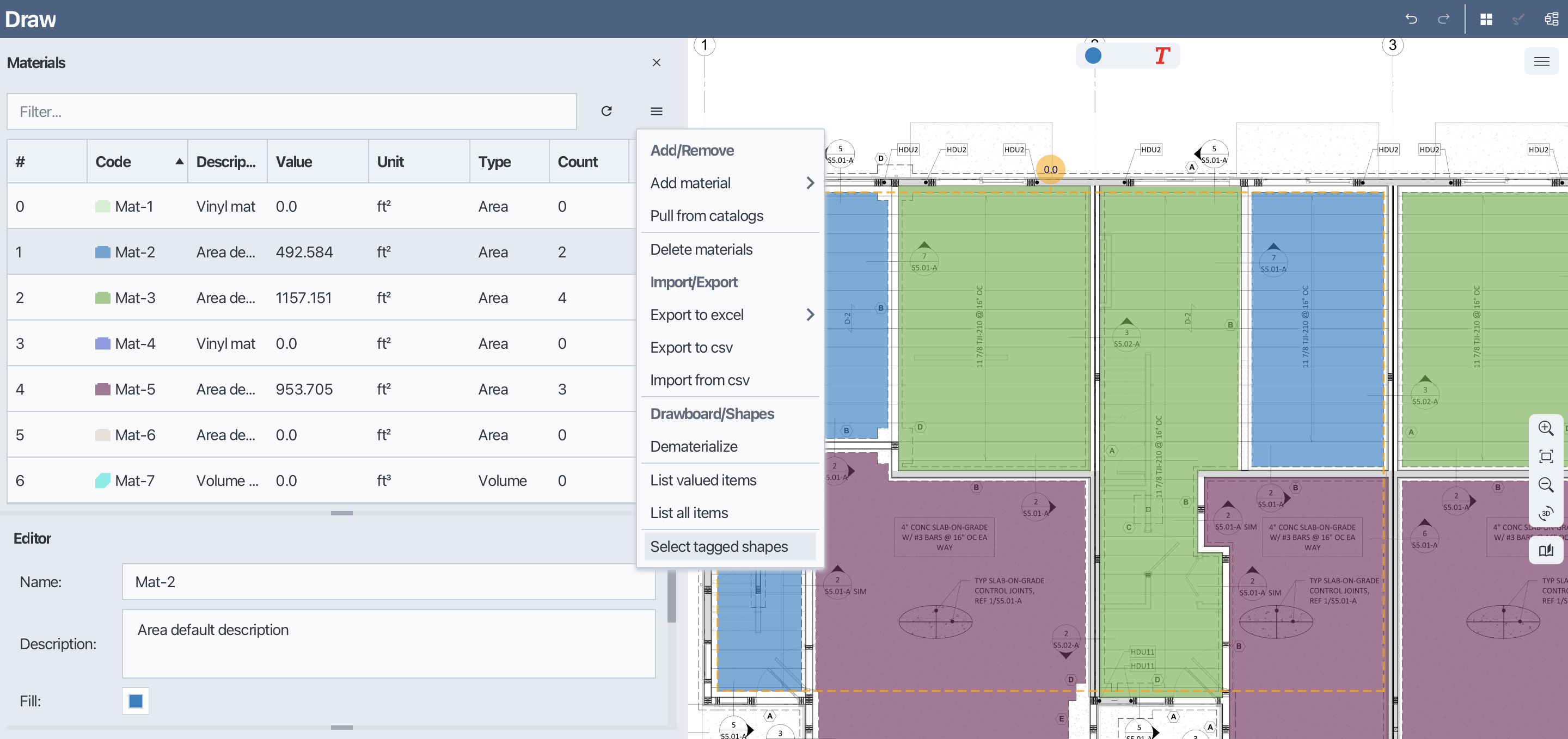
4.12 Select shapes by material
In Bluegrid, you can select all shapes that are assigned to a specific material. This feature is useful for quickly identifying and manipulating shapes associated with a particular material. To select shapes by material, follow these steps:
Open the Materials panel.
Select the material whose associated shapes you want to select from the Materials table.
Open the Material Menu or right-click to open context menu.
Select item Select tagged shapes.
Select shapes by material
4.13 Sort materials
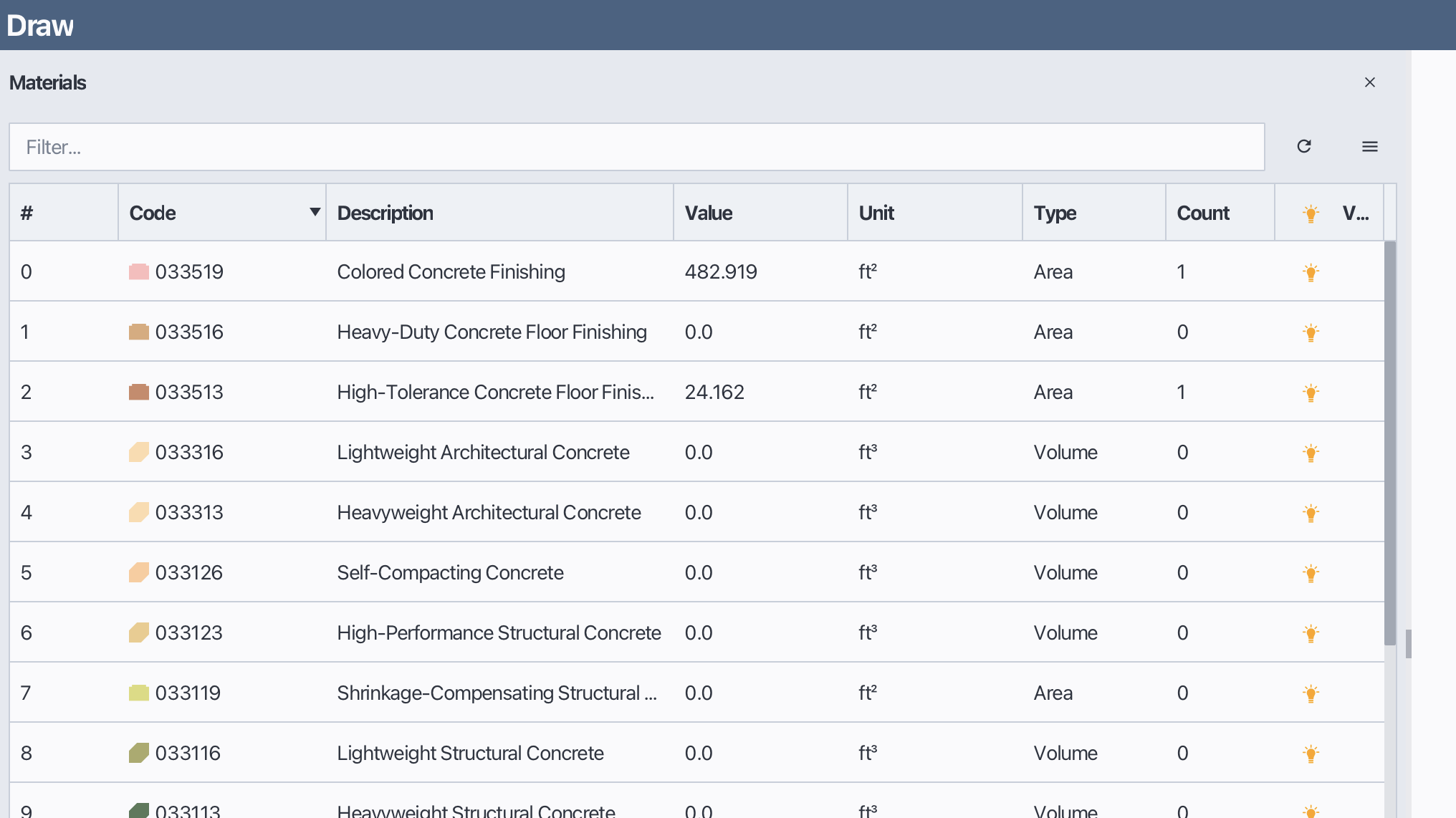
In Bluegrid, you can sort the materials in the Materials table either by clicking to a column header of the material table. Sorting materials helps you organize and find specific materials more easily. To sort materials, follow these steps:
Open the Materials panel.
Click to the column header you want to sort by, such as Name, Type, Quantity, Description, etc.
Sort again to reverse sorting.
Sort materials
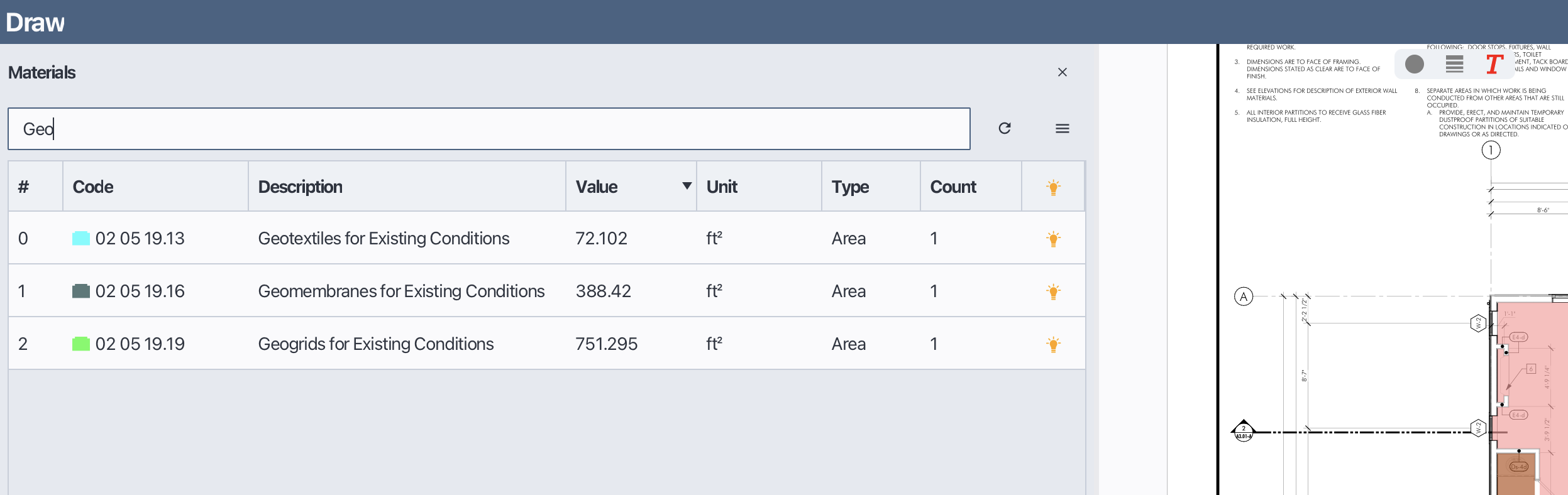
4.14 Filter materials
In Bluegrid, you can filter the materials in the Materials table to display only those that meet specific criteria. This feature helps you quickly find and manage materials based on your needs. To filter materials, follow these steps:
Open the Materials panel.
Type the desired filter criteria into the filter box located at the top of the Materials table.
The Materials table will automatically update to show only the materials that match the filter criteria.
Filter materials